RBAC - Role-Based Access Control
Configure role-based permissions to control who can access and manage resources within your workspace.
Overview
RBAC (Role-Based Access Control) allows you to define custom roles with specific permissions, providing fine-grained control over workspace access.
Location: Access RBAC from Workspaces > {workspace-name} > Roles
URL:
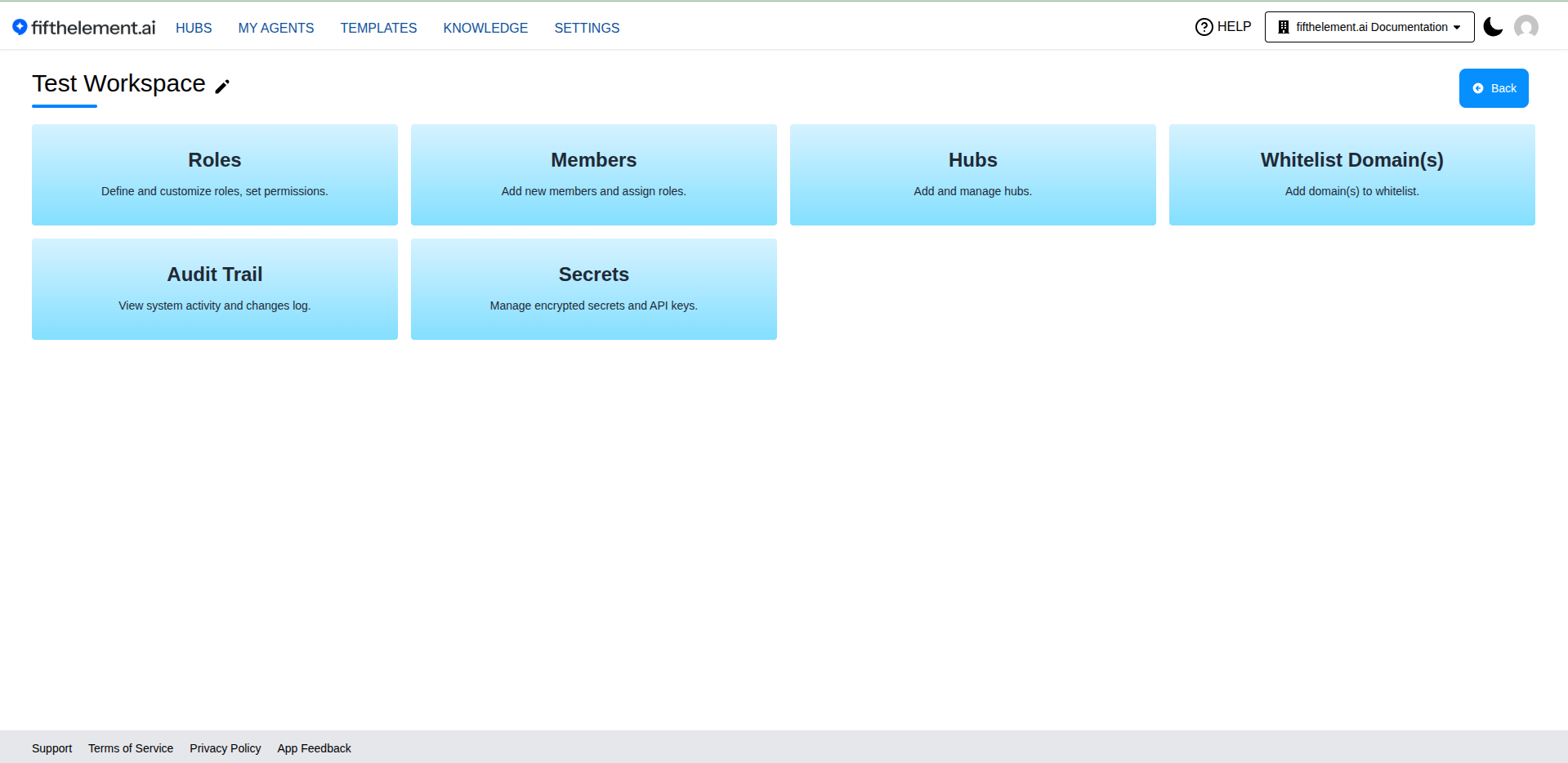 Click the "Roles" card in your workspace to manage RBAC
Accessing RBAC Settings
Step 1: Navigate to Your Workspace
- Click the workspace selector in the top-right corner
- Select the workspace you want to configure
- You'll be taken to the workspace dashboard
Step 2: Open Roles Management
- On the workspace dashboard, locate the Roles card
- Click on the Roles card
- You'll see a list of all roles in this workspace
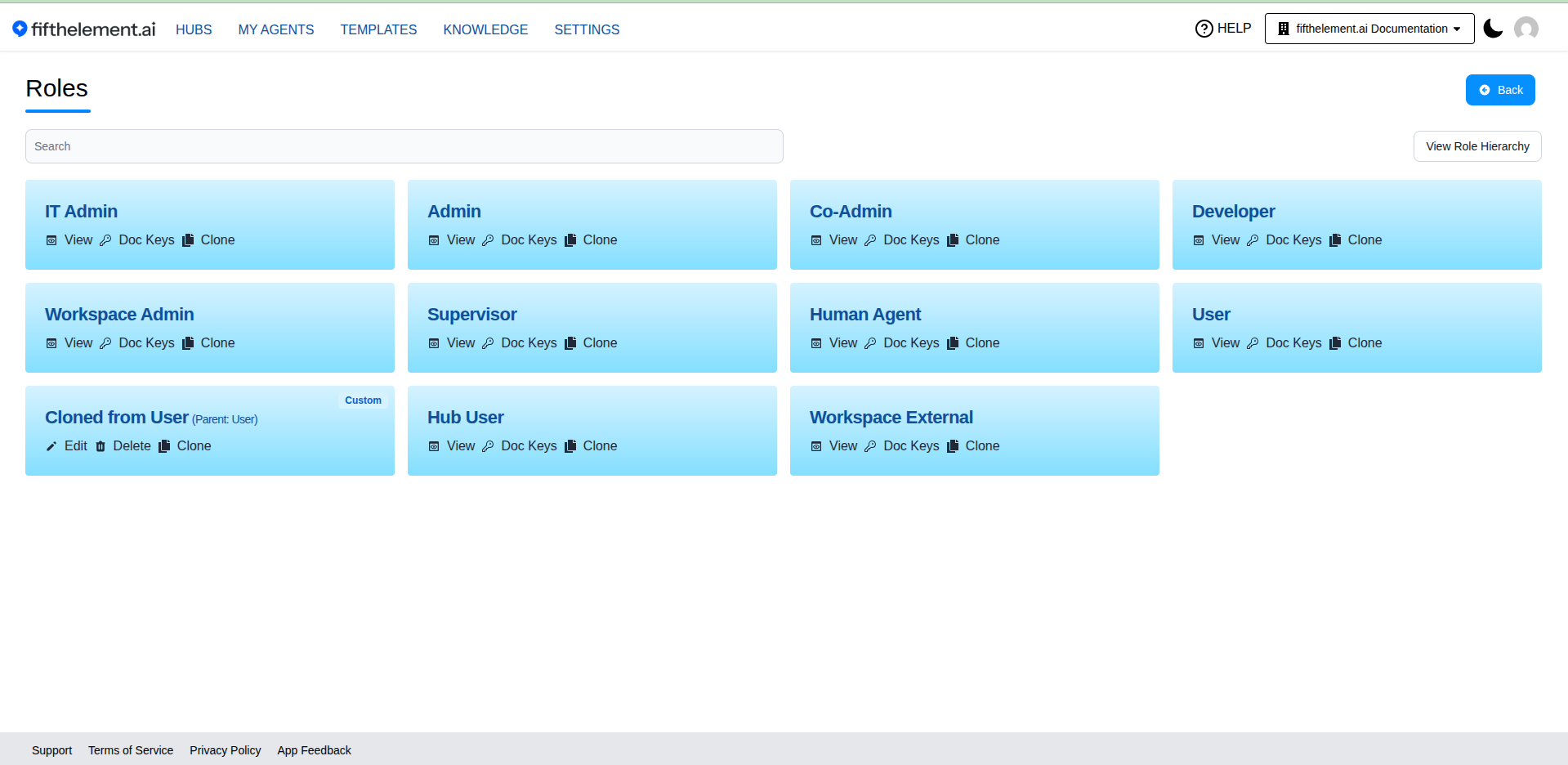 List of roles with options to View, Edit, Clone, and Delete
Default Roles
Every workspace comes with three built-in roles:
Admin
Full workspace access including: - ✅ Create, edit, delete agents - ✅ Manage knowledge bases - ✅ Invite and remove members - ✅ Configure RBAC and create custom roles - ✅ Access all workspace settings - ✅ View analytics and logs
Use Case: Workspace owners and team leads
Member
Standard user access including: - ✅ Create and edit their own agents - ✅ Upload documents to knowledge bases - ✅ View workspace agents and knowledge - ❌ Cannot manage members or roles - ❌ Cannot modify workspace settings
Use Case: Content creators, developers, regular team members
Viewer
Read-only access including: - ✅ View agents and their configurations - ✅ Browse knowledge bases - ✅ Access analytics (read-only) - ❌ Cannot create or edit any resources - ❌ Cannot upload documents - ❌ Cannot invite members
Use Case: Stakeholders, auditors, external consultants
Managing Roles
Viewing a Role
- In the Roles list, click View on any role
- See all permissions assigned to that role
- See members currently assigned this role
Editing a Role
- Click Edit on the role you want to modify
- Adjust permissions using the permission matrix
- Click Save to apply changes
Cannot Edit Default Roles
The built-in Admin, Member, and Viewer roles cannot be edited. Clone them to create custom roles.
Cloning a Role
Purpose: Create a custom role based on an existing one
Steps: 1. Click Clone on the role you want to copy 2. Enter a new name for the custom role 3. Modify permissions as needed 4. Click Save
Example:
Clone "Member" role → "Content Editor"
Permissions:
- Can edit agents: ✅
- Can delete agents: ❌ (removed)
- Can upload knowledge: ✅
- Can invite members: ❌
Creating a Custom Role from Scratch
- Click Create New Role button
- Enter role name and description
- Select permissions from the permission matrix
- Click Save
Deleting a Role
- Click Delete on the custom role
- Confirm deletion
Members Must Be Reassigned
Before deleting a role, ensure all members using that role are reassigned to another role. Otherwise, they'll lose workspace access.
Permission Matrix
Agent Permissions
| Permission | Description | Admin | Member | Viewer |
|---|---|---|---|---|
| View Agents | See all workspace agents | ✅ | ✅ | ✅ |
| Create Agents | Create new agents | ✅ | ✅ | ❌ |
| Edit Own Agents | Edit agents they created | ✅ | ✅ | ❌ |
| Edit All Agents | Edit any workspace agent | ✅ | ❌ | ❌ |
| Delete Own Agents | Delete agents they created | ✅ | ✅ | ❌ |
| Delete All Agents | Delete any workspace agent | ✅ | ❌ | ❌ |
| Clone Agents | Clone existing agents | ✅ | ✅ | ❌ |
| Deploy Agents | Publish agents to channels | ✅ | ✅ | ❌ |
Knowledge Permissions
| Permission | Description | Admin | Member | Viewer |
|---|---|---|---|---|
| View Knowledge | Browse repositories and documents | ✅ | ✅ | ✅ |
| Upload Documents | Add documents to repositories | ✅ | ✅ | ❌ |
| Edit Documents | Modify existing documents | ✅ | ✅ | ❌ |
| Delete Documents | Remove documents | ✅ | ❌ | ❌ |
| Create Repositories | Create new knowledge repositories | ✅ | ✅ | ❌ |
| Delete Repositories | Remove repositories | ✅ | ❌ | ❌ |
Workspace Management
| Permission | Description | Admin | Member | Viewer |
|---|---|---|---|---|
| View Members | See workspace members | ✅ | ✅ | ✅ |
| Invite Members | Add new members | ✅ | ❌ | ❌ |
| Remove Members | Remove members from workspace | ✅ | ❌ | ❌ |
| Manage Roles | Create and edit RBAC roles | ✅ | ❌ | ❌ |
| Configure Workspace | Edit workspace settings | ✅ | ❌ | ❌ |
| View Analytics | Access workspace analytics | ✅ | ✅ | ✅ |
| Export Data | Export conversations and data | ✅ | ❌ | ❌ |
Hub Permissions
| Permission | Description | Admin | Member | Viewer |
|---|---|---|---|---|
| View Hubs | See all workspace hubs | ✅ | ✅ | ✅ |
| Create Hubs | Create new hubs | ✅ | ✅ | ❌ |
| Edit Hubs | Modify hub configuration | ✅ | ✅ | ❌ |
| Delete Hubs | Remove hubs | ✅ | ❌ | ❌ |
| Assign Agents to Hubs | Add/remove agents from hubs | ✅ | ✅ | ❌ |
Custom Role Examples
Example 1: Content Manager
Use Case: Team member who manages knowledge but doesn't create agents
Permissions: - ✅ View all agents (read-only) - ✅ Upload documents - ✅ Edit documents - ✅ Create repositories - ❌ Create/edit agents - ❌ Invite members
How to Create: 1. Clone the "Member" role 2. Name it "Content Manager" 3. Remove agent creation/editing permissions 4. Keep all knowledge permissions
Example 2: Agent Developer
Use Case: Developer who builds agents but doesn't manage content
Permissions: - ✅ Create and edit agents - ✅ Deploy agents - ✅ View knowledge (read-only) - ❌ Upload or edit documents - ❌ Manage members or roles
How to Create: 1. Clone the "Member" role 2. Name it "Agent Developer" 3. Remove knowledge upload/edit permissions 4. Keep all agent permissions
Example 3: Hub Manager
Use Case: Organizes agents into hubs but doesn't create agents
Permissions: - ✅ View all agents - ✅ Create and edit hubs - ✅ Assign agents to hubs - ❌ Create or edit agents - ❌ Manage workspace settings
How to Create: 1. Clone the "Member" role 2. Name it "Hub Manager" 3. Remove agent creation/editing 4. Keep hub management permissions
Example 4: Analytics Viewer
Use Case: Stakeholder who needs to see metrics but not modify anything
Permissions: - ✅ View agents - ✅ View knowledge - ✅ View analytics - ✅ Export reports - ❌ Create, edit, or delete anything
How to Create: 1. Clone the "Viewer" role 2. Name it "Analytics Viewer" 3. Add export permissions 4. Keep everything else read-only
Assigning Roles to Members
During Invitation
When inviting a new member: 1. Enter their email address 2. Select the role from the dropdown 3. Click Send Invitation
For Existing Members
To change a member's role: 1. Navigate to Workspaces > {workspace} > Members 2. Find the member in the list 3. Click Edit or the role dropdown 4. Select the new role 5. Click Save
Best Practices
Security
Principle of Least Privilege
Always assign the minimum permissions needed for a user to perform their job. Start with Viewer and add permissions as needed.
Limit Admin Access
Only assign Admin role to trusted team leads and workspace owners. Too many admins increase security risk.
Organization
Descriptive Role Names
Use clear, descriptive names for custom roles: - ✅ "Content Editor - Support Docs" - ✅ "Agent Developer - Sales Team" - ❌ "Custom Role 1" - ❌ "Role ABC"
Document Custom Roles
Add descriptions to custom roles explaining their purpose and typical users.
Maintenance
Regular Audits
Quarterly review: - Who has Admin access - Members with custom roles - Unused or outdated roles
Remove Inactive Members
Revoke workspace access for members who've left the team or project.
Common Scenarios
Scenario 1: Freelancer Access
Requirement: Give a freelancer temporary access to build agents
Solution: 1. Create custom role: "Freelancer - Agent Builder" 2. Permissions: - Can create and edit agents: ✅ - Can view knowledge: ✅ (read-only) - Cannot invite members: ❌ - Cannot delete agents: ❌ 3. Set expiration reminder for their access
Scenario 2: Cross-Team Collaboration
Requirement: Sales team needs read access to Support team's workspace
Solution: 1. Invite Sales team members to Support workspace 2. Assign "Viewer" role 3. They can see agents and knowledge but not modify
Scenario 3: Intern with Limited Access
Requirement: Intern can upload documents but cannot deploy agents
Solution: 1. Clone "Member" role → "Intern" 2. Permissions: - Upload documents: ✅ - Create agents: ✅ - Deploy agents: ❌ (removed) - Delete anything: ❌ (removed)
Scenario 4: Multi-Client Agency
Requirement: Each client manager manages only their client's agents
Solution: 1. Create separate workspaces per client 2. Assign client managers as "Admin" in their client's workspace 3. Assign as "Viewer" in other clients' workspaces (for reference)
Troubleshooting
Cannot Access Roles Settings
Issue: "Roles" card not visible or clicking does nothing
Solutions: - Verify you have Admin role in the workspace - Only Admins can view and manage RBAC - Contact workspace owner for Admin access
Role Changes Not Applying
Issue: Updated permissions but member still has old access
Solutions: - Member must sign out and sign back in - Role changes may take up to 5 minutes to propagate - Clear browser cache and refresh
Cannot Delete Custom Role
Issue: Delete button is greyed out
Solutions: - Check if members are still assigned this role - Reassign all members to different roles first - Cannot delete default roles (Admin, Member, Viewer)
Permission Denied Error
Issue: Member sees "Permission Denied" when trying to perform action
Solutions: - Verify their role has the required permission - Check workspace RBAC settings - Confirm they're in the correct workspace
Related Topics
- Workspaces Overview - Workspace management and organization
- Hubs - User Access - Hub-specific permissions
- Hubs - Creating Hubs - Admin role required
- Settings > SSO - Platform-wide authentication
- My Agents - Agent creation and management