Runs
Start a task, follow its run while it works, and read what it left behind.
The Task Page
Open a task from All Tasks or Scheduled. The task page shows Next Run, Last Run, Output and Limits at the top, the Enabled switch, the Runs table (status, started, started by, duration, turns and cost), the Schedule card, the Instruction, What a Run Can Reach and Output and Limits.
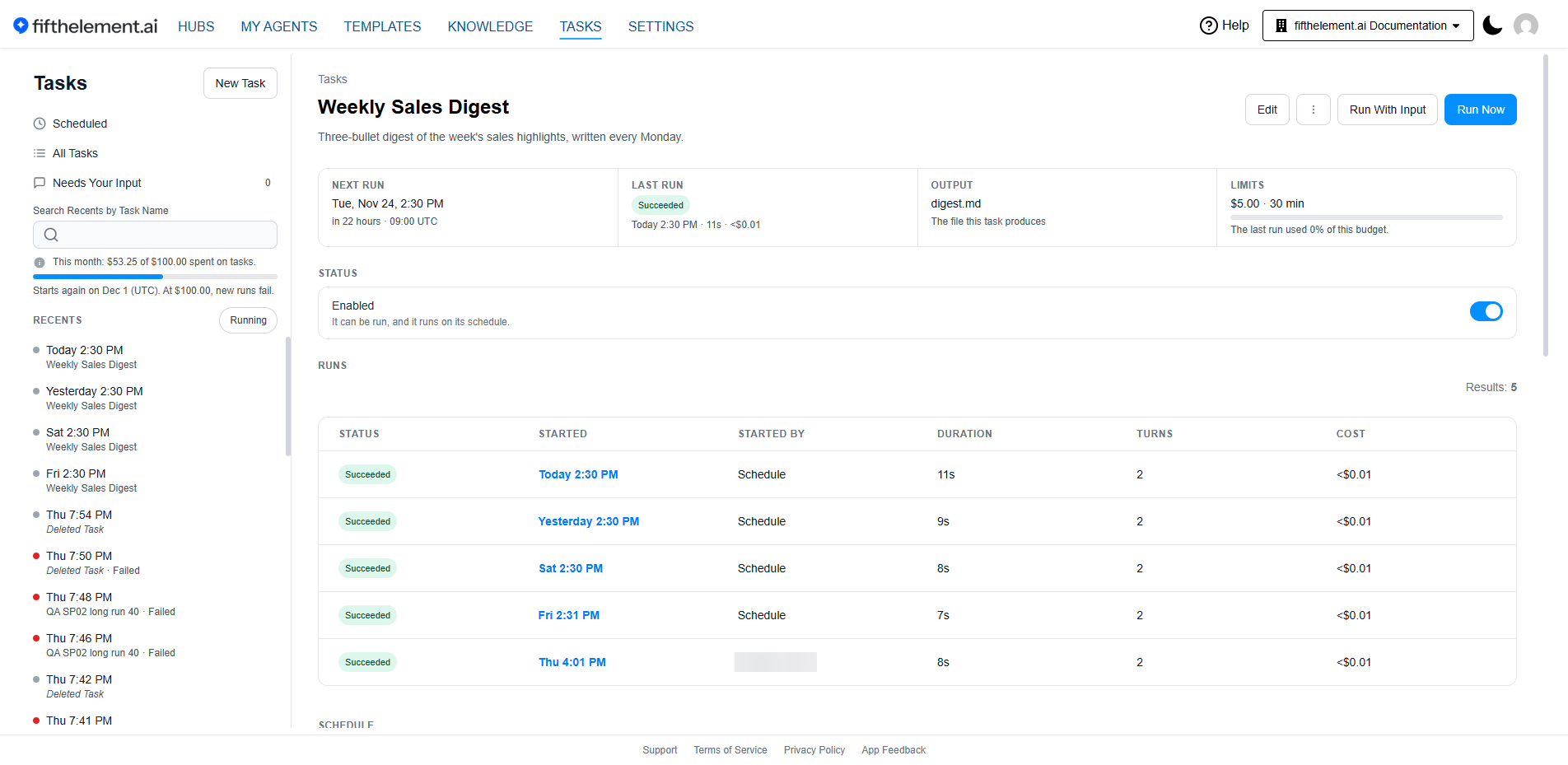
A scheduled task's page. The run starter's name is blurred.
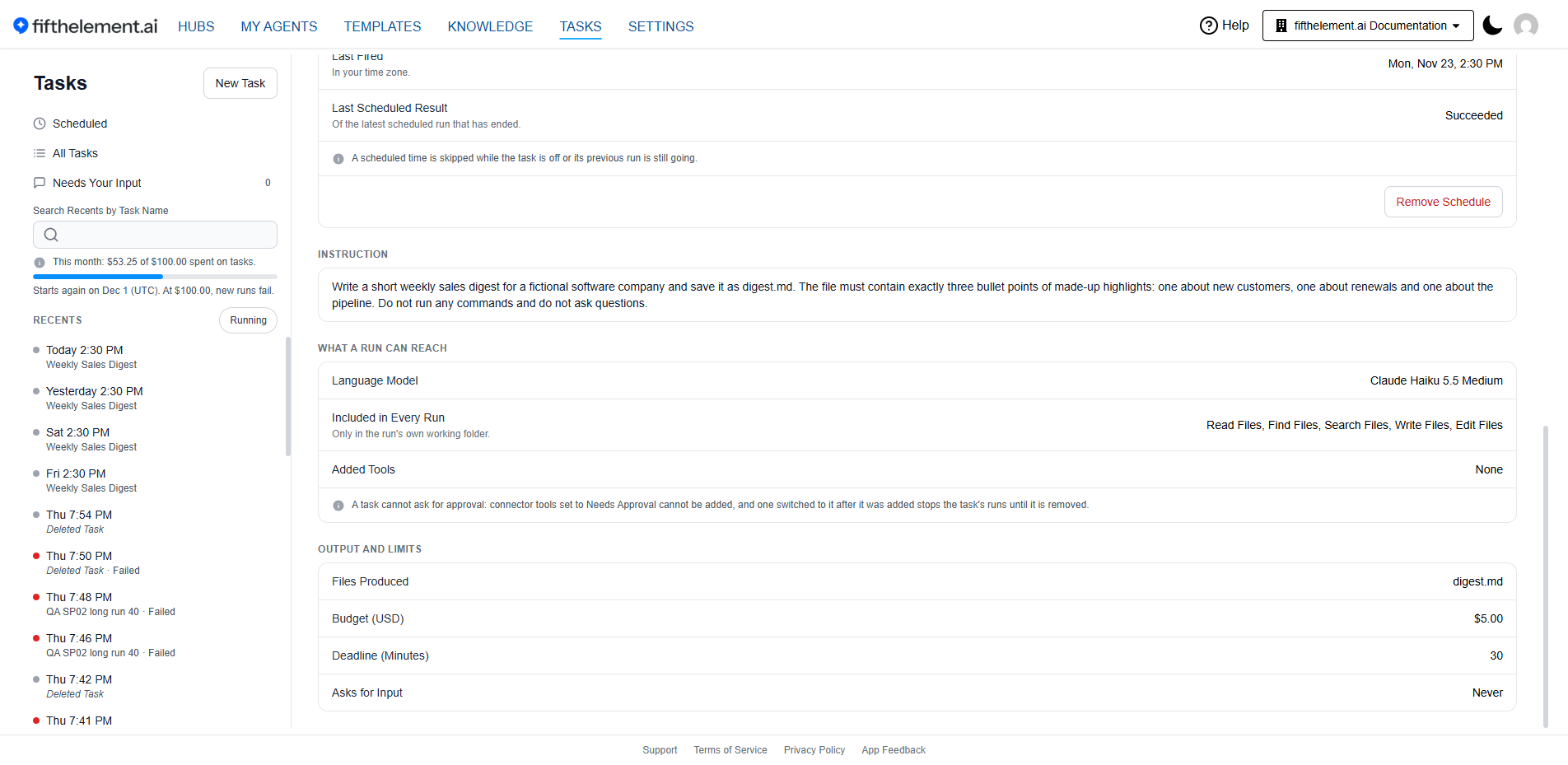
What a Run Can Reach lists the model, the file tools included in every run, added tools, connectors and Knowledge Bases, with Read Only, May Change Data and Runs Any Command marks where they apply.
Starting a Run
| Way to start | Where |
|---|---|
| Run Now | The task page, or the row on All Tasks and Scheduled |
| Run With Input | The task page. Adds a message and attached files (text, PDF, Office documents and images) to the task's instruction for that run only |
| Create and Run Now | The task form |
| Schedule | The task's schedule; the run shows Started by: Schedule |
| Follow-up | A message on a finished run |
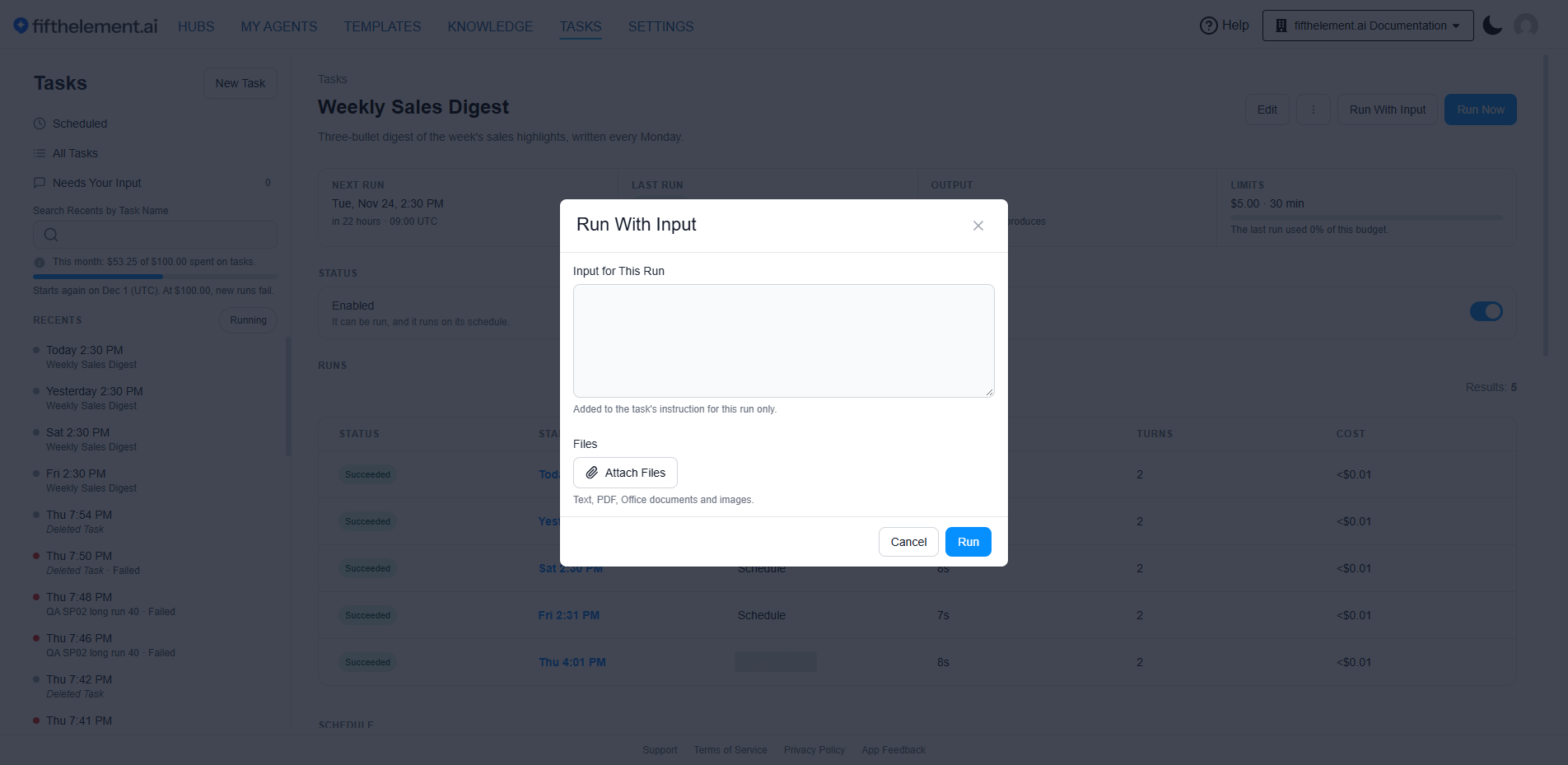
Run With Input: the text is added to the task's instruction for this run only, with optional files.
A press starts exactly one run. The run page opens within seconds and refreshes itself while the run is in progress. Setting up where the run works can take a couple of minutes; the progress line shows how long the run has been Starting.
Following a Run
The run page shows the progress line (Queued, Starting, Started, then the finished state), the agent's messages and Working Notes, and on the right:
| Panel | Contents |
|---|---|
| Progress | Steps as the task unfolds |
| Artifacts | Files the task produces and other files the agent left, each with Open and Download |
| Context | The file tools, built-in tools, connectors and Knowledge Bases this run has |
| Usage | Spend against the budget, time against the deadline, the model, and Token Details: cost, the agent's own estimate, turns, tool calls, input tokens (with cached reads and writes), output tokens and web searches |
| Activity | All, Tool Calls, Thinking and Errors, with Follow Live |
| Run Details | Who started it, the model, timings, what the agent reported, and the task exactly as it was when the run started |
While a run is in progress you can message the agent, which takes your message into account at its next step, or Stop Current Step and wait for your message. Cancel Run ends the run; a cancelled run keeps none of its files.
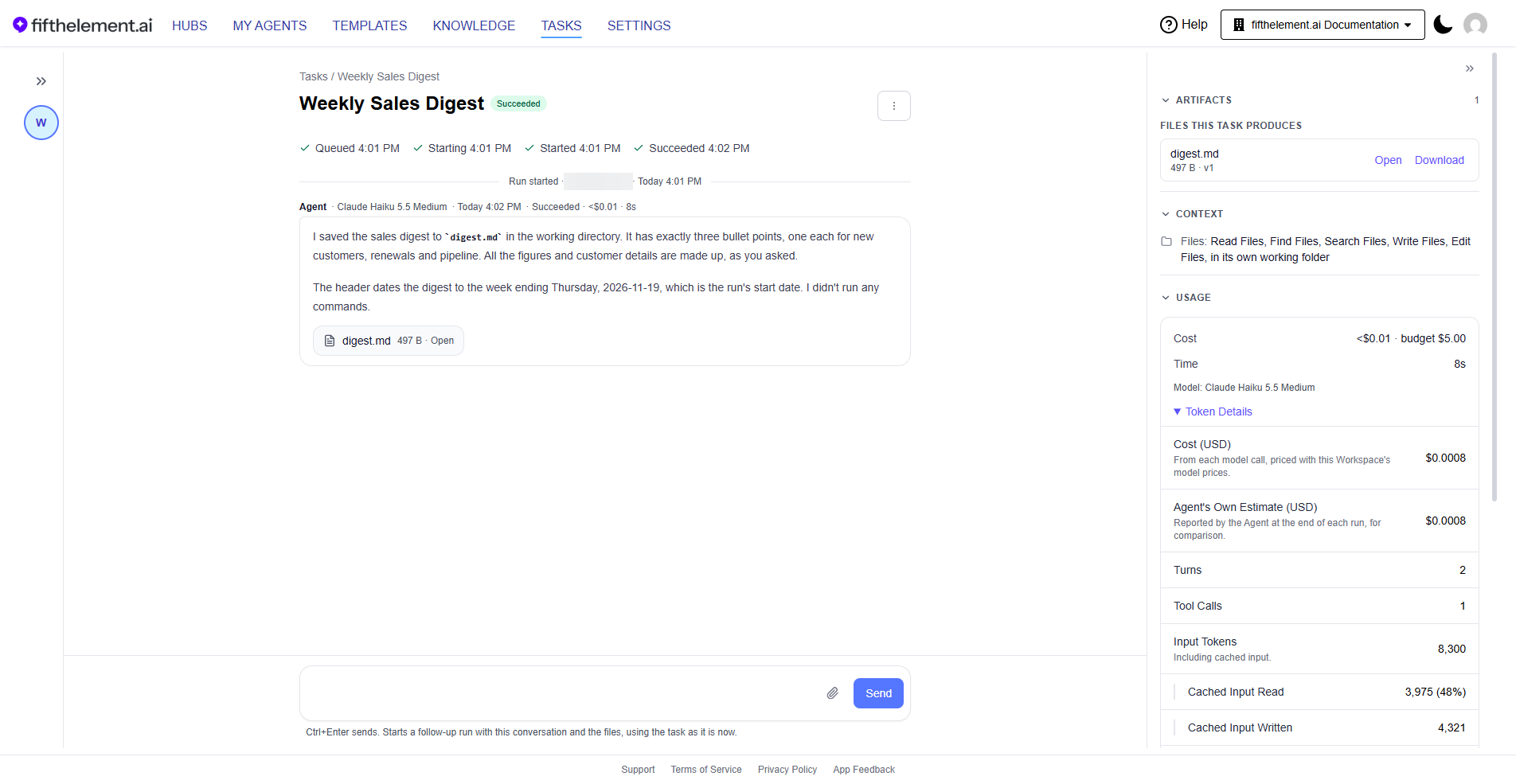
A succeeded run with its file under Artifacts, the Usage bars and Token Details. The run starter's name is blurred.
Interactive runs
With Ask Me for Input While It Runs on, a run you start can ask you a question. The question is pinned on the run page as The Agent Is Asking, with quick replies and the time left before the deadline; the Tasks menu counts it under Needs Your Input, and your reply continues the same run. Waiting counts toward the deadline. Cancelling the run, or reaching the deadline, while the agent waits marks the question Not Answered.
With the setting off, the run has no question tool at all: the agent is told nobody can answer, uses the instruction's default and says what it chose. Scheduled runs never ask.
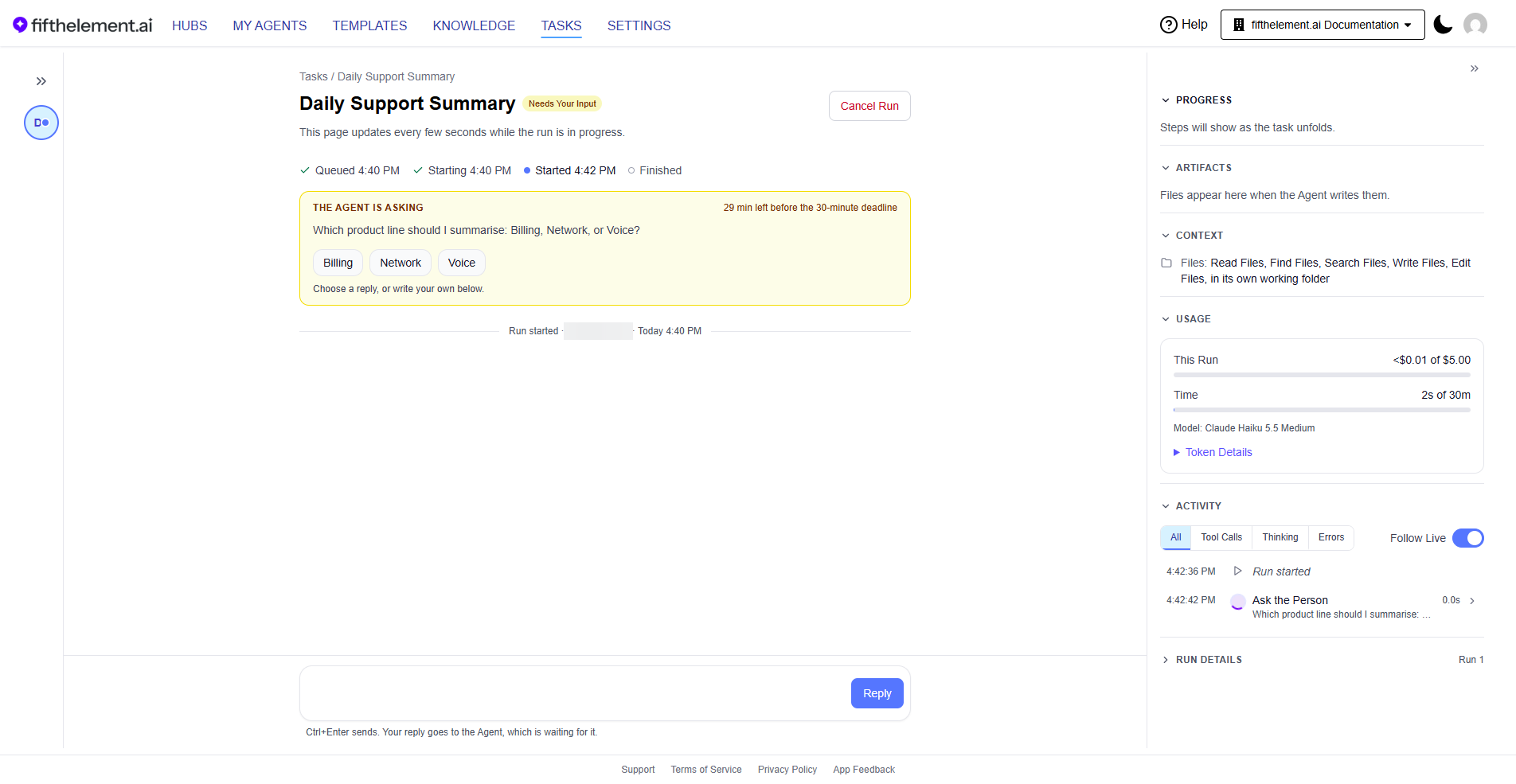
A run waiting for input, with the pinned question, quick replies and the time left before the deadline.
Run states
| State | Meaning |
|---|---|
| Succeeded | The run ended and produced every declared file |
| Succeeded With Errors | The run ended, but a connector call was refused, for example because the connector is not connected or its sign-in was rejected |
| Failed | The run ended with a reason, for example the declared files it did not produce, or a tool it can no longer use |
| Cancelled | Cancelled by its starter or by someone who can edit tasks |
| Timed Out | The run reached its deadline |
Every run is told its start time in UTC, and a scheduled run also its scheduled time, so an instruction such as "analyse the last six hours" works from the run's own clock.
After a Run Ends
- Files are listed under Artifacts with Open and Download, and in the agent's last message.
- A message on a finished run starts a follow-up run in the same conversation with the files it left, doing only what the message asks. A follow-up updates the documents it filed into the Destination Knowledge Base instead of adding new ones.
- Delete Conversation, in the run page's ⋯ menu once every run in the conversation has ended, removes the conversation's runs, activity and files. Files already filed into a Knowledge Base and the month's spend are kept.
Who May Do What
| Action | Who |
|---|---|
| Open and read a run | Everyone with Tasks Read |
| Reply, message the agent, Stop Current Step | Only the person who started the run |
| Continue a finished run with a follow-up | Only the owner of the conversation |
| Cancel a run | Its starter, or anyone who can edit tasks; a schedule-started run can be cancelled by anyone who can run tasks |
Each person's Recents and Needs Your Input show their own runs plus scheduled ones.
Keys and Failover
Task runs fail over between the keys of the model's credential when a key is out of credit, out of quota, invalid, paused or rate limited, and stay on one key for the whole run. When no key works, the run fails with the provider's own reason. See Credentials.
Troubleshooting
| Symptom | What to check |
|---|---|
| A run fails at once with needs approval, which a task cannot ask for | A connector tool the task grants was switched to Needs Approval under Settings > Connectors. Remove it from the task or switch it back |
| A run fails with is not one of this Workspace's tools a task can use | A platform tool the task grants was deleted. Open Edit, review Tools and Access and save |
| Succeeded With Errors | A granted connector is Not Connected or Reconnect Needed under Settings > Connectors. Reconnect it; the task page flags the connector |
| New runs fail at dispatch | The Workspace's monthly task budget is reached; the Tasks menu shows the limit and when it starts again |
| The runner could not start or The execution ended without reporting | The run's container did not start or died; start the run again |
Related Topics
- Tasks Overview
- Creating a Task
- Credentials — keys and failover
- Usage — task spend under Kind of Call: Agent Tasks