Creating a Task
Draft a task with AI, fill in the form yourself, or copy a task that already works.
New Task
Open Tasks > New Task. The chooser offers three ways to start:
| Option | What it does |
|---|---|
| Draft With AI | Describe the job in a chat. The assistant asks what it needs to know, suggests the access the job needs and keeps a draft up to date. Create it directly or Review in the Form |
| Set Up Manually | Fill in the form yourself: instruction, model, tools and access, files, limits and schedule |
| Copy an Existing Task | Start from a task that already works and change what you need. A copied schedule is kept but switched off |
The facts line under the cards states the Workspace's rules: runs use the Workspace's own Anthropic models, the most a run may spend, and that scheduled runs never stop to ask questions.
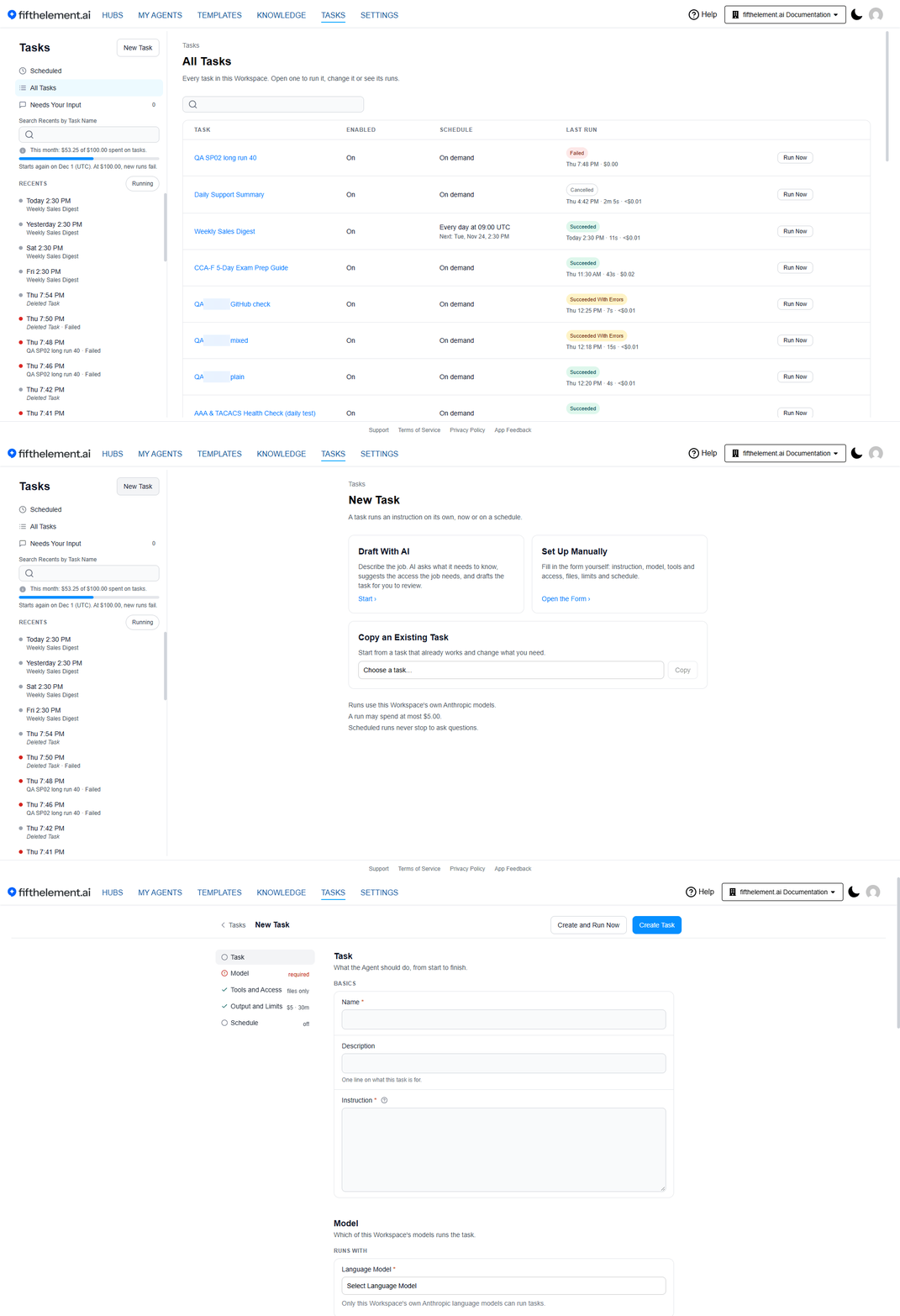
Tasks > New Task opens the chooser; Open the Form under Set Up Manually opens the task form.
Draft With AI
When to use
Use Draft With AI when you can describe the job in plain words and want help deciding which tools, connectors and Knowledge Bases it needs.
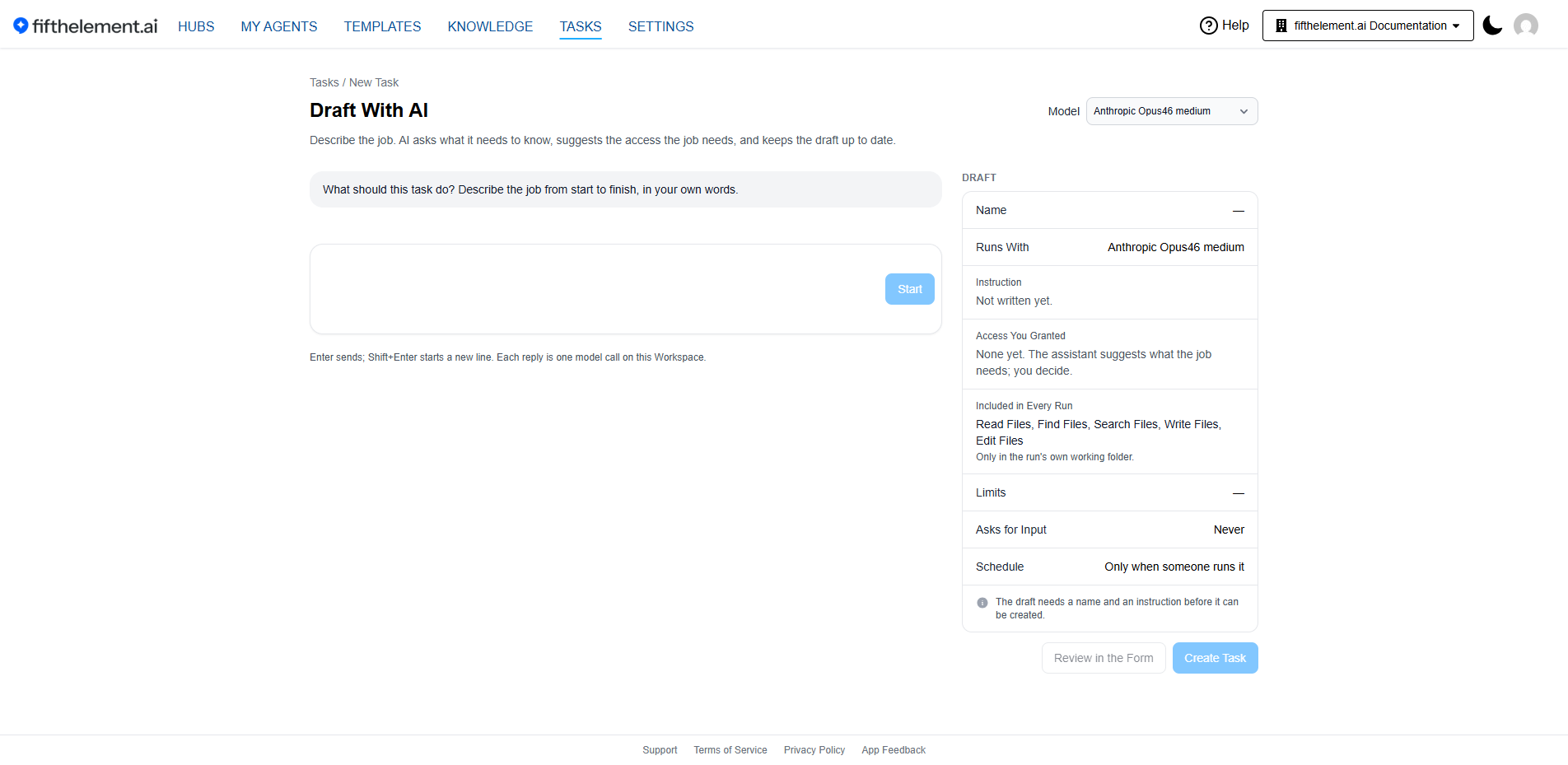
Draft With AI before the first message. The Draft panel on the right fills in as the conversation goes.
- Pick the drafting Model at the top right if you want a different one.
- Describe the job from start to finish and click Start. Each reply is one model call on the Workspace; the running total is shown under the box.
- The assistant proposes access as cards you accept or skip. The Draft panel shows Name, Runs With, Instruction, Description, Access You Granted, Included in Every Run, Files Produced, Limits, Asks for Input and Schedule.
- When the draft has a name and an instruction, click Create Task, or Review in the Form to open the manual form pre-filled.
Leaving the page after the conversation has started asks you to confirm, because the draft is discarded. Draft With AI is refused once the Workspace's monthly task budget is reached.
Set Up Manually
The form has five sections, listed on the left with their state. Create Task saves the task; Create and Run Now saves it and starts a run.
Task
| Field | Required | Description |
|---|---|---|
| Name | Yes | The task's name |
| Description | No | One line on what this task is for |
| Instruction | Yes | What the agent should do, from start to finish |
Model
| Field | Required | Description |
|---|---|---|
| Language Model | Yes | One of the Workspace's own Anthropic language models |
Tools and Access
Every run can work with files in its own working folder. Anything more is only what you add here.
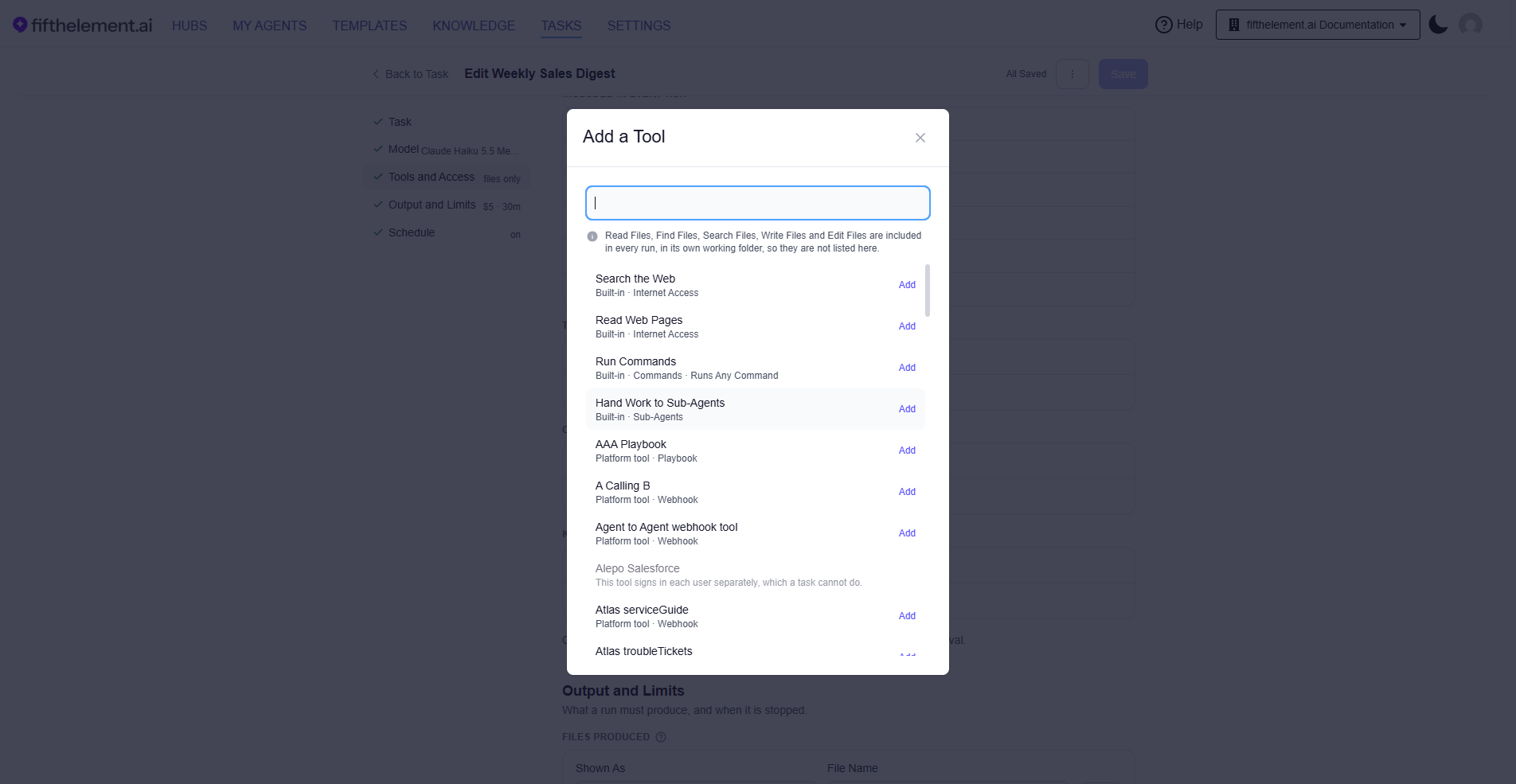
Tools and Access with the Add a Tool dialog. Built-in tools come first, then the Workspace's platform tools; a tool a task cannot use is greyed with the reason.
| Group | Contents |
|---|---|
| Included in Every Run | Read Files, Find Files, Search Files, Write Files and Edit Files, only in the run's own working folder. They cannot be removed |
| Tools | Add a Tool lists the built-ins Search the Web, Read Web Pages, Run Commands (marked Runs Any Command) and Hand Work to Sub-Agents, then the Workspace's platform tools |
| Connectors | Add a Connector lists each connector with its tool count. Per-user sign-in connectors and connectors that are not connected are greyed with the reason |
| Knowledge Bases | Add a Knowledge Base lists the Knowledge Bases a run may search and read. Each reads as one identity: Me (whoever saved the task last) or a service account tied to a Workspace API key |
The ? help on the Tools group explains which tool types work unattended and why a listed tool cannot be added: it is turned off, signs in each user separately, asks before running, or has a fixed input that does not fit its type. Connector tools set to Needs Approval are left out, because a task cannot ask for approval.
Output and Limits
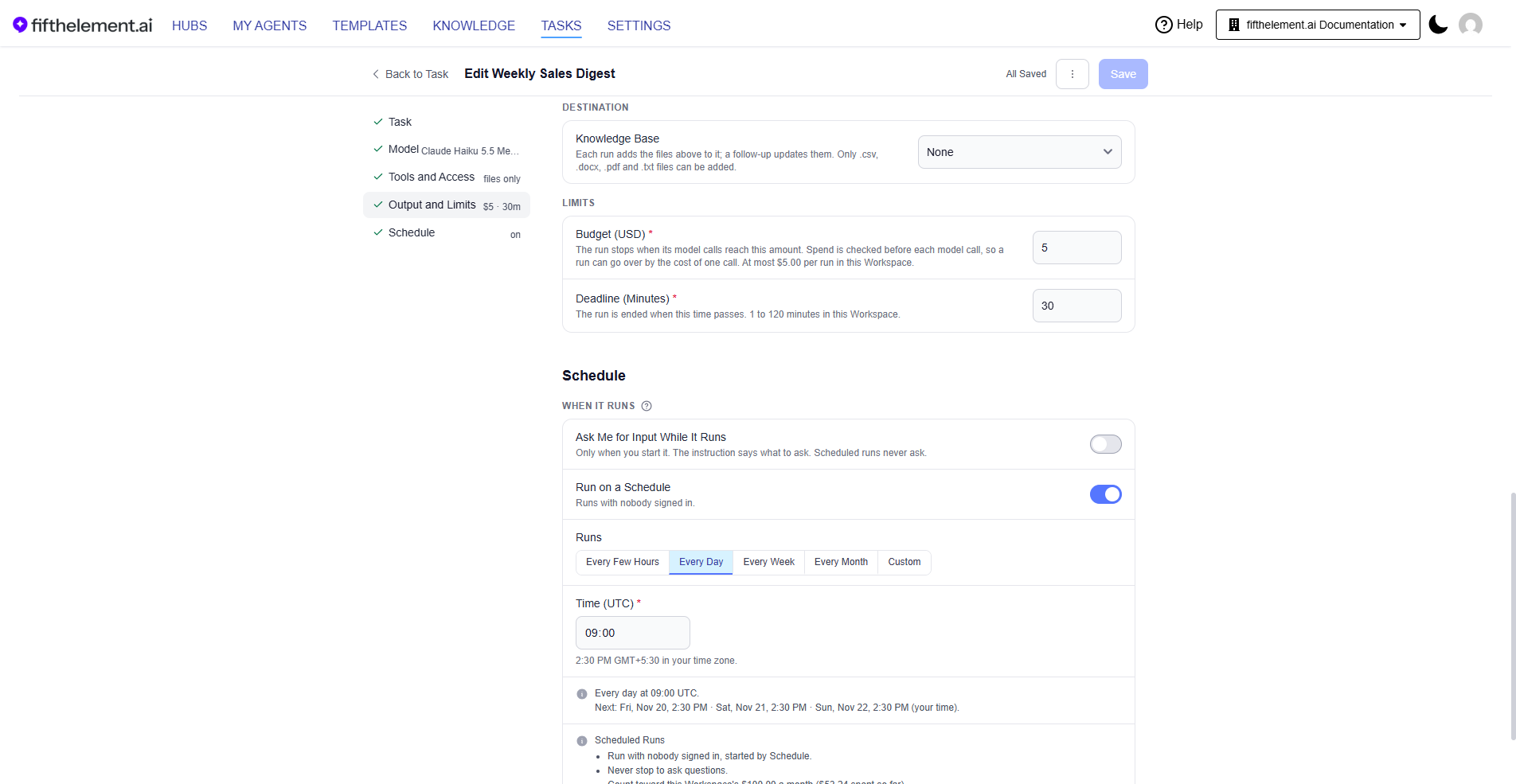
Output and Limits with the Destination Knowledge Base, Budget and Deadline, and the Schedule section with a daily schedule showing the next three runs.
| Field | Required | Description |
|---|---|---|
| Files Produced | No | Add a File rows with Shown As and File Name. A run that ends without every declared file is marked Failed. A run keeps at most 20 files: these first, then the other files it leaves |
| Destination Knowledge Base | No | Each successful run adds the declared files to it, one document per file; a follow-up run updates them. Only .csv, .docx, .pdf and .txt files can be added. The picker lists only Knowledge Bases you can add documents to |
| Budget (USD) | Yes | The run stops when its model calls reach this amount. Spend is checked before each model call, so a run can go over by the cost of one call. Capped per Workspace |
| Deadline (Minutes) | Yes | The run is ended when this time passes. The allowed range is shown for the Workspace |
Saving is refused, with the reason under the picker, when a Destination Knowledge Base is chosen but no files are declared, when a declared file type cannot be filed, or when you cannot add documents to that Knowledge Base.
Schedule
| Setting | Description |
|---|---|
| Ask Me for Input While It Runs | Off by default. With it on, a run you start can ask you a question. Scheduled runs never ask. See Interactive runs |
| Run on a Schedule | Runs with nobody signed in. Runs offers Every Few Hours, Every Day, Every Week, Every Month or Custom (a five-field cron expression in UTC) |
Times are entered in UTC and shown in your time zone, with the next three runs listed. A task runs at most once every 60 minutes; a more frequent schedule is refused before the task is saved. A slot that falls while the previous run is still going, or while the task is turned off, is skipped rather than run late. Schedule changes take effect within a minute.
Copy an Existing Task
Under Copy an Existing Task, choose a task and click Copy. Each entry shows the task's schedule and last run. The copy opens in the form with the header Copied from
Editing, Enabling and Deleting
- Edit on the task page opens the same form. The header shows All Saved or Unsaved Changes, with Discard and Save.
- Enabled on the task page turns the task on or off. A task that is off cannot be run and its schedule does not fire.
- Remove Schedule on the task page's Schedule card removes the schedule; the task then runs on demand.
- Delete Task is in the task page's ⋯ menu. The task's runs and their files are kept and open as runs of a deleted task.
- A tool, connector or language model used by a task cannot be deleted until it is removed from the task.
Related Topics
- Tasks Overview
- Runs — starting, following and managing runs
- Settings > Tools
- Settings > Connectors
- Knowledge