Tasks
Run agent work unattended: on demand, on a schedule, or from a follow-up message, with nobody signed in.
Overview
A task is an instruction, the model that runs it, the tools, connectors and Knowledge Bases it may reach, the files it must produce, a budget and a deadline, and when it runs. Each run executes on the platform's own infrastructure, and every run can be inspected afterwards: the conversation, each step, the files it left, its cost and its turns.
Tasks have no relation to a chat agent. A task carries its own instruction and its own access, so editing an agent never widens what an unattended run can reach.
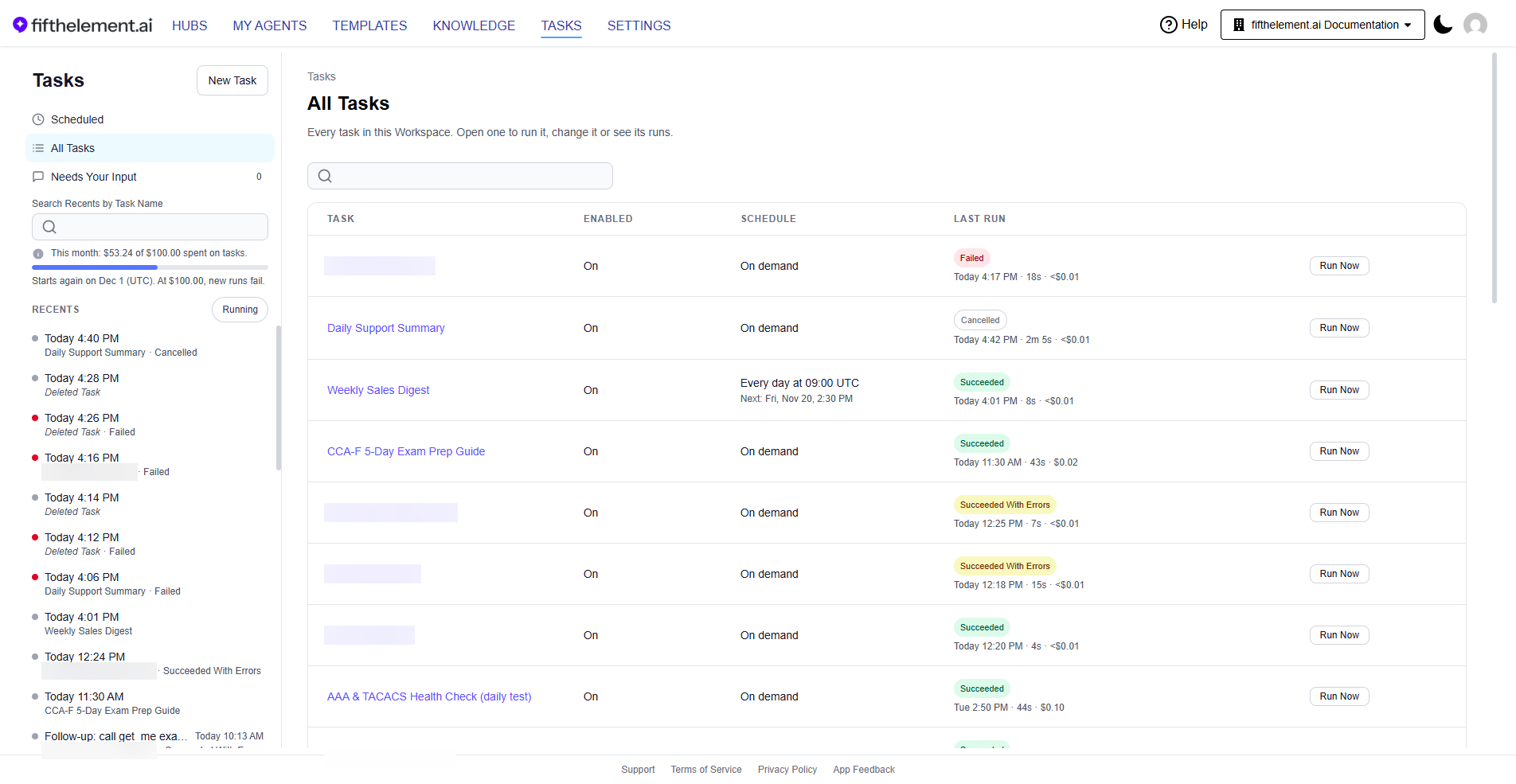
All Tasks with the Tasks menu, the monthly spend bar and a scheduled task showing its next run and last run. Task names that identify people or customers are blurred.
Where to Find It
Open Tasks in the top navigation. The Tasks menu on the left holds:
| Entry | What it shows |
|---|---|
| New Task | The chooser for creating a task. See Creating a Task |
| Scheduled | Tasks whose schedule is on or paused, with their schedule wording and next run |
| All Tasks | Every task in the Workspace |
| Needs Your Input | Runs you started that are waiting for your answer, with a count |
| Search Recents by Task Name | Filters the Recents list below |
| This month | The Workspace's spend on tasks against its monthly limit |
| Recents | Your own recent runs plus scheduled runs, newest first. Running filters it to runs in progress |
The lists show Task, Enabled (On or Off), Schedule (the schedule wording with Next: and the next run in your time zone, or On demand for a task with no schedule or a schedule that is turned off) and Last Run (status chip, start time, duration and cost). Run Now on a row starts the task; Reply appears when a run is waiting for you.
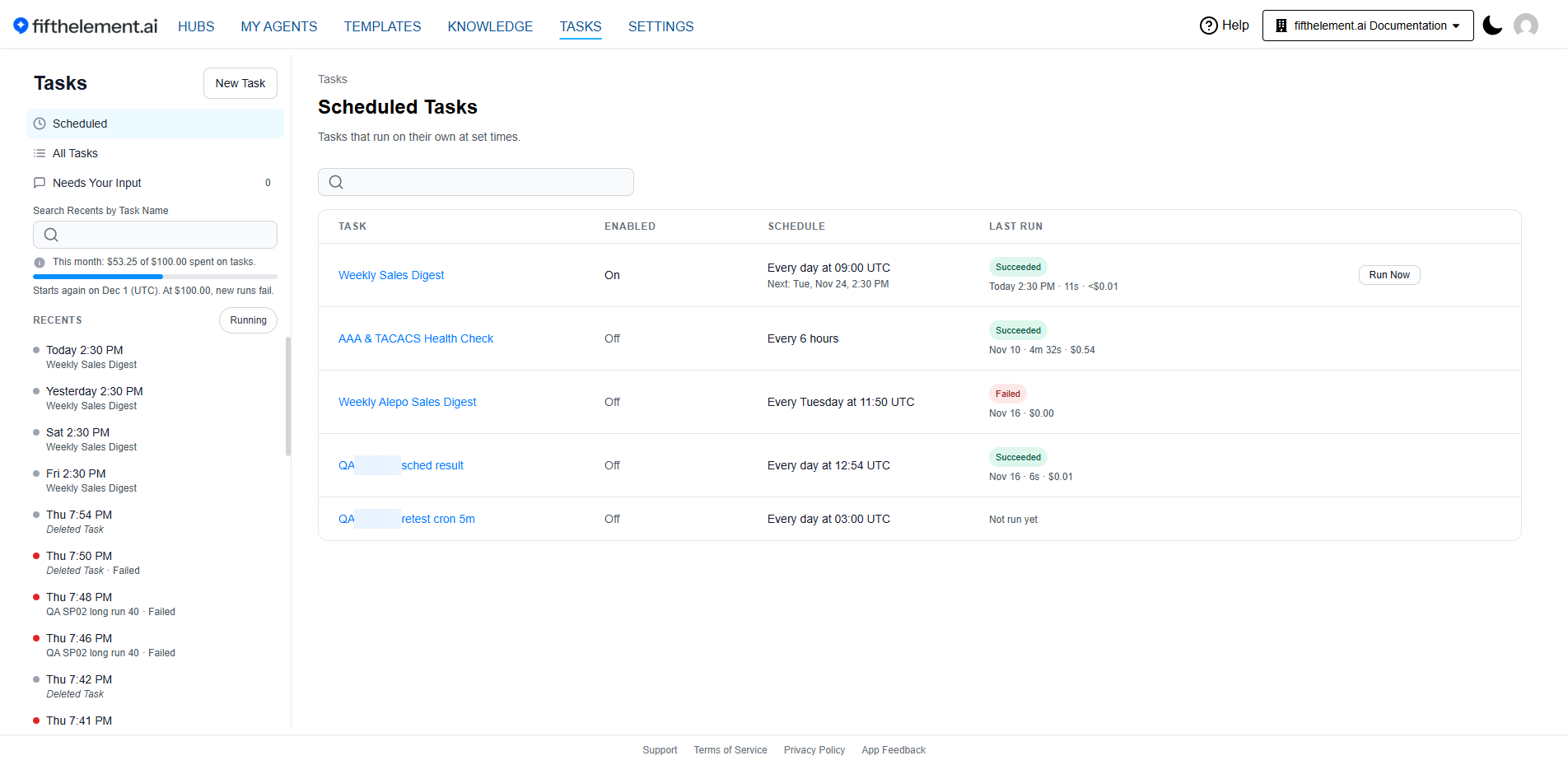
Scheduled Tasks lists only tasks whose schedule is on or paused, each with its Enabled state.
What a Task Is
Instruction and model
A task has a Name, an optional Description and an Instruction that says what the agent should do from start to finish. It runs on one of the Workspace's own Anthropic language models configured under Settings > AI Models > Language Models.
Access, granted explicitly
Every run can read, find, search, write and edit files in its own working folder. Anything more is added on the task:
- Built-in tools: Search the Web, Read Web Pages, Run Commands and Hand Work to Sub-Agents
- Platform tools from Settings > Tools, for example Custom, Webhook (HTTP), Hubspot Create Lead, Salesforce Operations and Playbook
- Connectors from Settings > Connectors
- Knowledge Bases
Write-capable access is marked so it is never granted by accident: Run Commands carries a Runs Any Command badge, and each connector shows Read Only or May Change Data.
What a task cannot use
Tools and connectors that sign in each user separately, tools set to Ask before running and connector tools set to Needs Approval are left out, because a run cannot stop for a sign-in or an approval. The picker greys such entries and says why. A connector that is Not Connected or Reconnect Needed must be reconnected under Settings > Connectors before it can be granted; the task page flags a granted connector that has since lost its connection.
A tool switched to Needs Approval after it was granted
If a connector tool the task already grants is later switched to Needs Approval under Settings > Connectors, the task's runs stop until the tool is removed from the task. The task page says so under What a Run Can Reach.
Knowledge Bases read as one identity
A run reads a Knowledge Base either as the person who last saved the task (Me) or as a service account tied to a Workspace API key, with the same document access, locks and keys as in the app. Choosing a service account needs the permission to create Workspace API keys. Access is checked again when a run starts and on every search, so a removed key or lost access stops the reading.
Files a run must produce
Declare the files the task has to leave behind (Shown As and File Name). A run that ends without every one of them is marked Failed, so a missing result is never reported as success. A run keeps up to 20 files, the declared ones first.
Optionally, a Destination Knowledge Base files the declared files after each successful run, one document per file (.csv, .docx, .pdf and .txt); a follow-up run updates the document instead of adding a new one.
Budget and deadline
Each run has a Budget (USD) checked before every model call and a Deadline (Minutes) after which the run is ended as Timed Out. Both are capped by the limits set for the Workspace, shown on the form. The Tasks menu shows the Workspace's spend for the month and the monthly limit; once it is reached, new runs fail until the first of the next month (UTC).
Access Control
Tasks are permission-controlled. Under Workspaces > Roles > role > Tasks, a role carries:
| Right | Allows |
|---|---|
| Read | Opening the Tasks area and reading tasks and runs |
| Create, edit, delete and schedule | Managing tasks, and cancelling any run |
| Run and cancel | Starting runs and cancelling your own runs and schedule-started runs |
| Grant command, web and sub-agent tools | Adding the built-in Run Commands, web and sub-agent tools to a task |
| Grant connector tools | Adding connectors to a task |
| Grant platform tools | Adding the Workspace's platform tools to a task |
The seeded Admin role receives all of them by default; grant them to other roles as needed. Without Read, the Tasks area shows You don't have access to this.
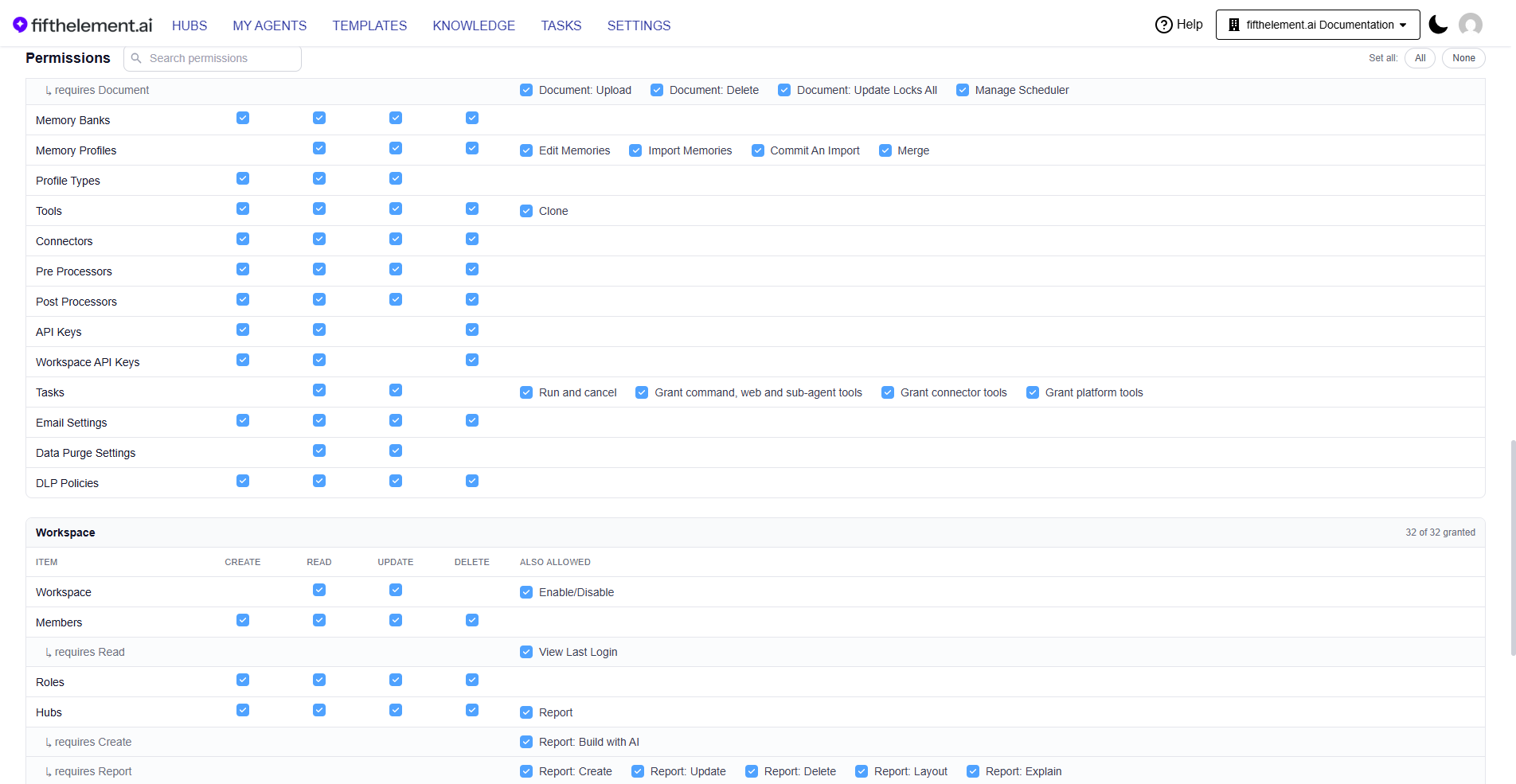
Role editor, Settings section, with the Tasks row: Read, Create, edit, delete and schedule, Run and cancel, and the three Grant rights.
Related Topics
- Creating a Task — Draft With AI, Set Up Manually or Copy an Existing Task
- Runs — starting, following and managing runs
- Settings > Tools — platform tools a task can use
- Settings > Connectors — external MCP connectors
- Usage — where task spend is reported (Kind of Call: Agent Tasks)
- RBAC & Roles — role permissions