Templates
Manage email templates used for system notifications, conversation alerts, and authentication emails.
Overview
The Templates section currently provides Email Templates — customizable HTML email templates for system-generated notifications. These templates control the content and appearance of emails sent for conversation flags, message dislikes, and widget authentication.
Templates are managed under Settings > Templates > Email Template.
Email Templates
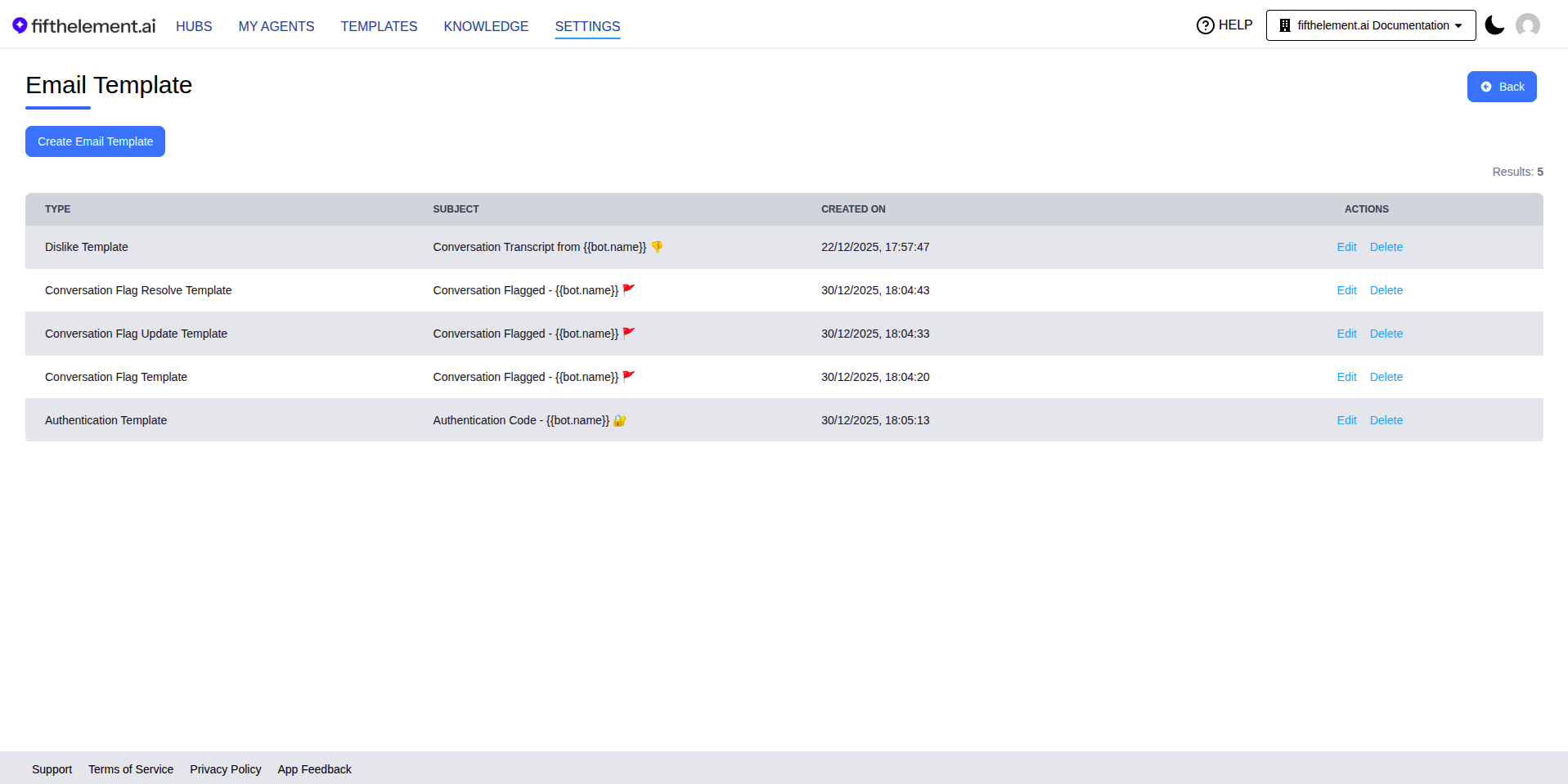
The Email Templates page displays all configured templates:
| Column | Description |
|---|---|
| Type | The template type (for example, Feedback Reply to User) |
| Subject | The email subject line. Supports {{bot.name}} placeholder |
| Created On | Date and time the template was created |
| Actions | Edit, Delete |
One Template Per Type
Only one template of each type can exist per workspace. If you try to create a duplicate, you'll be prompted to update the existing template instead.
Template Types
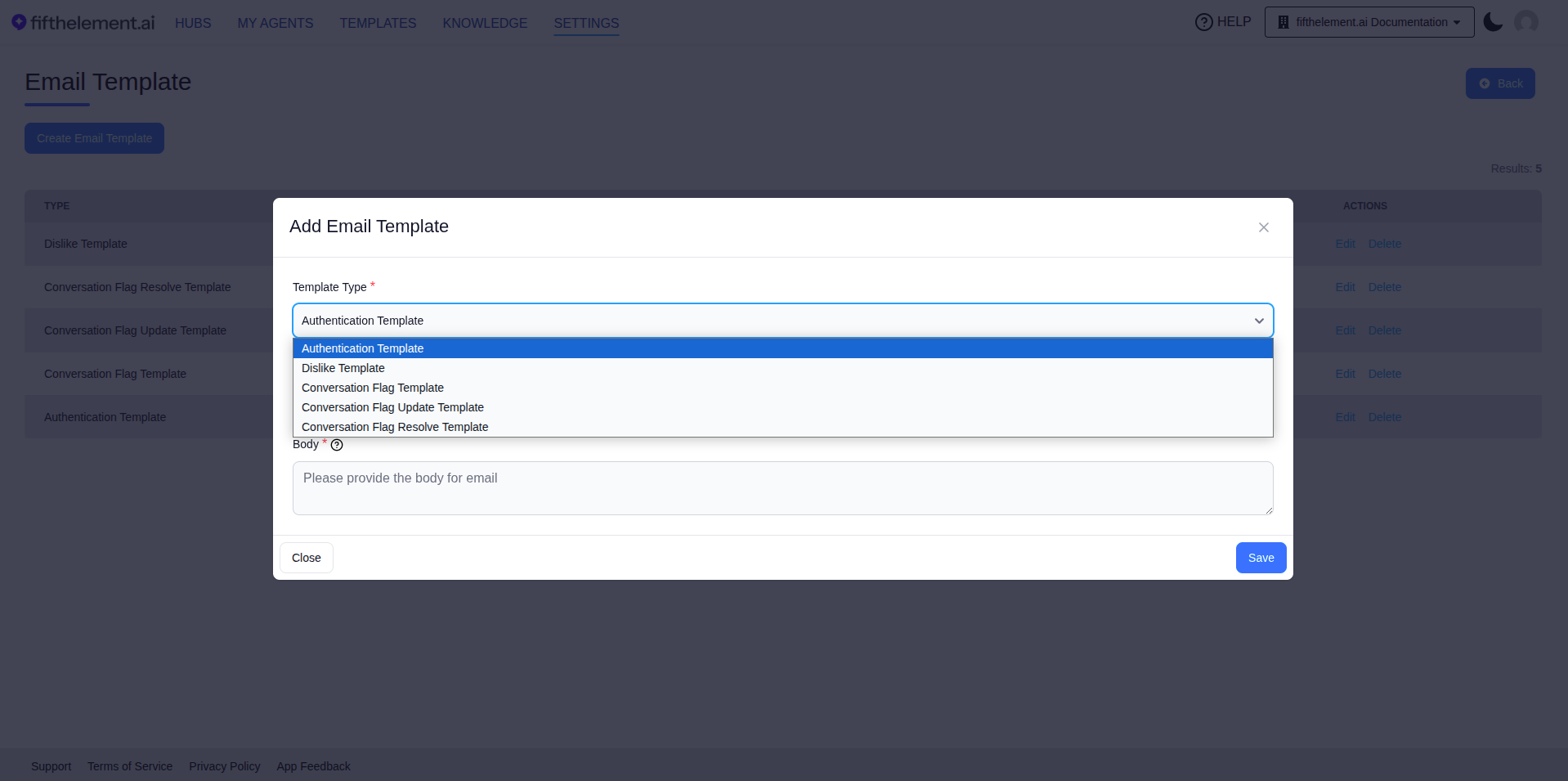
| Template Type | Recipient and purpose |
|---|---|
| Authentication Template | End user: widget authentication code |
| Conversation Transcript Template | End user: conversation transcript |
| Feedback Reply to User | End user: an admin replied to their message feedback |
| Feedback Reply Alert to Admins | Configured feedback recipients: a user replied in a feedback thread |
| Dislike Alert to Admins | Admin recipients: a message was disliked |
| Conversation Flagged Alert to Admins | Admin recipients: a conversation was flagged |
| Conversation Flag Note Updated Alert to Admins | Admin recipients: a conversation flag note was updated |
| Conversation Flag Resolved Alert to Admins | Admin recipients: a conversation flag was resolved |
| Conversation Flag Reopened Alert to Admins | Admin recipients: a conversation flag was reopened |
The Template Type picker uses these recipient-specific names. Existing saved rows can still display older dislike or conversation-flag names.
Feedback reply emails use the agent's message-feedback notification toggle and configured recipients. Delivery is best effort; notifying an end user also requires an available email address. See feedback replies.
Creating an Email Template
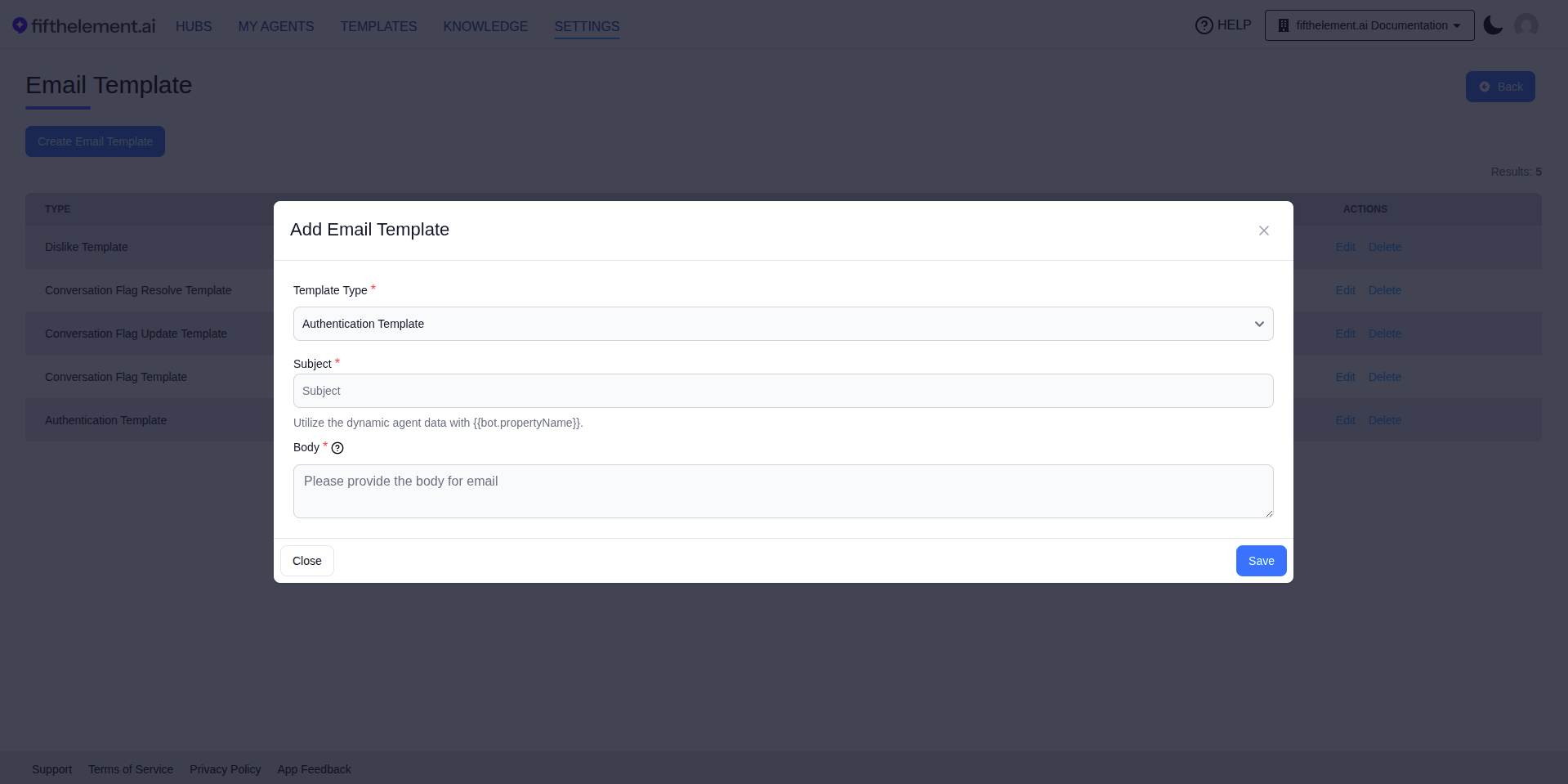
- Navigate to Settings > Templates > Email Template
- Click "Create Email Template"
- Select a Template Type from the dropdown
- Enter the Subject line (supports
{{bot.propertyName}}for dynamic agent data) - Write the Body in HTML format (see placeholders below)
- Click "Save"
Configuration Fields
| Field | Required | Description |
|---|---|---|
| Template Type | Yes | Select the notification type this template applies to |
| Subject | Yes | Email subject line. Use {{bot.propertyName}} for dynamic agent data |
| Body | Yes | HTML email body. Supports various placeholders depending on template type |
Available Placeholders
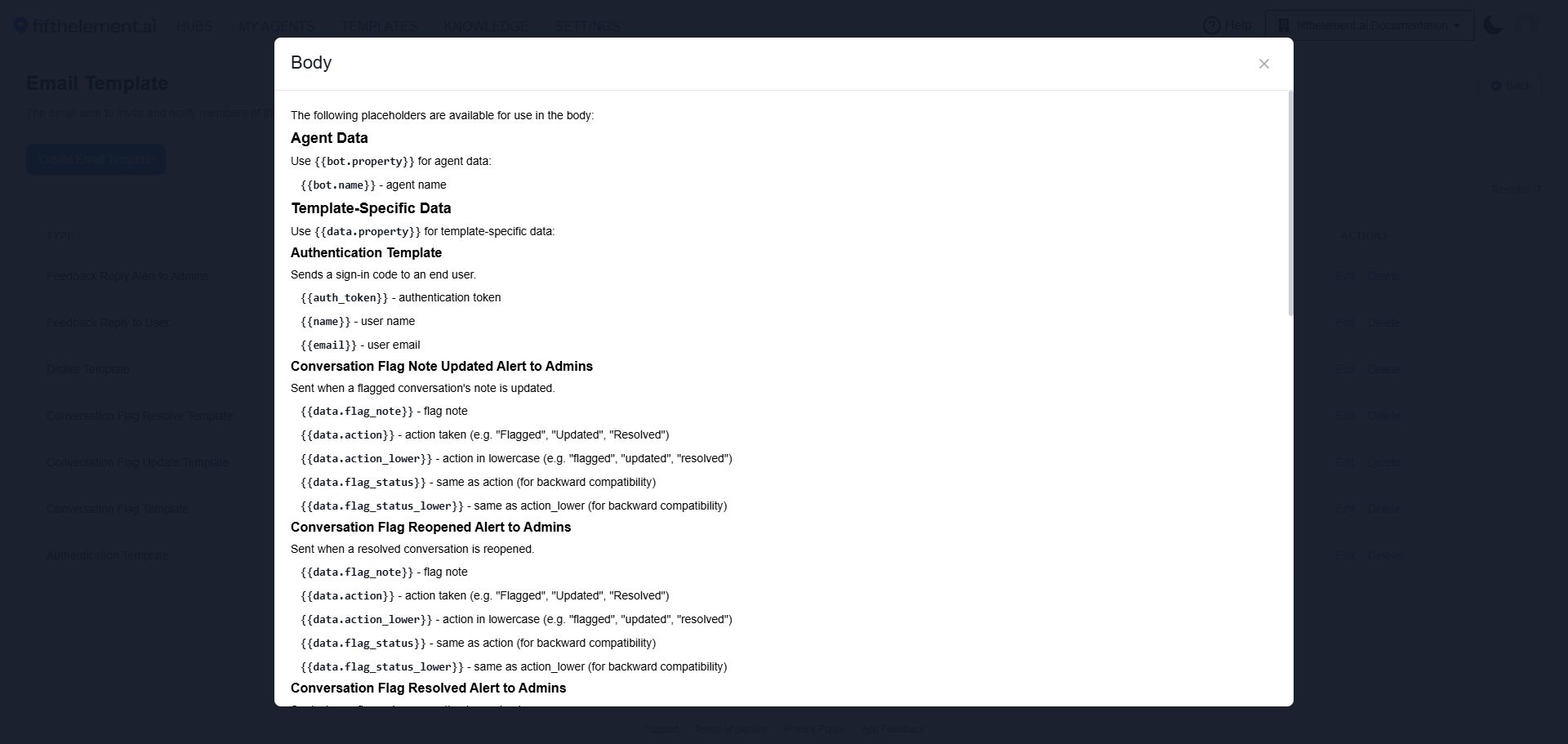
- Open Create Email Template and choose a Template Type.
- Click the help icon (?) beside Body.
- Find the selected type in the help panel and use its listed placeholders in your HTML body.
- Close the help panel to return to the form.
Agent Data
Use {{bot.property}} for agent data:
| Placeholder | Description |
|---|---|
{{bot.name}} | Agent name |
Dislike Alert to Admins
Use {{data.property}} for template-specific data:
| Placeholder | Description |
|---|---|
{{data.feedback}} | User feedback text |
{{data.message}} | The disliked message content |
Conversation Flag Templates
| Placeholder | Description |
|---|---|
{{data.flag_note}} | Flag note added by the supervisor |
{{data.action}} | Action taken — "Flagged", "Updated", or "Resolved" |
{{data.action_lower}} | Action in lowercase — "flagged", "updated", "resolved" |
{{data.flag_status}} | Same as action (backward compatibility) |
{{data.flag_status_lower}} | Same as action_lower (backward compatibility) |
Feedback Reply Templates
| Placeholder | Purpose |
|---|---|
{{data.feedback}} | Original feedback |
{{data.message}} | AI response the feedback concerns |
{{data.reply}} | Admin reply for Feedback Reply to User; user reply for Feedback Reply Alert to Admins |
{{data.thread}} | Formatted reply thread, oldest first, newest marked NEW |
{{data.replyLink}} | Feedback Reply to User only: conversation button; empty for anonymous users |
{{data.userEmail}} | Feedback Reply Alert to Admins and Dislike Alert to Admins: user email in parentheses; empty when unknown |
{{data.conversationUrl}} | Feedback Reply Alert to Admins only: workspace Conversations page for the thread |
Conversation Transcript Template
Use {{data.from}} to identify who sent the transcript. The transcript is sent as a PDF attachment.
Authentication Template
| Placeholder | Description |
|---|---|
{{auth_token}} | The authentication code |
{{name}} | User name |
{{email}} | User email |
Example Template
<!DOCTYPE html>
<html lang='en'>
    <body>
        <p>Hello {{name}},</p>
        <p>Agent: {{bot.name}}</p>
        <p>Your code: {{auth_token}}</p>
    </body>
</html>
Email Template Permissions
Email template management is controlled through RBAC:
- Create, Read, Update, Delete
Configure these under Workspaces > Roles > Settings > Email Settings. See RBAC & Roles for details.
Related Topics
- Agent Builder — Advanced Configuration — Email notification settings in agent Behavior section
- Look & Feel — Widget authentication that uses the Authentication Template
- Back to Settings