Connectors
Connect agents to tools that live on an external MCP server, such as Notion, Atlassian, GitHub or a server your own team hosts.
Overview
A connector is a workspace resource that points at one remote MCP server. Add it once under Settings > Processors > Connectors, then attach it to any number of agents. During a conversation the agent can call the server's tools, and the same connector can expose different tools on different agents.
This is the opposite direction from connecting a Knowledge Base over MCP, where the platform publishes its own Knowledge Bases to an MCP client.
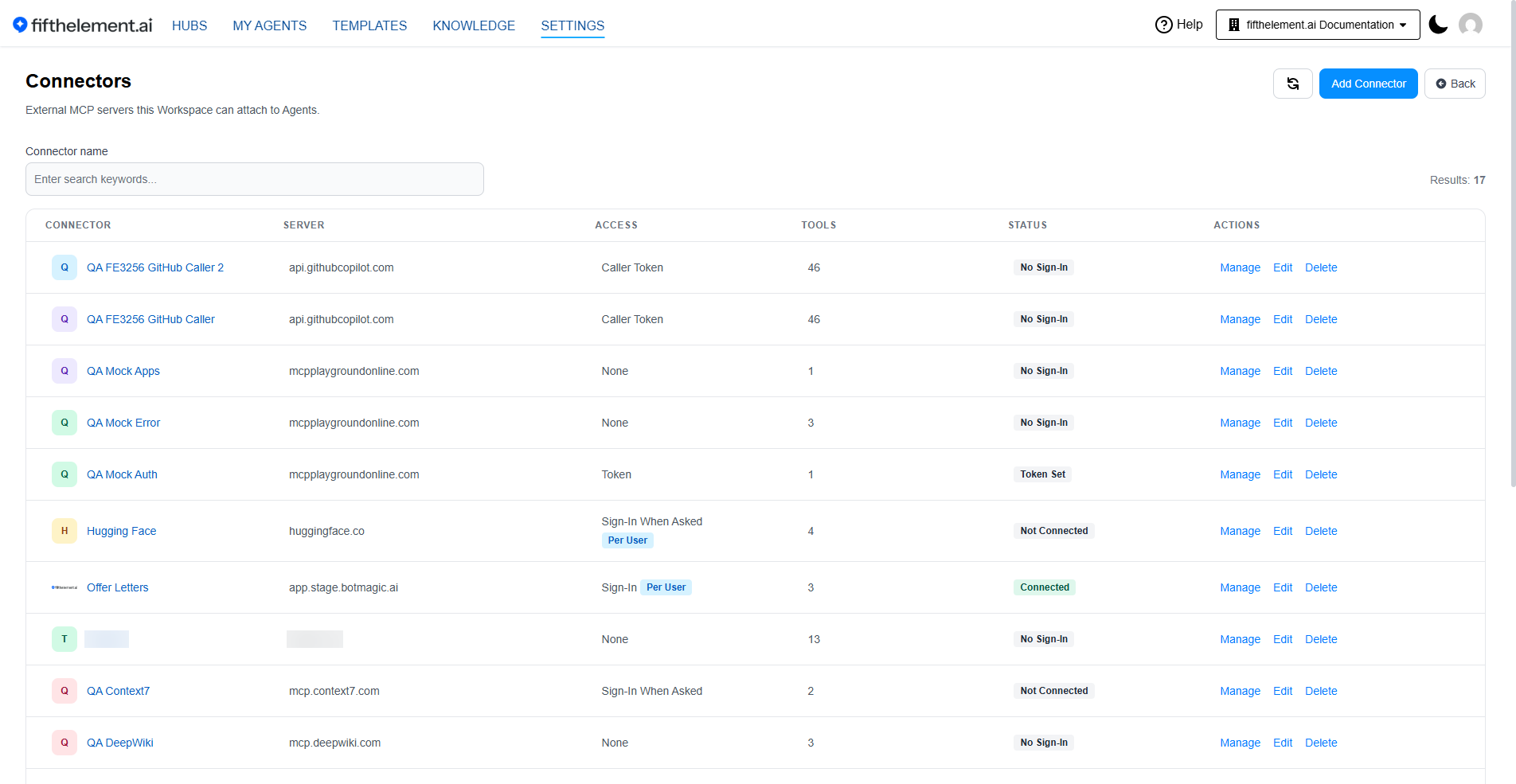
Settings > Processors > Connectors. Each row shows the server, the access type, the number of cached tools and the connection status.
Only connect servers you trust
The platform does not control or verify which tools a server offers. A server's tool names and descriptions are placed into the agent's prompt, so treat a connector like any other integration that can act on your data.
The Connectors List
| Column | Description |
|---|---|
| Connector | The name you gave the connector |
| Server | The host of the remote MCP server |
| Access | How the platform signs in: Sign-In, Sign-In When Asked, Caller Token, Token or None. A Per User badge means each user connects with their own account |
| Tools | How many tools were fetched from the server, or Not Fetched |
| Status | Connected, Not Connected, Reconnect Needed, Token Set or No Sign-In |
| Actions | Manage, Edit, Delete |
Use the Connector name search box to filter the list.
Adding a Connector
Step 1: Server details
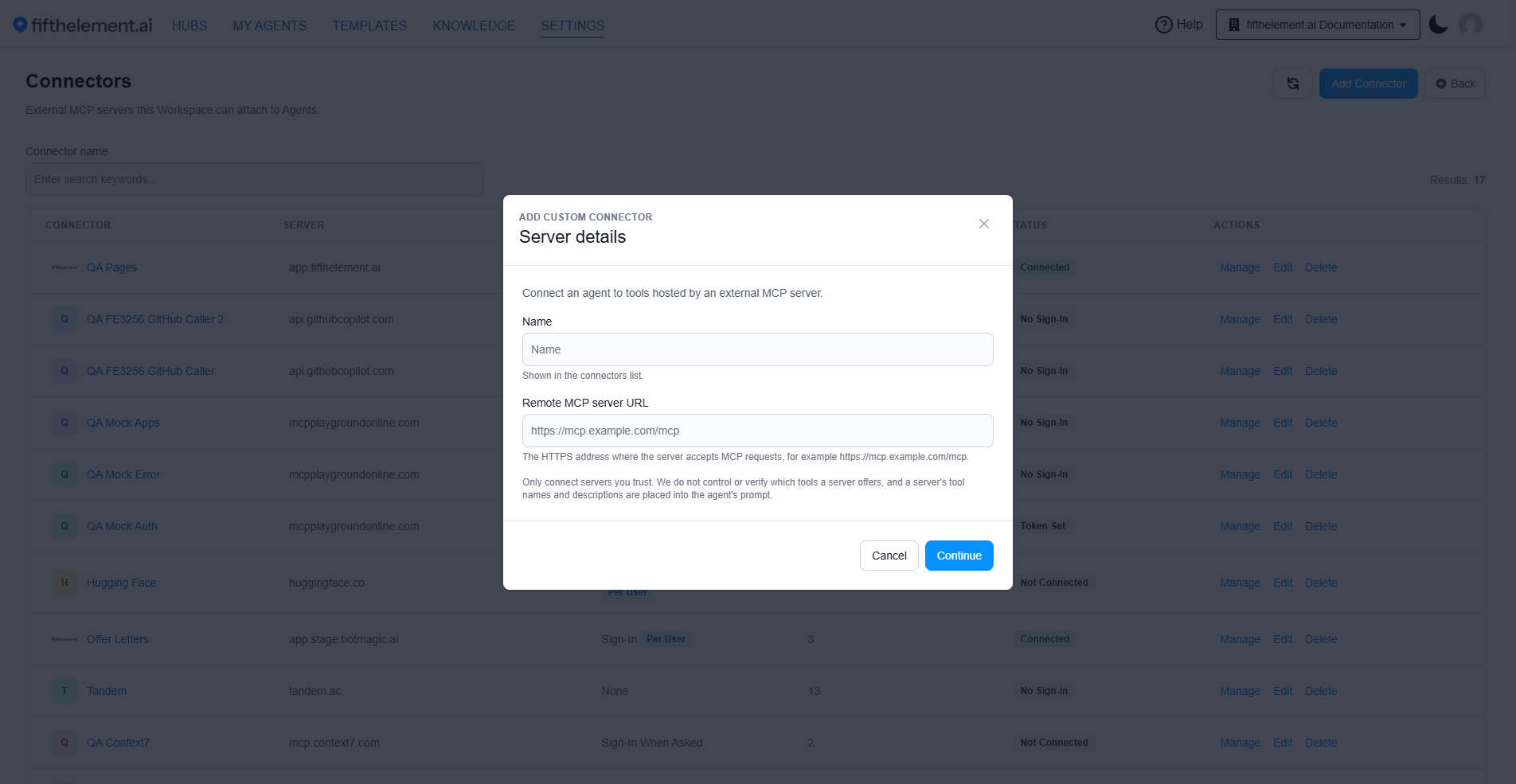
- Navigate to Settings > Processors > Connectors
- Click Add Connector
- Enter a Name (shown in the connectors list) and the Remote MCP server URL. The URL must start with
https:// - Click Continue
The platform probes the server before letting you continue. A host that does not resolve shows "The server did not answer", and a private, local or reserved address shows "This address is not allowed". In both cases Continue stays disabled; use Back to correct the URL.
Step 2: Connector settings
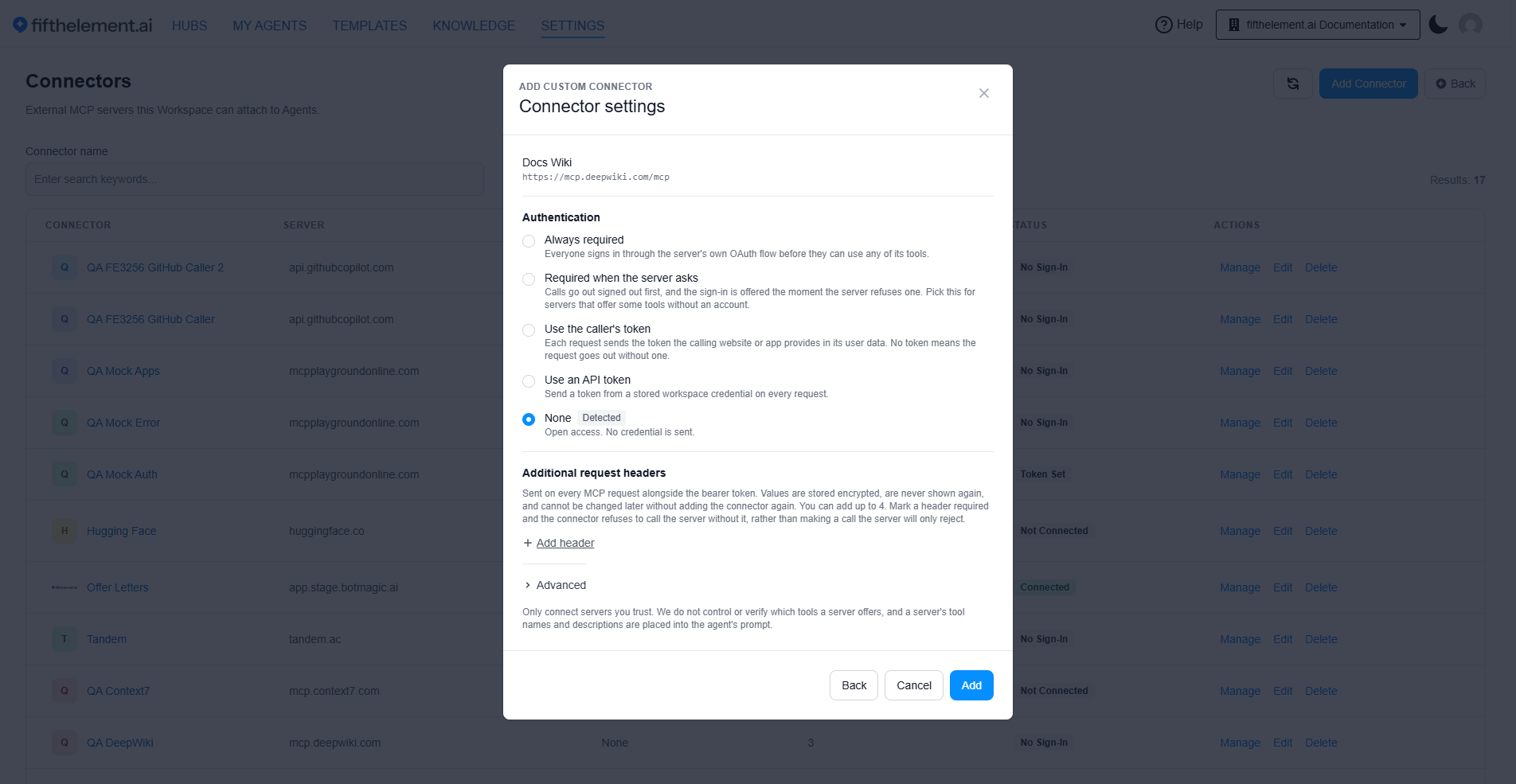
The Authentication options and the Advanced section. The platform pre-selects the option it detected and marks it Detected.
| Setting | Description |
|---|---|
| Authentication | Always required: everyone signs in through the server's own sign-in flow. Required when the server asks: calls go out signed out and the sign-in is offered when the server refuses one. Use the caller's token: the token the calling website or app passes in its user data is sent on every call. Use an API token: a stored MCP Server Token credential is sent on every request. None: open access |
| Account | For sign-in connectors, whether everyone shares one workspace account or each user connects their own |
| Token key in user data | Use the caller's token only. The key in the chat request's user data that holds the token |
| Additional request headers | Up to four headers sent on every request alongside the token. Values are stored encrypted and never shown again. A header marked required stops the connector calling the server without it |
| Transport (Advanced) | Automatic by default. SSE (legacy) is for servers that only support the older transport |
| Unavailable Message (Advanced) | What the agent says when the server cannot be reached, so a failure is never silent |
Click Add to save. The Manage view opens automatically.
Settings fixed after creation
The name, URL, authentication and headers are fixed once the connector is added. Edit changes only the Transport, the Unavailable Message and the Always Load option. To change a token, edit the credential under Settings > Credentials and then use Refresh Tools List.
API tokens are credentials
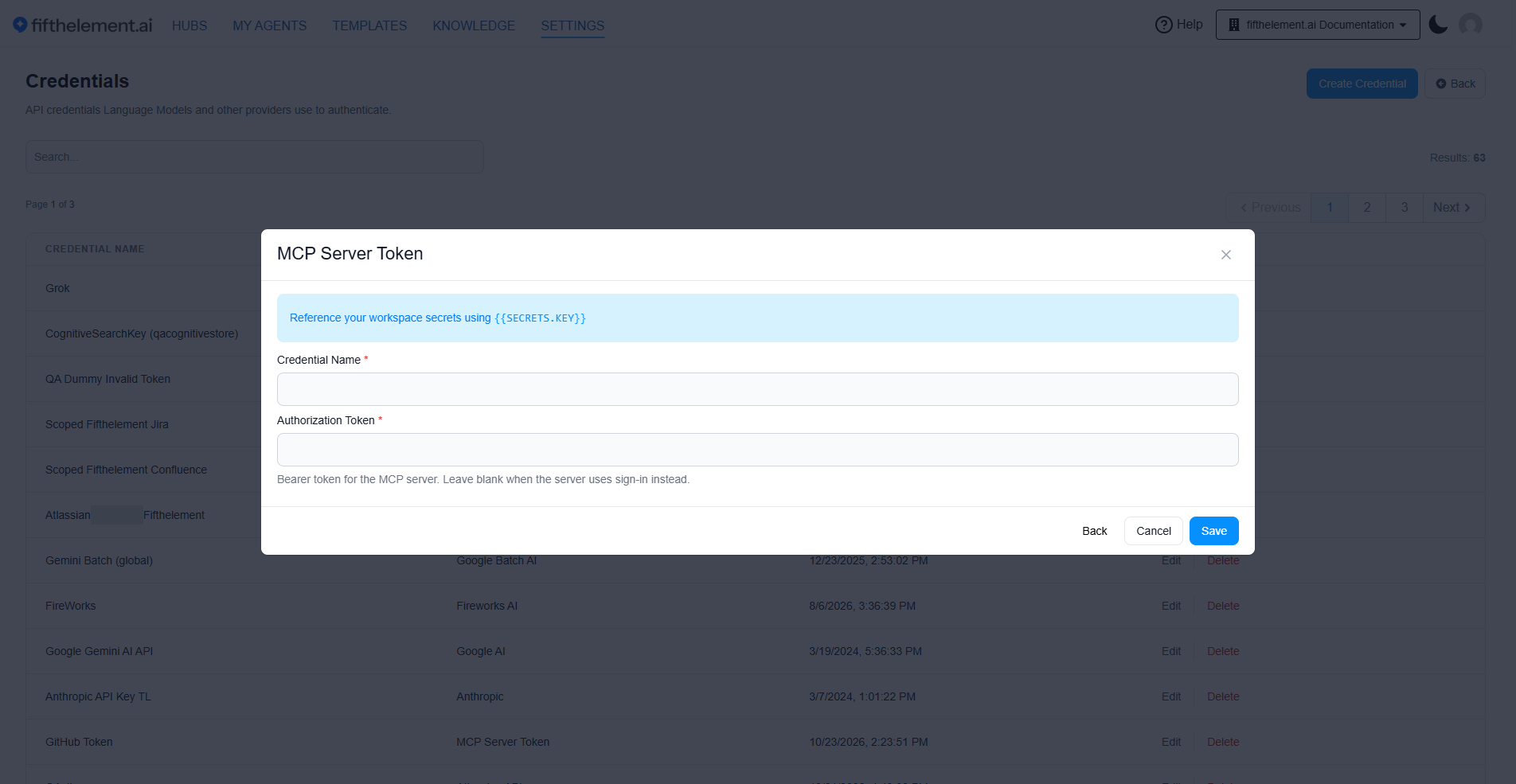
A connector that uses an API token reads it from an MCP Server Token credential: Settings > Security & Access > Credentials > Create Credential > MCP Server Token, with a Credential Name and the Authorization Token. See Credentials.
Managing a Connector
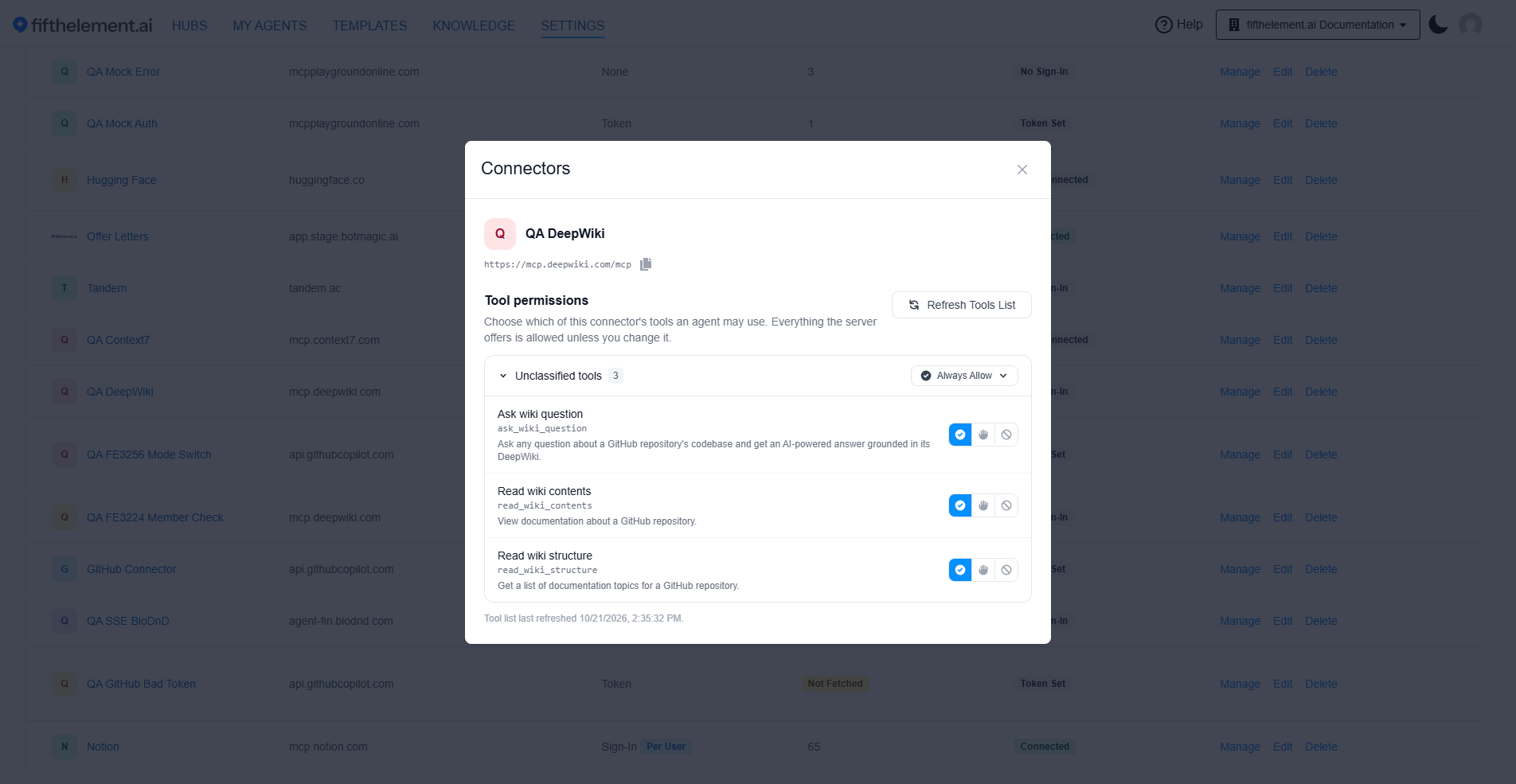
Manage view with the tool permissions and the Refresh Tools List action.
Click Manage on a connector row to:
- Copy the server URL from the header
- Refresh Tools List to pick up tools the service has added or removed. The view records when the list was last refreshed
- Set a permission for each tool, or for a whole group of tools: Always Allow (the agent may call it whenever it decides to), Needs Approval (asks the person in the chat before each call) or Blocked (the agent is never offered it). Everything the server offers is allowed unless you change it
- Connect a sign-in connector. For a connector where each user signs in, an administrator's first connection is what fetches the tool list
For a caller-token connector the Manage view also offers a Test token box, used for one refresh only and never stored.
Close the Manage view with its X.
Attaching a Connector to an Agent
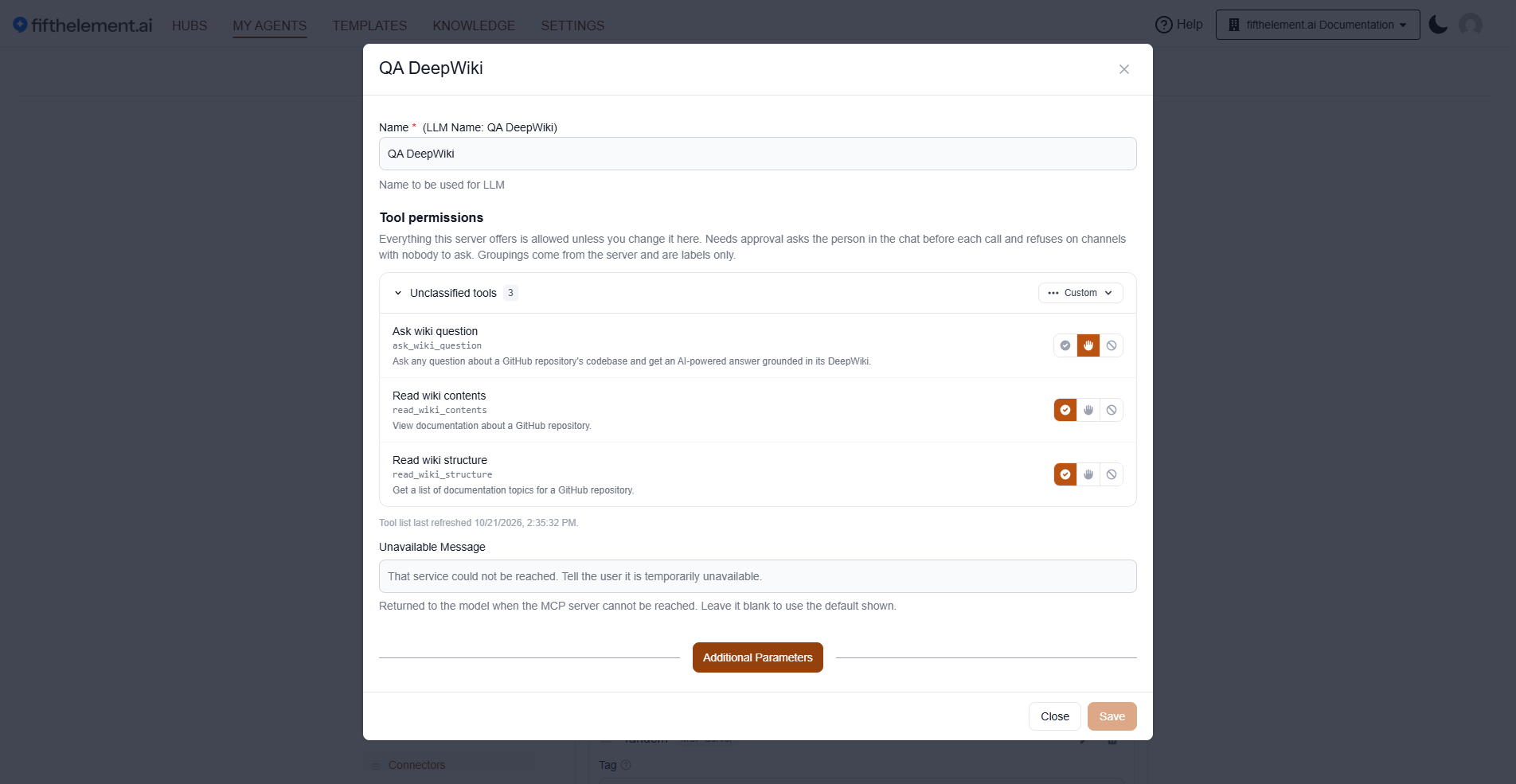
The agent's Connectors section. Each tool can be set to Always Allow, Needs Approval or Blocked for this agent.
- Open the agent's settings. If the Connectors section is missing, click Add a section and add Connectors from the Capabilities group
- Click + Add Connector and pick a connector. The picker only offers connectors whose tools have been fetched
- Open the connector card's pencil to set each tool to Always Allow, Needs Approval or Blocked, and to set the Unavailable Message for this agent
- Click Save
The permissions on the agent are independent of the ones in Settings, so one connector can expose different tools on different agents. Connectors are offered to both Chat and Search agents.
What End Users See
- Sign in from the chat. Where each user connects their own account, the agent shows a Connect prompt the first time and again if the connection later expires. If a sign-in is cancelled, times out or fails, the chat says so and the agent reports that nothing was retrieved. A sign-in refused for lack of access tells the user to ask a workspace administrator
- Connected applications. Each user sees their own connections under Account menu > Account > Connected applications, with a Connected or Reconnect required status and a Disconnect action. Users see only their own cards
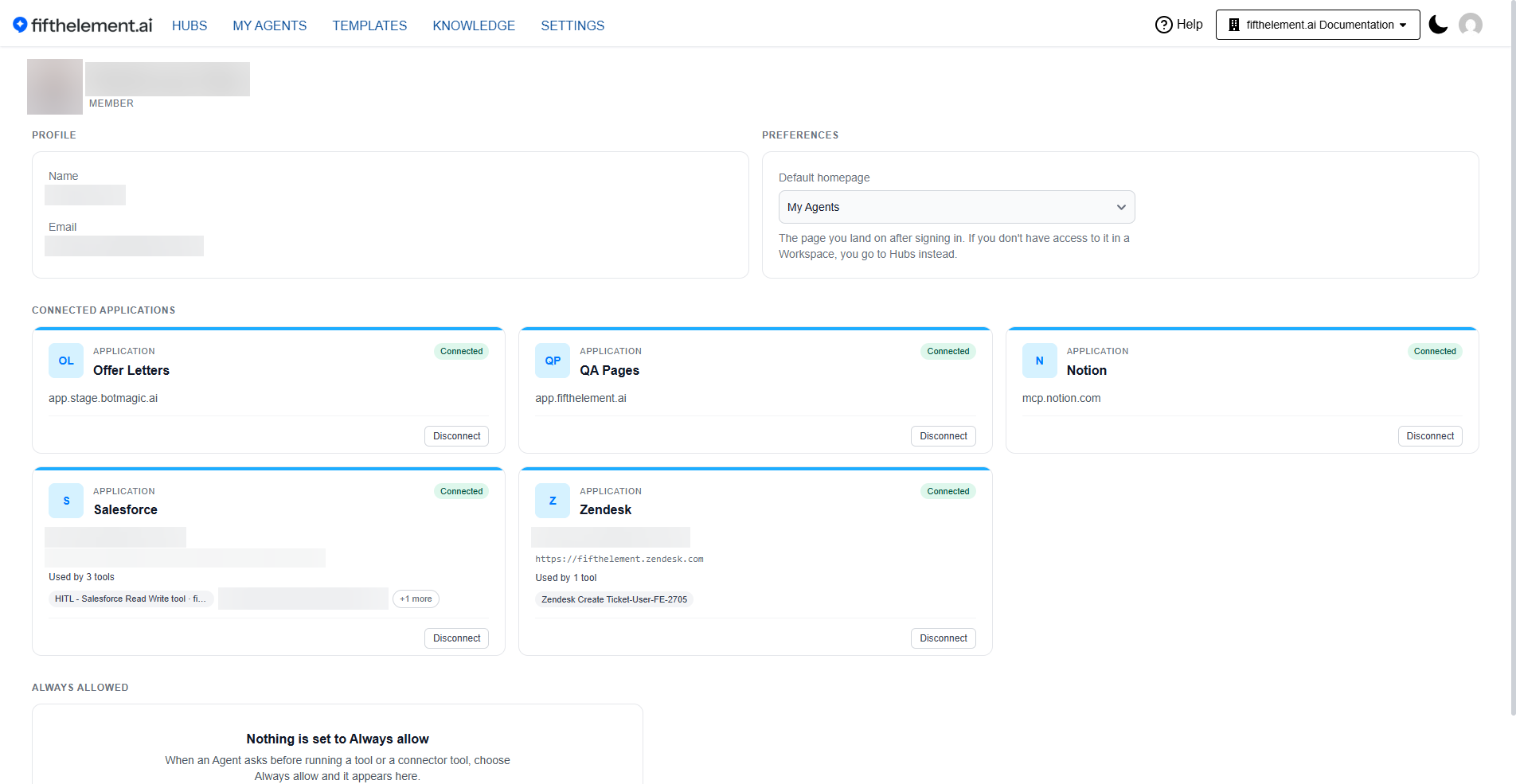
Connected applications on the Account page, with identifying details blurred.
- Approvals. A tool set to Needs Approval shows an approval card in the chat before it runs. See Tool Approvals
- Anonymous and voice use. Agents used by anonymous visitors or over voice use the shared workspace account, because there is no one to sign in. A connector that needs a per-user sign-in is refused there, and a tool that needs approval is refused over the API
Permissions
Connectors are permission-controlled. Roles gain a Connectors group under Settings (Create, Read, Update, Delete) for managing the workspace's connectors, and a Connectors permission under the agent's Tools & Artifacts area for attaching them to an agent. The seeded Admin role receives both by default. See RBAC & Roles.
Troubleshooting
| Symptom | Check first | Next step |
|---|---|---|
| Continue is disabled on Server details | The probe message under the URL | Correct the host or use a public https:// address. Private and reserved addresses are refused |
| Tools column says Not Fetched | Authentication and Transport in Manage and Edit | Fix the token or sign in, then Refresh Tools List |
| The agent says the service is unavailable | The connector's Unavailable Message and the server itself | The message is yours to word; check the server before changing the connector |
| A user keeps being asked to connect | Their card under Account > Connected applications | Reconnect required means the connection expired; connecting again clears it |
| Status shows Reconnect Needed | Manage, which says the connection expired | The provider refused the shared sign-in, or it expired with nothing to refresh it. Click Connect and sign in again; until then its tools are refused in chat and the connector cannot be granted to a task |
| The connector cannot be deleted | The agents and tasks that use it | Remove it from those agents and tasks first |
| A tool never runs over the API | The tool's permission on the agent | Needs Approval tools are refused on the API, which has nobody to ask |
Related Topics
- Tool Approvals - Approve, Always allow and Decline
- Credentials - MCP Server Token credentials
- Agent Builder - Advanced Configuration - The Connectors section on an agent
- Connecting a Knowledge Base over MCP - The other direction
- RBAC & Roles - Connector permissions
- Back to Settings