TTS Models
Configure Text-to-Speech models to give your agents the ability to speak responses aloud.
Overview
TTS (Text-to-Speech) models convert the agent's text responses into spoken audio. When enabled, the agent can automatically play back responses as speech, or users can selectively listen to individual messages using the Message Read Aloud feature.
TTS is configured per-agent under the agent's Voice module.
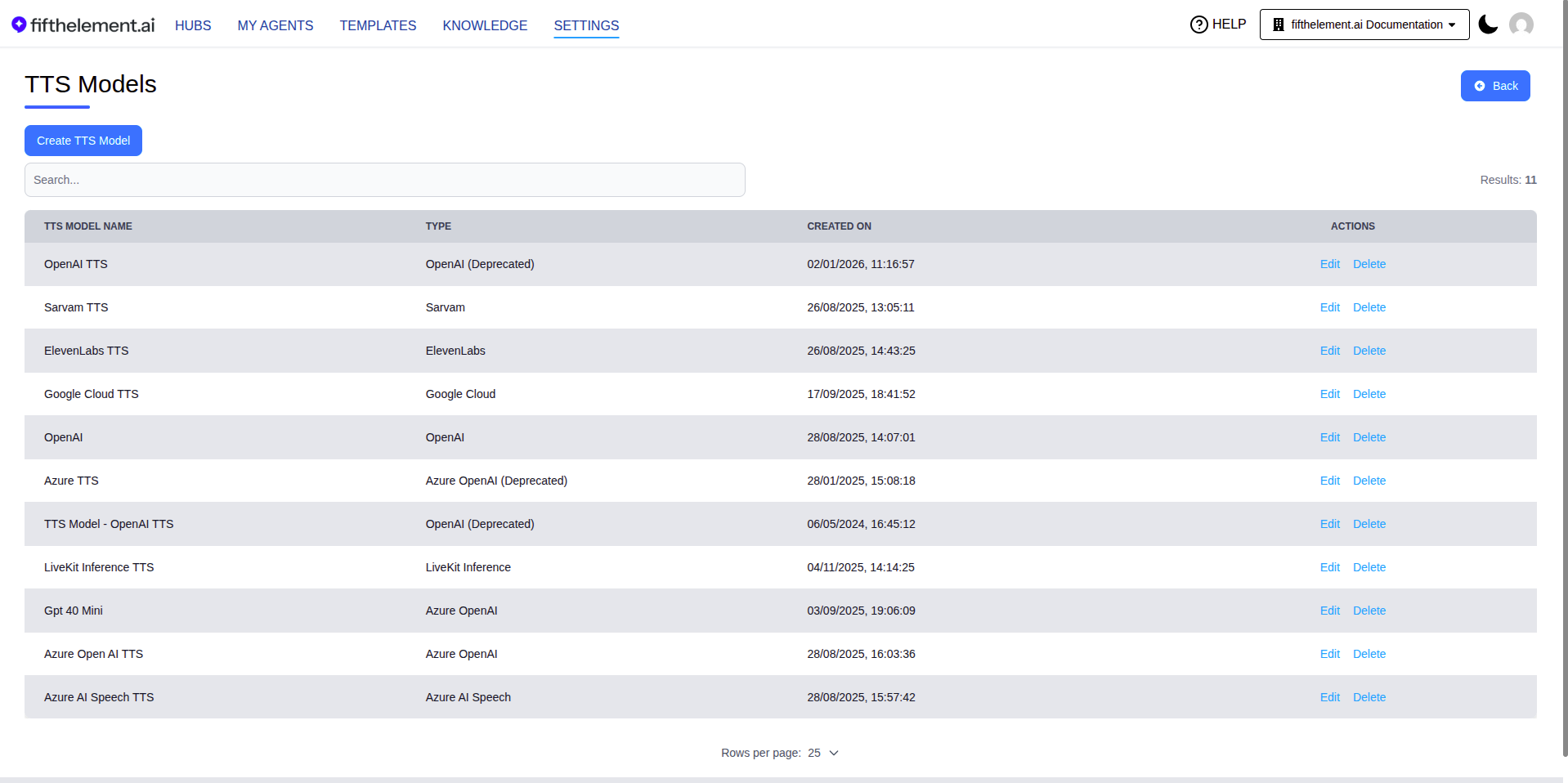
TTS Models are managed under Settings > AI Models > TTS Models.
Enabling TTS on an Agent
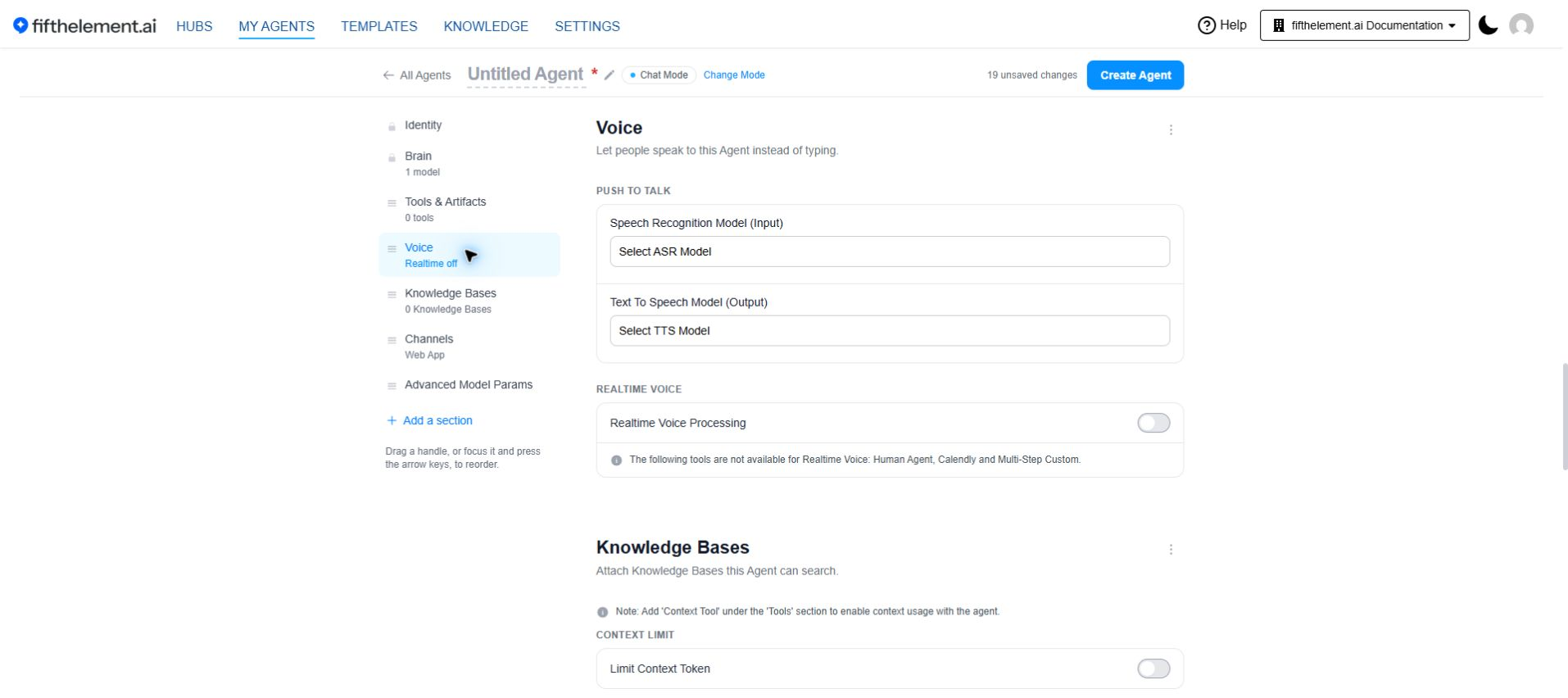
To enable text-to-speech for an agent:
- Navigate to the agent's Voice module
- Under Push to talk, open Text To Speech Model (Output)
- Select a TTS model from the configured models in your workspace
- Click "Save"
Auto-Play with ASR
When TTS is enabled alongside ASR (Speech-to-Text), the agent supports automatic voice playback:
- User speaks a message via the Mic button (ASR)
- The agent processes the transcribed input
- The agent's response is automatically played back as speech (TTS)
This creates a seamless voice conversation experience without requiring the user to read the response.
Message Read Aloud
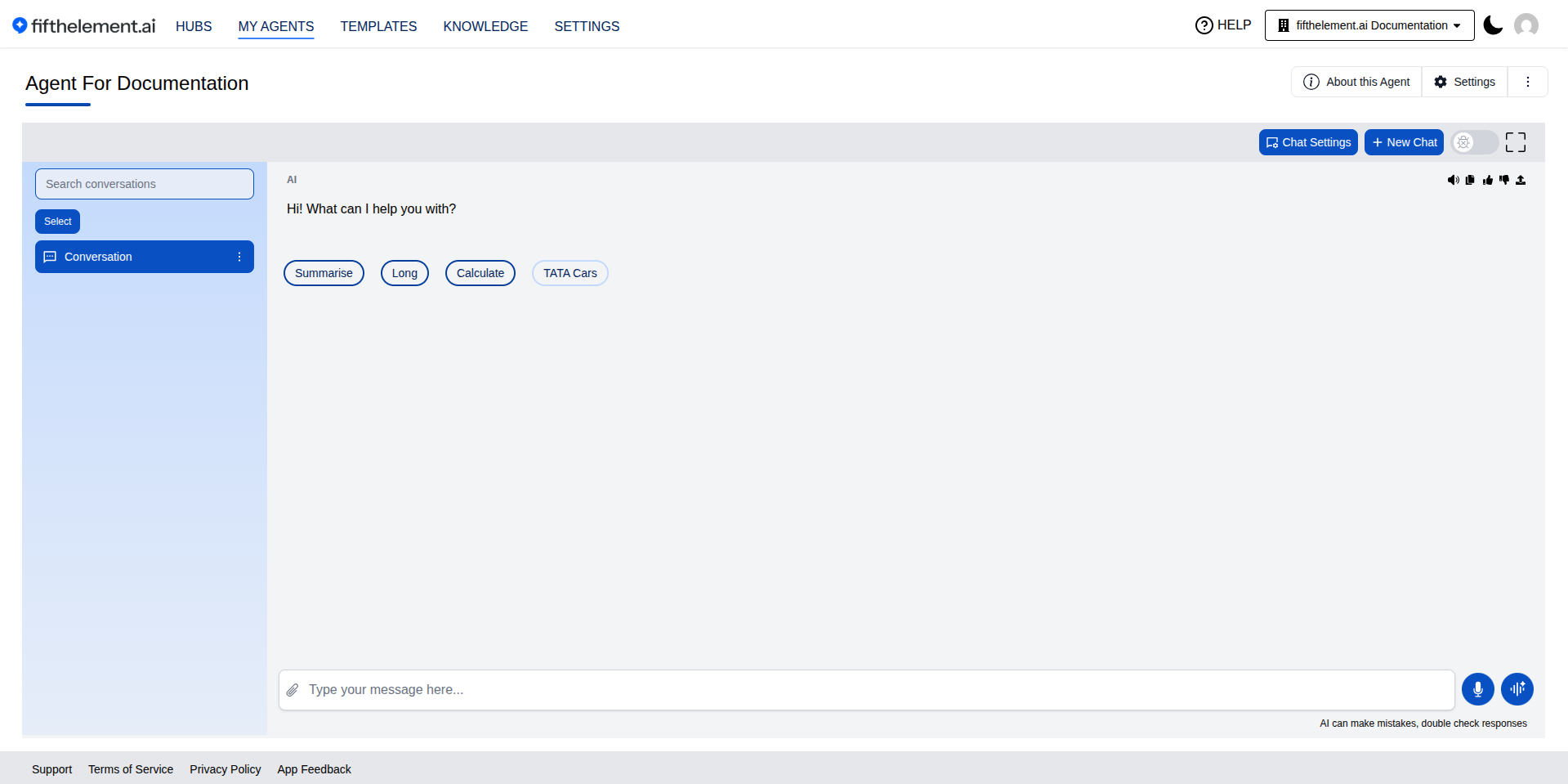
Configure Text To Speech Model (Output) in the agent’s Voice > Push to talk group. In the chat interface, the Play message button beneath an agent response provides playback for that message.
When to use
Message Read Aloud is useful for accessibility, hands-free workflows, or situations where users prefer listening over reading — such as long-form responses or mobile usage.
Supported Providers
TTS models are configured at the workspace level under Settings > AI Models > TTS Models. The available models depend on the providers configured for your workspace.
Click Create TTS Model, then search or scroll through the provider tiles and choose a provider to configure.
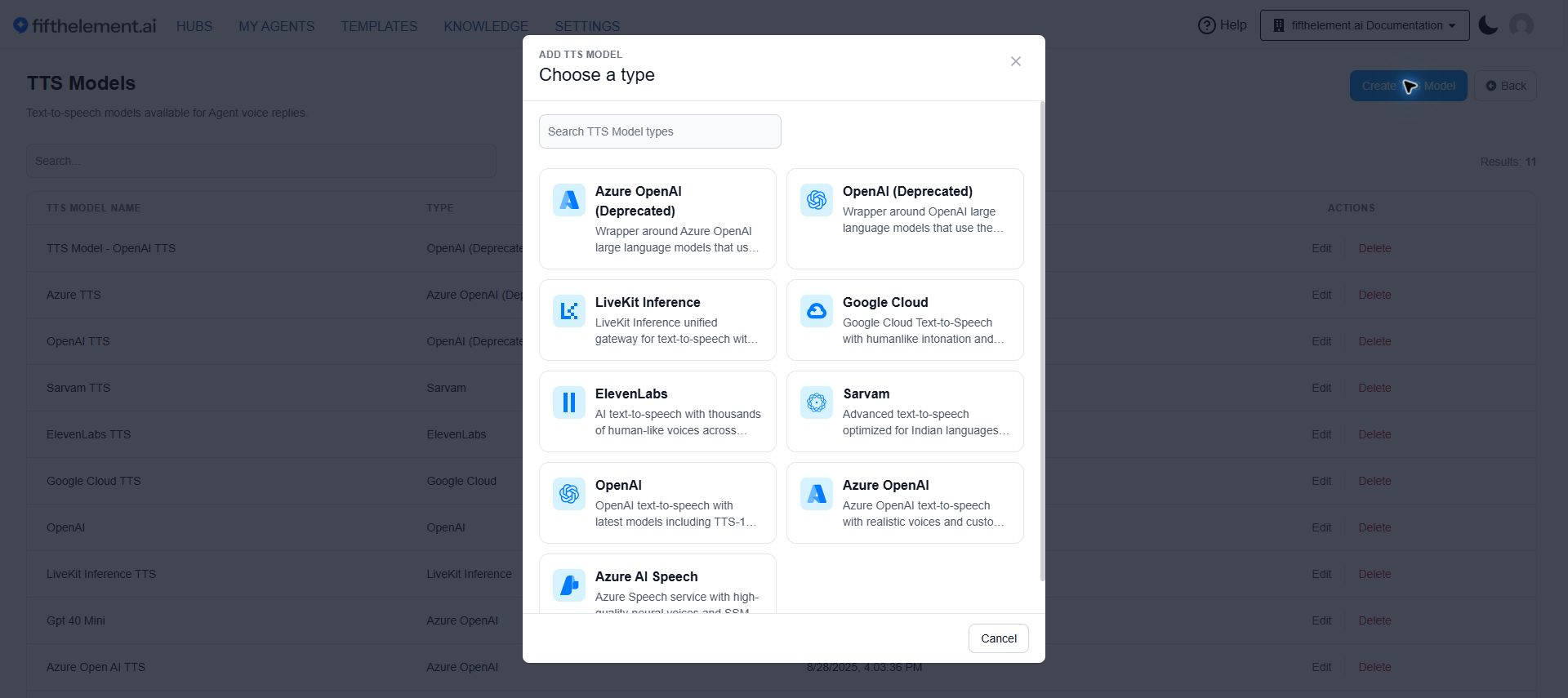
| Provider | Models / Notes |
|---|---|
| OpenAI | OpenAI TTS |
| Azure OpenAI | Azure-hosted OpenAI TTS |
| Azure AI Speech | Azure AI Speech Services |
| Google Cloud | Google Cloud Text-to-Speech |
| ElevenLabs | High-quality neural voices with wide voice library |
| Sarvam | Bulbul v3 — optimized for Indian languages |
| LiveKit Inference | Access various TTS providers via a unified gateway using simple model ID strings. Requires a LiveKit Inference API credential under Settings > Security & Access > Credentials |
| OpenAI | (Deprecated) Legacy OpenAI TTS |
| Azure OpenAI | (Deprecated) Legacy Azure-hosted OpenAI TTS |
Voice Selection
Different providers offer various voice options with different characteristics — tone, accent, speed, and naturalness. Choose a voice that matches your agent's personality and your audience's preferences. For Indian language support, consider Sarvam's Bulbul v3.
Related Topics
- Back to AI Models
- ASR Models — Pair with TTS for full voice conversations
- Realtime Voice Models — For phone/SIP-based voice agents
- Voice Guides — End-to-end voice workflow setup
- Agent Builder — Advanced Configuration — the Voice module in the agent builder