Realtime Voice Models
Configure real-time voice processing for phone calls, SIP integrations, and websocket-based voice agents.
Overview
Realtime Voice enables your agents to handle live voice conversations — either through phone/SIP or websocket connections. Unlike the Push To Talk model used with ASR/TTS, Realtime Voice provides continuous, bidirectional voice processing for fully autonomous voice agents.
Realtime Voice is configured per-agent in the agent's Voice module.
Enabling Realtime Voice
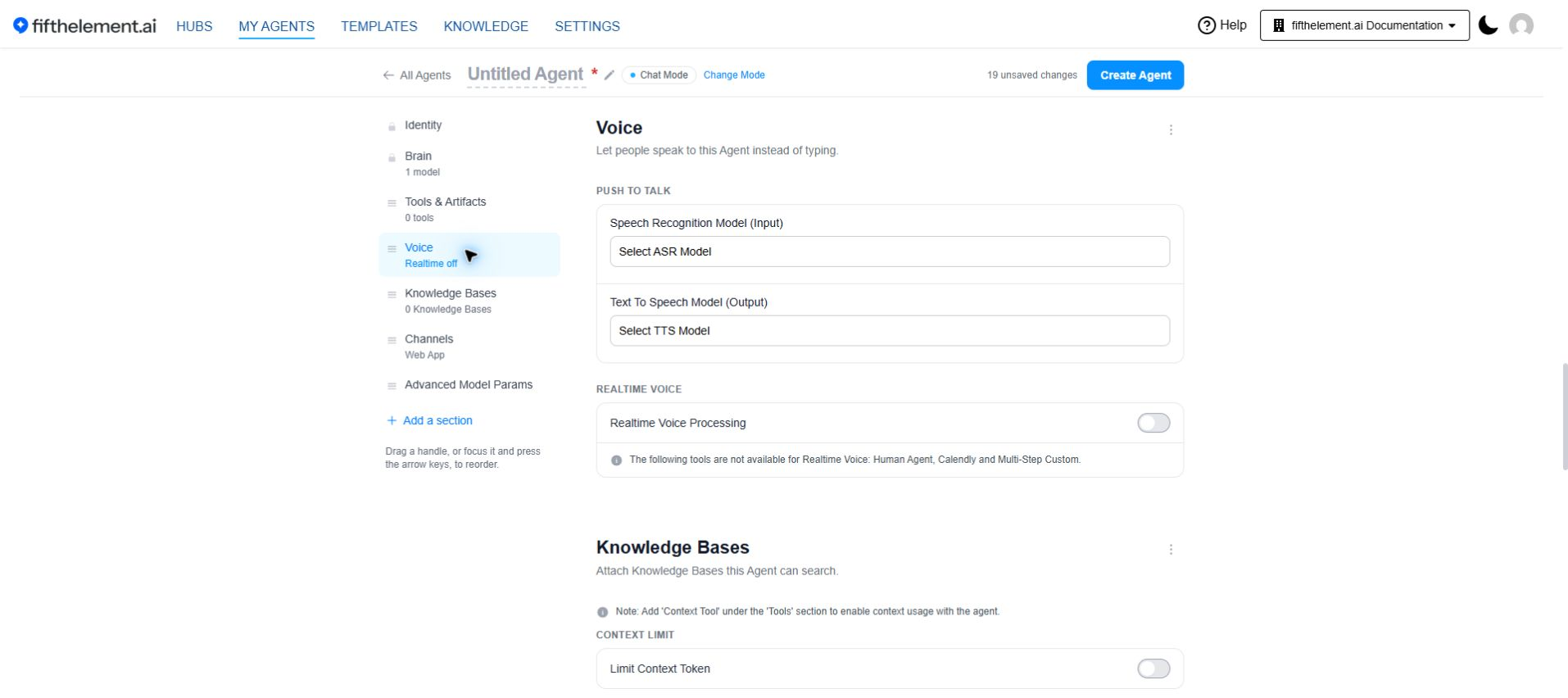
- Open the agent and add the Voice module from Add a section if it is not already on the page
- Under Realtime Voice, set Realtime Voice Processing to Enable
- Select a Realtime Voice Model (Includes AI Listens) from the configured models in your workspace
- Configure SIP or Websocket processing (see below)
Required
A Realtime Voice Model must be selected once Realtime Voice Processing is enabled.
Tool restrictions
The following tools are not available for Realtime Voice: Human Agent, Calendly and Multi-Step Custom.
Launch in Voice Mode by Default
When to use
Enable this for voice-first use cases where landing the user on a text screen they did not want costs an unnecessary click.
Launch in Voice Mode by Default is an Enable / Disable pair in the Voice module, alongside Realtime Voice Processing.
| State | Behaviour |
|---|---|
| Disable | The default. Opening the agent lands the user on text chat |
| Enable | Opening the agent lands the user on the voice screen — Tap to start voice conversation — with a Continue with text chat link for anyone who prefers typing |
The toggle ships set to Disable, so existing agents are unaffected until it is switched on.
SIP Realtime Voice Processing
SIP (Session Initiation Protocol) allows your agent to receive and handle phone calls. Enable this option if your agent needs to interact with users via telephone.
Configuration
When SIP Processing is enabled, configure the following:
| Field | Description |
|---|---|
| SIP Numbers | Phone number(s) owned by you that can be called to connect to the agent |
| SIP Username | Authentication username for SIP registration |
| SIP Password | Authentication password for SIP registration |
| Allowed IP Addresses | IP addresses permitted to connect, in CIDR notation (e.g., 192.168.1.0/32) |
IP Address Filtering
All IP addresses must be specified in CIDR notation. Leaving this field empty will allow connections from all IP addresses.
Websocket Realtime Voice Processing
Websocket processing enables real-time voice communication over websocket connections. This is useful for browser-based or custom application integrations where SIP is not applicable.
Configuration
When Websocket Processing is enabled, configure:
| Field | Description |
|---|---|
| WebSocket Connection URL (Preferred Method) | The websocket URL for connecting to the agent (e.g., wss://ws.domain.com/ws/[slug]/[secret]). Available after saving the agent for the first time |
| Twilio Webhook URL (for Phone Calls) | Webhook URL for Twilio integration (e.g., https://your-domain.com/incoming-call/[slug]/[secret]). Available after saving the agent with a slug and secret |
| WebSocket Secret | Click Generate to create a secure secret, or enter your own (minimum 16 characters) |
Realtime Voice Model Types
Realtime models are created under Settings → Realtime Voice Models → Create Realtime Model, and listed with their type and creation date.
Native realtime (speech-to-speech) types include OpenAI Realtime, Azure OpenAI Realtime, Google Gemini Live, LiveKit Inference, xAI Grok Voice, and the fully configurable Custom Realtime type.
xAI Grok Voice
When to use
Use xAI Grok Voice when you want native speech-to-speech on the xAI stack. It reuses the existing xAI credential already configured for Grok text models, so there is no additional credential setup for admins.
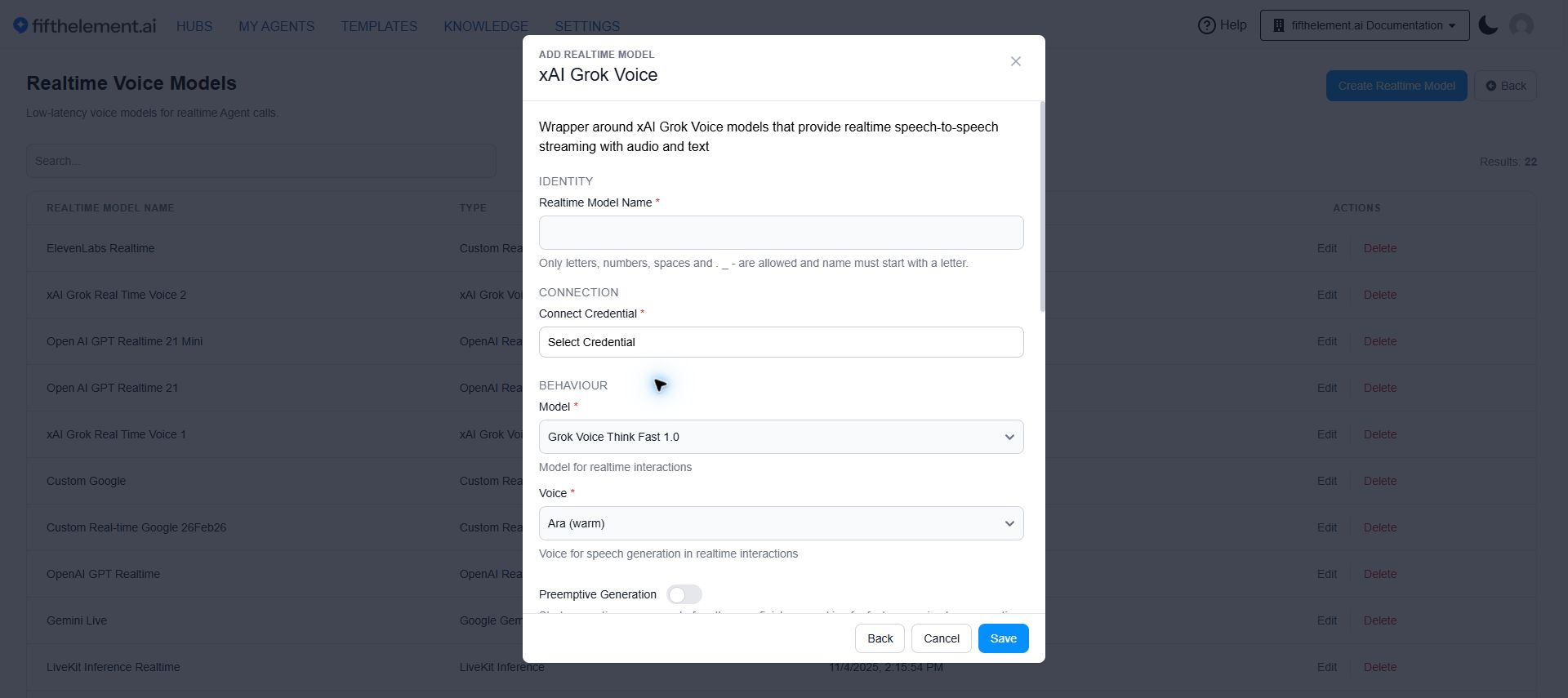
A wrapper around xAI Grok Voice models that provide realtime speech-to-speech streaming with audio and text.
| Field | Required | Description |
|---|---|---|
| Realtime Model Name | Yes | Display name for this model instance |
| Connect Credential | Yes | The existing xAI credential |
| Model | Yes | Model for realtime interactions (for example Grok Voice Think Fast 1.0) |
| Voice | Yes | Voice for speech generation in realtime interactions (for example Ara (warm)) |
| Preemptive Generation | No | Starts generating responses before the user finishes speaking, for faster perceived response time |
| Tool Filler Phrases | No | Short phrases spoken while a tool call runs, so the caller isn't met with silence on slow lookups |
Turn-taking sensitivity settings govern how quickly the agent responds and how it handles interruptions, matching the other realtime providers.
Tool Filler Phrases and native realtime voice
Filler phrases play only on voice setups that use a separate text-to-speech voice (STT-LLM-TTS / Custom Realtime). Native realtime voice — OpenAI, Azure, Gemini, or xAI Realtime — has no separate voice for these and stays silent during the call. Press Enter to add each phrase; leave empty to disable.
Audio Feedback Settings
Configure audio feedback during tool processing to eliminate dead silence.
| Field | Required | Description |
|---|---|---|
| Audio Feedback | — | Play audio during tool processing to provide feedback to the user |
| Thinking Sound | Yes | Sound to play during tool processing (for example Keyboard Typing) |
| Thinking Sound Playback | Yes | When to play the thinking sound — Only During Tool Calls (the previous behaviour), or also while the model is thinking |
| Thinking Sound Volume | Yes | Volume for the thinking sound, 0.1 to 1.0 |
Visual thinking indicator
The voice interface displays a waveform and a Thinking label while preparing a response. The screenshot below shows this state with the microphone muted and the end-call control available.

Thinking state during a voice conversation. User-provided screenshot; no personal or connection details are visible.
Custom Realtime Model
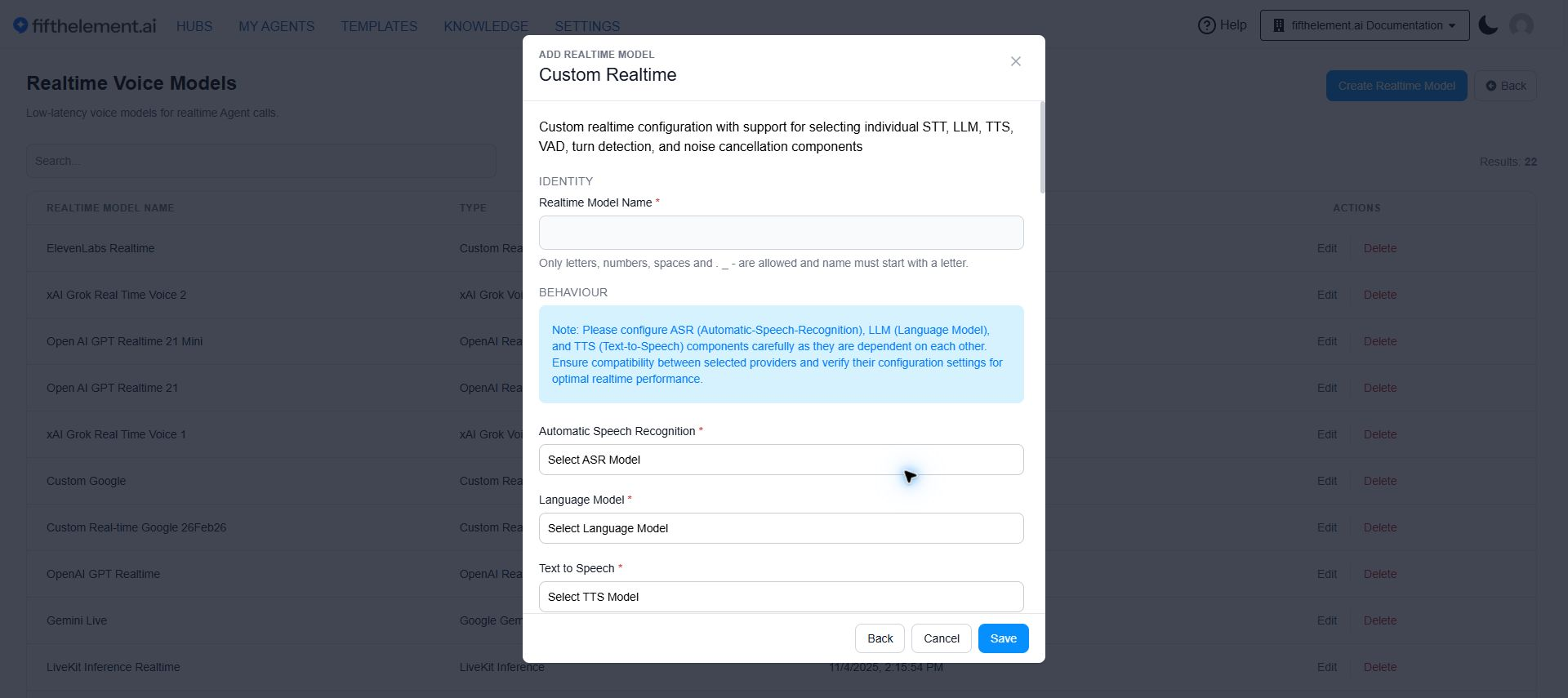
A fully configurable model with granular control over conversational behavior. Custom Realtime Models support the following advanced settings:
- Click Create Realtime Model and choose Custom Realtime.
- Enter the model name and select Automatic Speech Recognition, Language Model and Text to Speech.
- Scroll through VAD, audio feedback, interruption and turn-detection settings below.
- Review compatibility between the selected components before saving.
Interruption Handling:
| Setting | Description |
|---|---|
| Allow Interruptions | Toggle to allow users to interrupt the agent while it is speaking |
| False Interruption Timeout | Duration to wait before treating user speech as a genuine interruption |
| Minimum Interruption Words | Minimum number of words the user must speak for it to count as an interruption |
| Resume After False Interruption | When enabled, the agent resumes its response after a false interruption is detected |
| Minimum Interruption Duration | Minimum duration of user speech to register as an interruption |
| Min Endpointing Delay | Minimum delay before the system considers the user has finished speaking |
| Max Endpointing Delay | Maximum delay before the system forces end-of-turn detection |
VAD (Voice Activity Detection) Settings:
| Setting | Description |
|---|---|
| Min Speech Duration | Minimum duration of speech to be considered valid voice activity |
| Min Silence Duration | Minimum duration of silence before speech is considered ended |
| VAD Activation Threshold | Confidence threshold for detecting voice activity (0 to 1) |
| Prefix Padding Duration | Duration of audio to include before detected speech starts |
| Max Buffered Speech | Maximum duration of speech to buffer before processing |
| VAD Sample Rate | Audio sample rate for VAD processing |
Audio Feedback Settings:
| Setting | Description |
|---|---|
| Audio Feedback | Toggle to enable audio feedback sounds during processing |
| Thinking Sound | Select the sound played while the agent is processing (dropdown) |
| Thinking Sound Volume | Volume level for the thinking sound |
| Ambient Sound | Background ambient sound during the conversation |
Other Settings:
| Setting | Description |
|---|---|
| Preemptive Generation | Toggle to allow the agent to start generating a response before the user finishes speaking |
Turn Detection:
| Setting | Description |
|---|---|
| Turn Detection Model | Select the model used to detect when a user has finished speaking. Supports LiveKit Multilingual Models for AI-powered contextual turn detection — critical for languages such as Spanish and Portuguese |
STT Provider Override
When using an STT provider with native turn detection, the provider's turn detection may override the configured Turn Detection Model.
LiveKit Inference Realtime Model
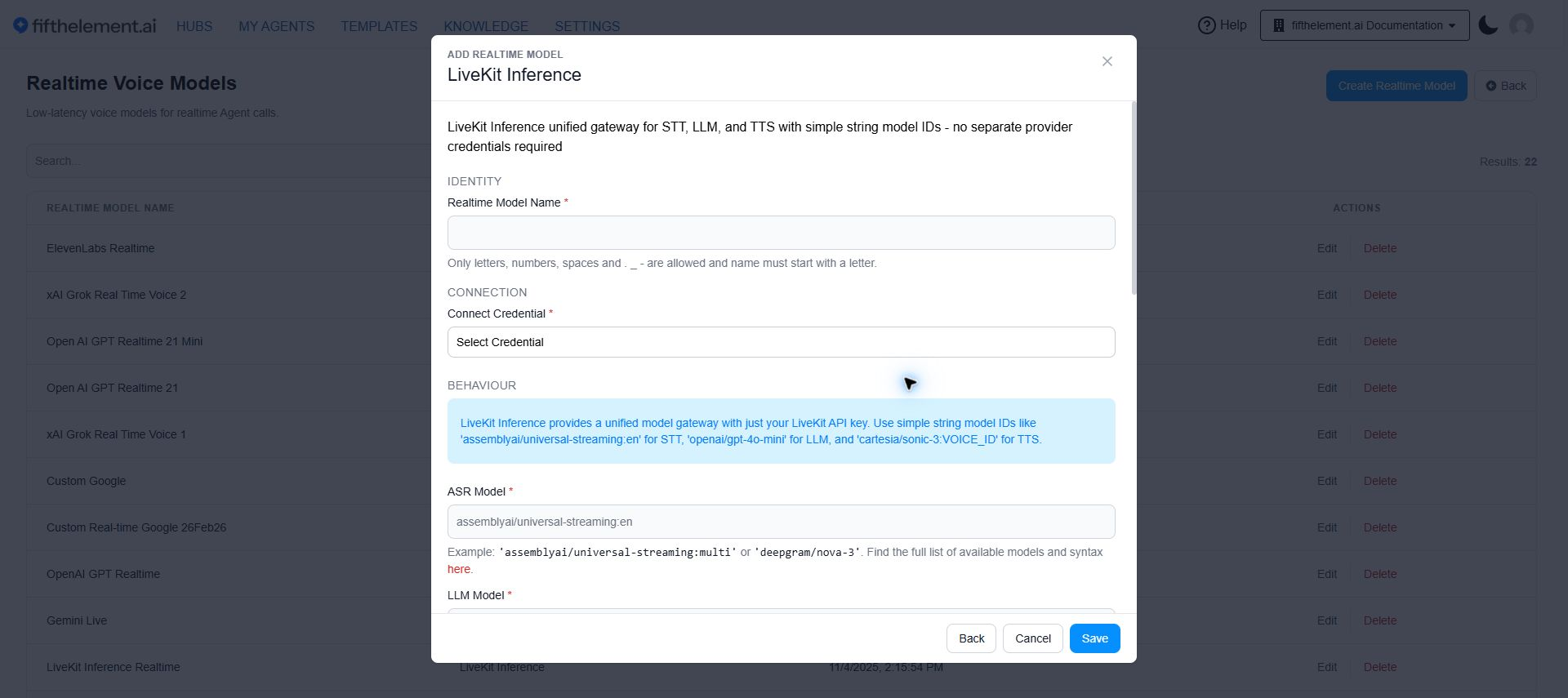
A unified gateway model that simplifies configuration by combining ASR, LLM, and TTS components within a single interface using model ID strings (e.g., openai/gpt-4o-mini). This eliminates the need for separate provider credentials for every model.
To use LiveKit Inference:
- Configure a LiveKit Inference API credential under Settings > Security & Access > Credentials
- Create a new Realtime Voice Model and select "LiveKit Inference" as the type
- Configure ASR, LLM, and TTS model IDs within the single interface
When to use LiveKit Inference
Use LiveKit Inference when you want a simplified setup that accesses multiple providers through a single credential. Use Custom Realtime Models when you need fine-grained control over interruption handling and turn detection.
AI Listens (Real-Time Agent Assistance)
AI Listens is an intelligent "co-pilot" for human agents, providing real-time call transcription and response suggestions during live phone conversations.
Demo Feature
AI Listens is currently a demo feature. It provides passive monitoring with transcription and contextual suggestions — it does not speak or take over the call.
Capabilities
- Passive monitoring — transcribes live conversations and generates contextual suggestions in a dedicated dashboard
- Purely assistive — unlike Voice Agents, AI Listens does not have TTS output and does not speak to the caller
- Knowledge-based suggestions — responses are generated based on the agent's configured knowledge base
- RBAC-controlled — access is enabled by default for Admin, Workspace Admin, and Supervisor roles
Configuration
- In the agent's Voice module, select a Custom Realtime Model (required — only Custom Realtime Models support AI Listens)
- Enable AI Listens
- Follow the on-screen setup instructions (available via the
?icon) - Configure the phone and webhook settings:
| Field | Description |
|---|---|
| Phone Numbers | Numbers to monitor. Must include country code with + prefix. Cannot overlap with Voice Agent SIP numbers |
| Webhook URL | Configure your telephony provider (e.g., Twilio) with the provided Webhook URL using HTTP method POST |
| Channel Options | inbound (caller only, default), outbound (agent only), both_tracks (both parties) |
Channel Options
inbound— transcribes only the caller's side of the conversation (default)outbound— transcribes only the human agent's sideboth_tracks— transcribes both parties separately for full context
Accessing AI Listens
Access the AI Listens dashboard via the three-dot menu on the agent card, then select AI Listens. The dashboard displays active calls and provides a live stream of AI suggestions to help human agents respond effectively.
Related Topics
- Back to AI Models
- ASR Models — Speech-to-text for Push To Talk
- TTS Models — Text-to-speech for agent responses
- Voice Guides — End-to-end voice workflow setup
- Agent Builder — Advanced Configuration — the Voice module in the agent builder