Language Models
Configure the language models that power your agents' conversational intelligence. Language models are set up at the workspace level and then assigned to individual agents.
Overview
A language model is specifically trained to understand and generate human-like text in a conversational manner. Models excel at multi-turn dialogues, remembering context, and responding appropriately within a conversation. They vary by reasoning capability, speed, and context size.
Language models configured here become available for selection when building agents under the agent's Brain module.
Adding a Language Model
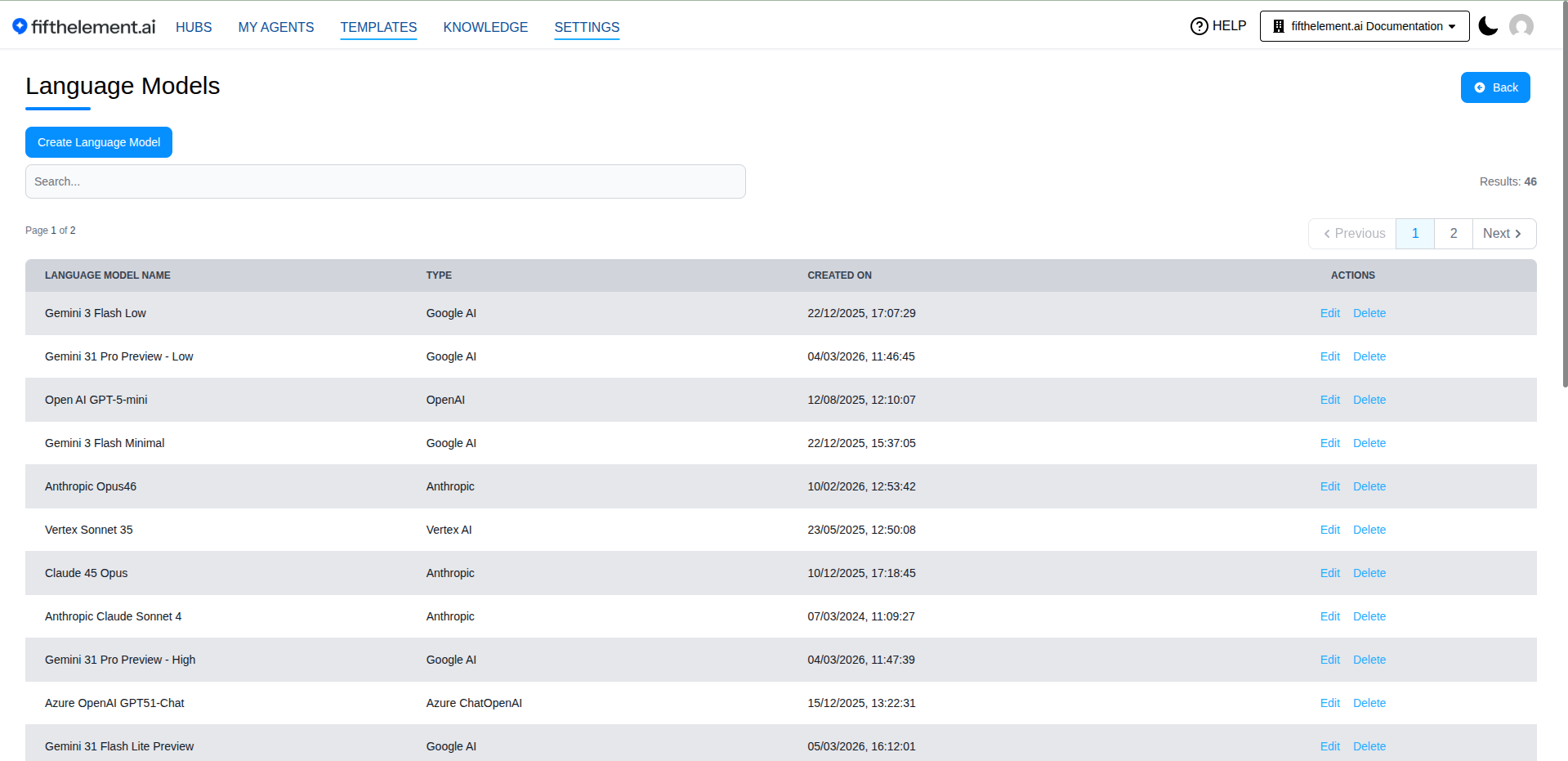
To add a language model to your workspace:
- Navigate to Settings > AI Models > Language Models
- Click "Create Language Model"
- Choose a provider tile in Choose a type, then select Model Name in the configuration form
- Configure the model parameters (see below)
- Click "Save"
Once added, the model appears in the workspace model list and can be assigned to any agent.
Model Parameters
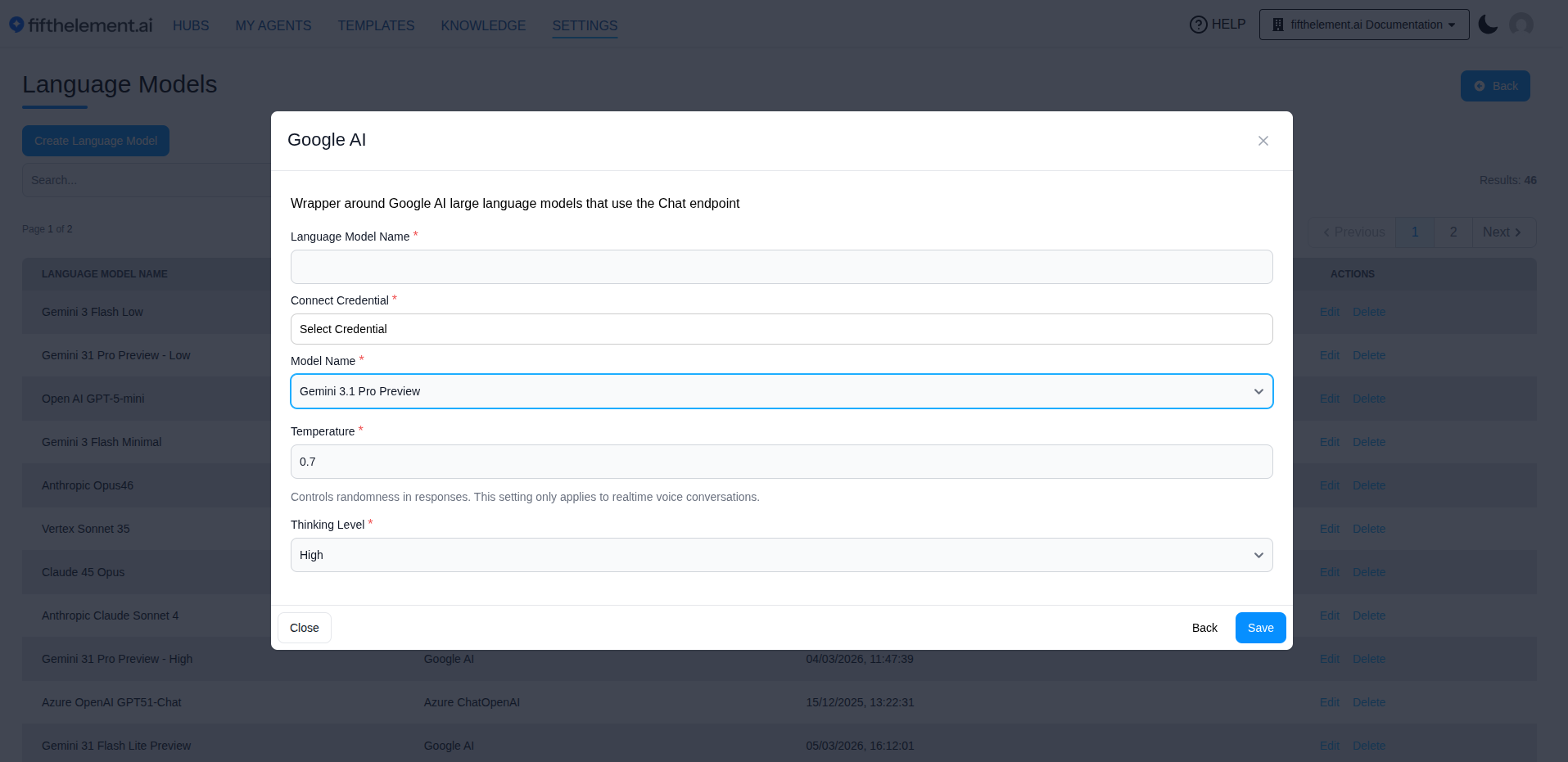
Where each parameter actually lives
Language model settings are split across three places. Only the first is on this page.
| Level | Where | Parameters |
|---|---|---|
| Workspace model | Settings → Language Models (this page) | Language Model Name, Connect Credential, Model Name, Temperature, Thinking Level |
| Per model, per agent | Agent → Brain → model row → edit (pencil), "Modify Language Model" | Display Name, Description, Add Tag, Temperature, Max Output Tokens, Per 1k Tokens Price, Max Messages in History, History Tokens Threshold |
| Agent-wide | Agent → Advanced Model Params module | Use Chat History, History Summary Strategy, Summarizer Model, History Summary Instructions, Condense Question Before Retrieval, Condense-Question Model, Large Context Processing Algorithm, Embedding Model |
The reference below documents every parameter regardless of level. See Agent Builder for the agent-side split.
Language Model
Select the desired language model from the dropdown of configured models for the workspace. You can optionally set a Tag (for conditional model routing) and a Description.
Temperature
When to use
Temperature controls response variation where supported by the selected model. The workspace model form and per-agent model editor expose temperature settings. Check the selected provider/model requirements before relying on a particular value.
- A higher temperature (closer to 1) makes responses more varied and creative
- A lower temperature (closer to 0) makes responses more focused and deterministic
Examples:
- Temperature 0.7: The agent might respond to a greeting with "Hello! What a wonderful day to chat!"
- Temperature 0.2: The agent might respond more consistently with just "Hello."
Max Output Tokens (max_tokens)
Set the maximum number of tokens (words and characters) the agent can use in a single response, including limiting the response returned by the context tool.
- A lower value makes responses shorter
- A higher value allows for longer, more detailed responses
Examples:
- Max Output Tokens 10: A weather query might get "It's sunny."
- Max Output Tokens 50: The same query might get "The weather is sunny and clear with a high of 75 degrees. Perfect for outdoor activities."
Check the selected model's limit
A prefilled Max Output Tokens value of 10,000 can exceed the selected model's displayed maximum. Review both the maximum and recommendation in the per-agent model form, and adjust the value before saving. Check History Tokens Threshold as well.
Platform Default: 10,000
The platform default for Max Output Tokens on Language Models is 10,000 (raised from the previous 768) — applied when a language model is added to an agent under Brain > + Add Language Model. The previous default truncated long answers, summaries, code generation, structured JSON, and visualization payloads on modern models that support 16K–256K output tokens natively. User-set values are preserved — only the default changes; existing agent configurations are not affected. (This default change does not apply to Realtime Models or Batch Models.)
Impact on Input Context
Max Output Tokens directly impacts Max Input Tokens for Context. The higher the Max Output Tokens value, the fewer tokens are available for input. If your agent's purpose is question answering over large documents, keep output tokens low to maximize the amount of text the agent can read before answering. For translation, text transformation, and coding tasks, use a larger output token value.
Per 1k Tokens Price
Use this setting to track and experiment with the cost of usage for a specific model configuration.
Use Chat History
When to use
Enable this for agents that handle complex tasks or conversations requiring reference to past exchanges. If your agent's tasks are simple and don't require much context, you can leave this disabled.
When enabled, the agent can use previous exchanges in the conversation to provide more context-aware responses.
Example: If a user asks "What's the weather like today?" and later says "What about tomorrow?", the agent can refer back to the earlier question to understand the user is asking about tomorrow's weather.
Max Messages in History
Define the maximum number of previous messages in the conversation that the agent can reference.
Example: If set to 5, the agent will only see the last 5 messages exchanged. If the user refers to something mentioned 6 messages back, the agent won't have that context.
Recommendation
For most models, setting this value to 10 is a good starting point.
History Tokens Threshold
Set the maximum number of tokens from the conversation history that the agent can reference.
Example: If set to 1000 and the conversation has been very long or detailed, the agent might not have access to the full content of past messages.
Recommendation
A value of 3,072 tokens is a good starting point for most models. Adjust based on your conversation length and model context window.
Optimizing Performance
Tokens are chunks of text, and the number of tokens in a message can impact how much content the model can generate in response. Set appropriate limits on message history and token thresholds to optimize your agent's performance and cost-effectiveness. Use Chat History should be enabled for context-sensitive conversations.
History Summary Strategy
When Use Chat History is enabled, the History Summary Strategy controls what happens once a conversation grows past the per-model History Tokens Threshold.
| Strategy | Behavior |
|---|---|
| Truncate — drop oldest messages (default) | Cheapest path; older context is lost. A banner tells the user and suggests starting a new chat |
| Summarize — keep a rolling summary of older messages | Oldest messages are folded into a running summary that travels with every subsequent turn via a {history_summary} slot in the system prompt. The agent keeps the gist of the conversation across very long threads |
Trade-off: Summarization adds model processing. Measure latency, cost and failure handling with the selected model and representative conversations before choosing thresholds.
Summarizer Model
Required when Summarize is selected. A smaller / faster model (e.g., Haiku, Gemini Flash, GPT-5 mini) is usually the right choice — the summarizer only condenses past messages, so the agent's most capable reasoning model can be reserved for the primary chat turn.
Condense Question Before Retrieval
A pre-retrieval rewrite step. Before any retrieval tool runs, the user's message is rewritten using recent conversation history — turning follow-ups like "what about Q4?" on an FY24-sales thread into a self-contained query (e.g., "FY24 Q4 sales"). Improves RAG answer quality on multi-turn threads.
Condense-Question Model
Required when Condense question before retrieval is enabled. Typically a small / fast model — condense is a tiny pre-step; the user-facing chat model still does the heavy lifting on each turn.
Where to find these controls
Both History Summary Strategy and Condense question before retrieval live under My Agents > agent card menu > Settings > Advanced Model Params and only appear once Use Chat History is enabled. Steady-state conversations under the per-model History Tokens Threshold are unaffected — the strategy only fires when that threshold is crossed. Disabling Use Chat History hides both controls; saved values are preserved, so re-enabling restores the previous configuration.
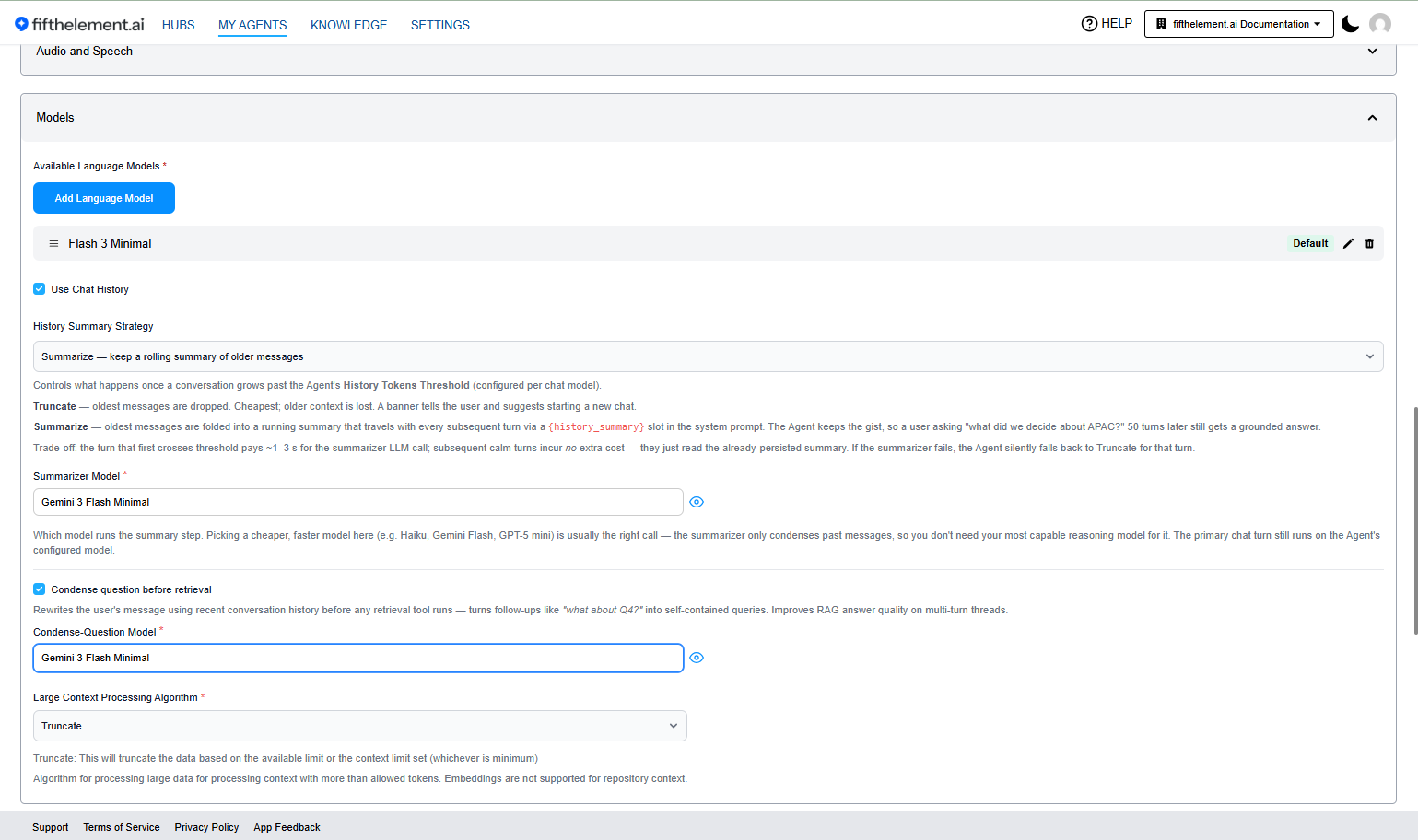
Advanced Model Params with Summarize selected: choose a Summarizer Model and optionally customize History Summary Instructions.
Large Context Processing Algorithm
Set once for the whole agent, in the Advanced Model Params module. It determines how the agent handles situations where the context exceeds the model's available context window.
| Algorithm | Description | Best For |
|---|---|---|
| Truncate | Cuts off context when it exceeds model limits | Short conversations, FAQ agents |
| LLM Prompt Chaining | Breaks large contexts across multiple prompts | Very large document-based agents |
| Embeddings | Uses vector search to find relevant context chunks | Large temporary context; see the agent configuration limits |
Fallback Behavior
When working with context, it is always preferable that the entire context fits within the model's available context window. The agent will fall back to the large-context NLP algorithm when the context is too big to fit. One way to avoid this is selecting the largest context window available for a model.
Thinking Level
Controls the depth of reasoning the model applies before generating a response. When supported by the selected model, this setting allows you to trade off between response speed and reasoning quality.
| Level | Behavior |
|---|---|
| None | No extended thinking — fastest responses |
| Minimal | Light reasoning pass |
| Low | Basic reasoning |
| Medium | Balanced reasoning and speed |
| High | Deep reasoning — best for complex tasks |
Model Support
Thinking Level is only available for models that support extended thinking (e.g., certain Anthropic and Google models). If the selected model does not support it, this field will not appear.
Generate Summary Language Model
Choose the language model used for generating conversation summary reports. This allows you to decouple the summary model from the agent's primary model — for example, using a cheaper and faster model for summary generation.
If no value is provided, the agent-level language model is used by default.
Supported Providers
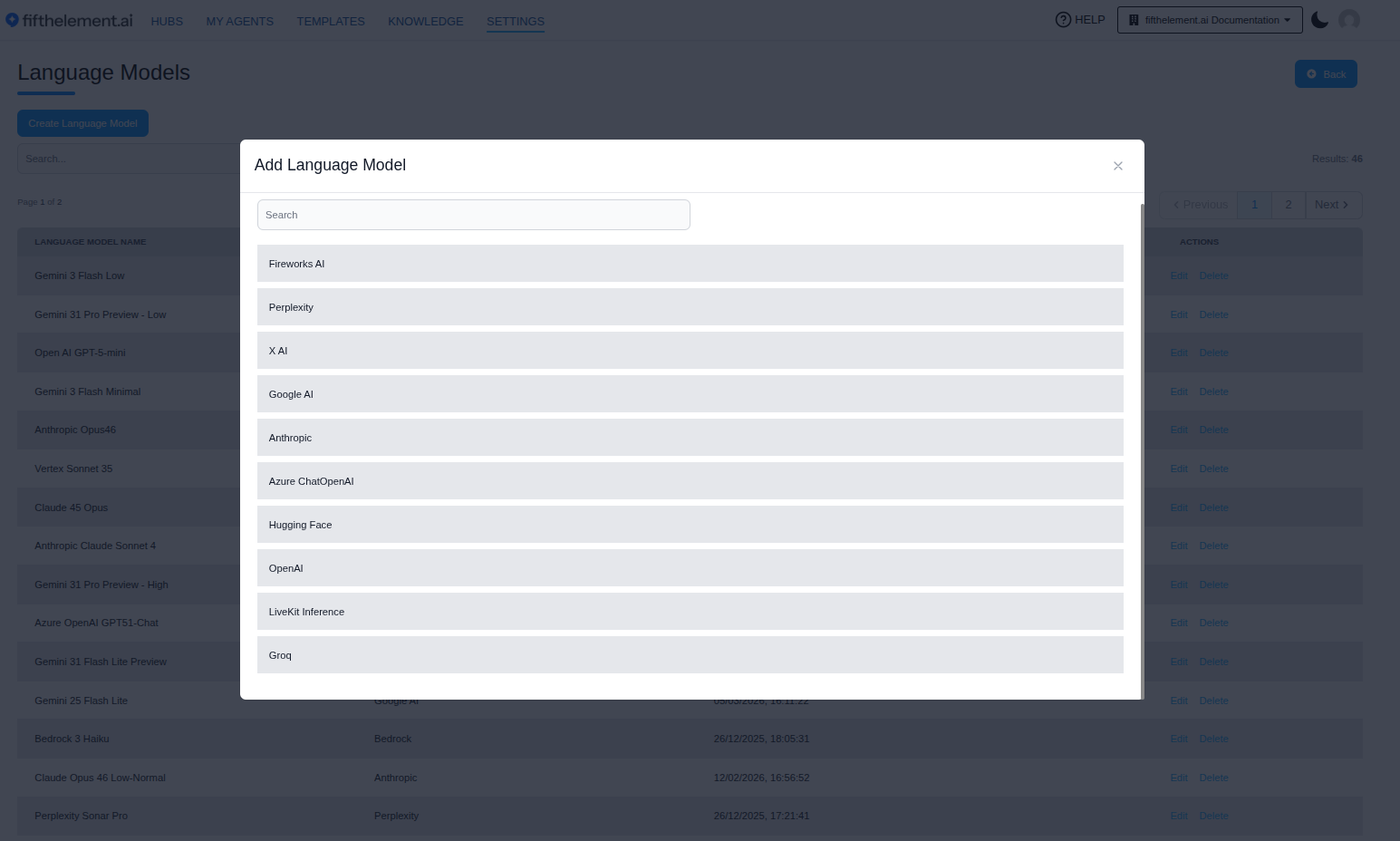
The platform supports language models from multiple providers. Models available in your workspace depend on configured credentials under Settings > Credentials.
The provider chooser offers Moonshot AI, Fireworks AI, X AI, DeepSeek, Google AI, Anthropic, Azure ChatOpenAI, OpenAI, Open Router, LiveKit Inference, and Groq. Use its search field to find a provider. Configure credentials separately under Settings > Security & Access > Credentials.
LiveKit Inference
LiveKit Inference provides a unified gateway for accessing multiple model providers using simple string model IDs. This eliminates the need for separate provider credentials for every model. Configure a LiveKit Inference API credential under Settings > Credentials to get started.
Model Availability
| Provider | Additional selectable language models |
|---|---|
| Anthropic | Claude Fable 5.1 |
| OpenAI | gpt-6-astra |
| Azure ChatOpenAI | gpt-6-astra |
| Google AI | Gemini 3.8 Flash, Gemini 3.7 Flash |
Other Model Options
Availability differs between Language Models and Batch Models. Choose the provider first and use its Model Name selector; a language-model entry does not imply batch support.
| Provider | Model Name |
|---|---|
| Anthropic | Claude 5 Sonnet, Claude 5 Opus, Claude 5 Fable |
| OpenAI | gpt-5.3-chat-latest, gpt-5.4, gpt-5.4-mini, gpt-5.4-nano, gpt-5.5, gpt-5.6-sol, gpt-5.6-terra, gpt-5.6-luna |
| X AI | Grok 4.5 |
| Moonshot AI | Kimi K3 |
| Fireworks AI | Kimi K3, DeepSeek V4 Pro, DeepSeek V4 Flash 0731 |
| DeepSeek | DeepSeek V4 Flash, DeepSeek V4 Pro |
| Open Router | Meta Muse Spark 1.1, Qwen3.8 Max |
Same model, two routes
Kimi K3 and DeepSeek are reachable both natively and through Fireworks AI, so the same model can be used on whichever route suits the workspace.
Context Size Considerations
When selecting a model, consider the following:
- Context window: It is always preferable that the entire context fits within the model's available context window. Select the largest context window available when working with large documents.
- Pricing: Models have varying costs associated with their use. Factor in these costs when selecting a model for your application.
- Capability vs. speed: More advanced models provide better reasoning but may be slower. Match the model to your agent's complexity.
Related Topics
- Back to AI Models
- Agent Builder — Basic Configuration — Assign models to agents
- Agent Builder — Advanced Configuration — Fine-tune model behavior per agent
- Embeddings — Configure embedding models for RAG