RAG Overview
Understanding how Retrieval-Augmented Generation (RAG) works on the fifthelement.ai platform.
Overview
Retrieval-Augmented Generation (RAG) combines the power of large language models with your organization's knowledge base. Instead of relying solely on the LLM's training data, RAG retrieves relevant documents from your knowledge bases and provides them as context — enabling the agent to give accurate, fact-based responses grounded in your specific data.
How RAG Works
The RAG pipeline on fifthelement.ai follows this flow:
- Ingest — Documents are uploaded or crawled into a Knowledge Base
- Process — Documents are parsed, chunked, and converted into vector embeddings
- Store — Embeddings are stored in a Vector Store (Cognitive Search)
- Retrieve — When a user asks a question, the Retrieval Tool searches the vector store for the most relevant chunks
- Generate — The LLM receives the retrieved context along with the user's question and generates a grounded response
Knowledge Bases
Knowledge Bases are the containers that store and organize your documents for RAG. Each repository is backed by a Vector Store and optionally a Batch Model for processing.
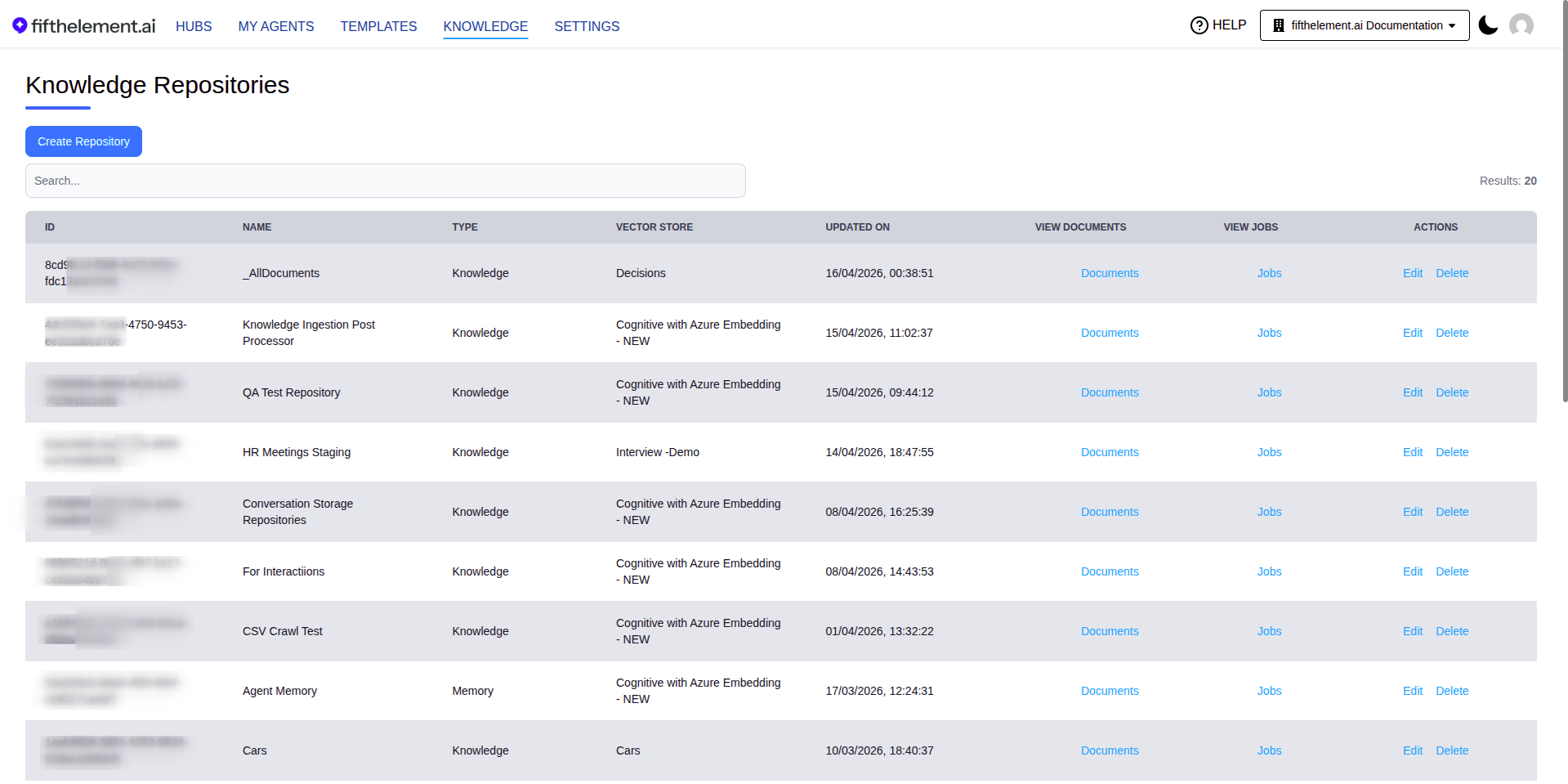
Creating a Knowledge Base
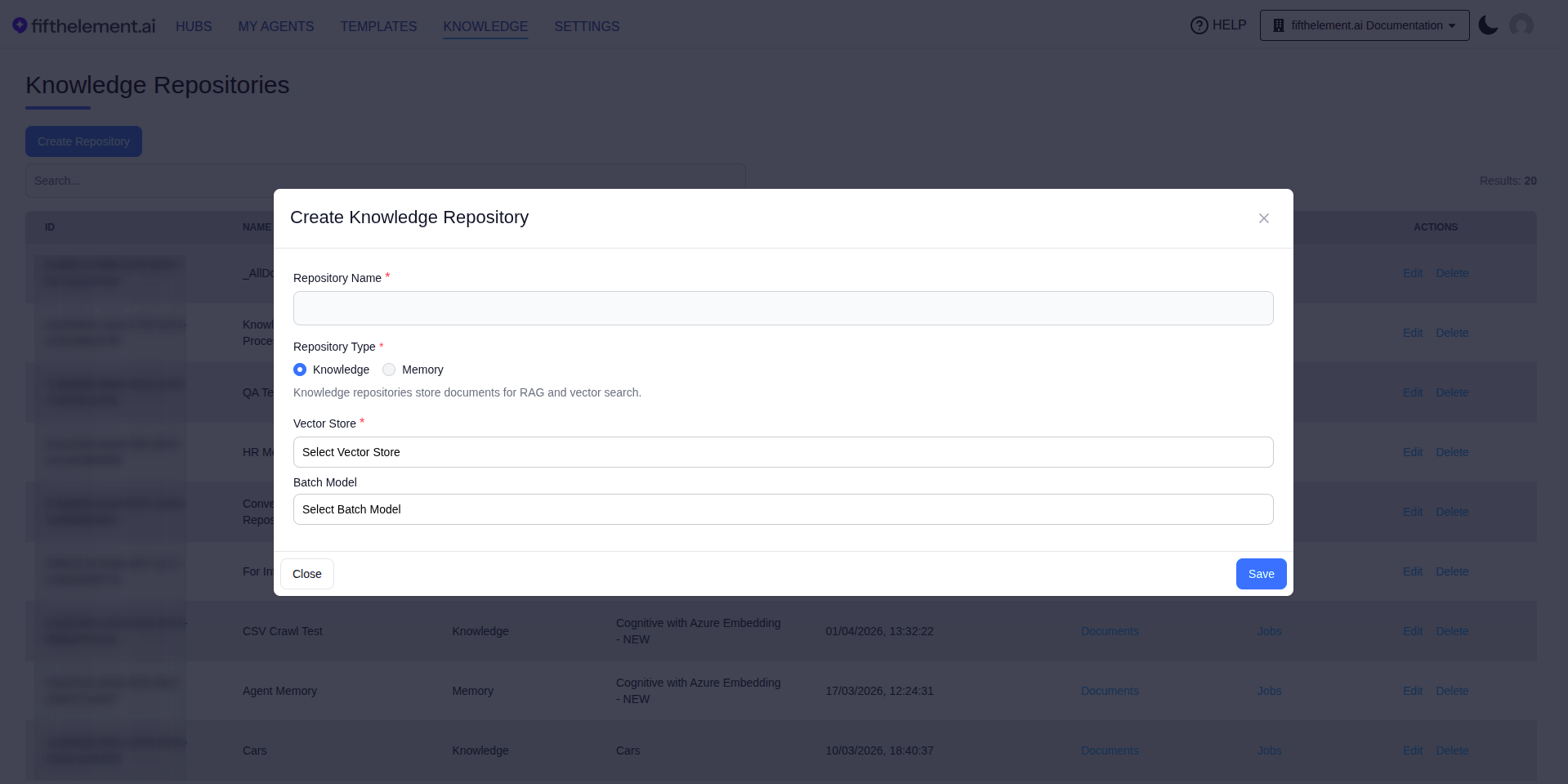
- Navigate to Knowledge from the top navigation
- Click "Create Knowledge Base"
- Configure the repository settings:
| Field | Required | Description |
|---|---|---|
| Name | Yes | A descriptive name for the repository |
| Type | Yes | Knowledge (stores documents for RAG and vector search) or Memory (used by the Context Memory Tool for persistent agent memory) |
| Vector Store | Yes | Select a configured Vector Store |
| Batch Model | No | Select a Batch Model for document processing (summaries, metadata extraction) |
- Click "Save"
Adding Documents
Once a repository is created, add documents using the Add Document(s) button. The platform supports three categories of ingestion:
| Category | Methods |
|---|---|
| Crawl | Website, CSV URL Import, Confluence, SharePoint/OneDrive, Human Assisted |
| Upload | Folder (Auto OCR), Folder (No OCR), Folder (Force OCR), Plain Text |
| API | Add documents programmatically via API |
For detailed instructions, see Document Ingestion and Web Crawling.
Document Management
Document Status
When batch processing is enabled for a repository, documents move through processing stages:
| Status | Description |
|---|---|
| Processing | Document is being parsed, embedded, and indexed |
| Ready | Document is indexed and available for retrieval |
| Failed | Processing encountered an error |
Document Locks
Document locks provide an additional access-control dimension. Review document keys assigned to both the member and their role, together with resource scope and creator access. Verify retrieval under the intended account; see RBAC & Roles.
Managing Documents
From the repository documents page you can:
- Search documents by name
- Filter by Document Status and Document Locks
- Edit document metadata and locks
- View document content
- Delete documents
- Update Locks All — bulk update locks across documents
Connecting RAG to Agents
To enable RAG for an agent, you need to connect the knowledge base through the agent's tools:
- Navigate to the agent's Tools & Artifacts module
- Add a Retrieval tool — this performs vector search against the repository
- Alternatively, add a Context tool with Knowledge Base selected as the context source
The Retrieval tool searches the vector store for relevant document chunks based on the user's query and provides them to the LLM as context for generating responses.
Connecting a Knowledge Base over MCP
- Open Knowledge and find the Knowledge Base.
- Click Connect in its Actions column.
- Review the Connect Link and the tools listed in the dialog.
- Add that link as an MCP connector in your client and review the access request when prompted.
The dialog lists the tools exposed by that base. Use the exact names shown there; names differ by Knowledge Base.
Reviewing Connected Apps
Open Account menu > MCP Connections, or follow MCP Connections from User API Keys. The page groups connected apps by Knowledge Base and shows approval and end dates with a Remove Access action.
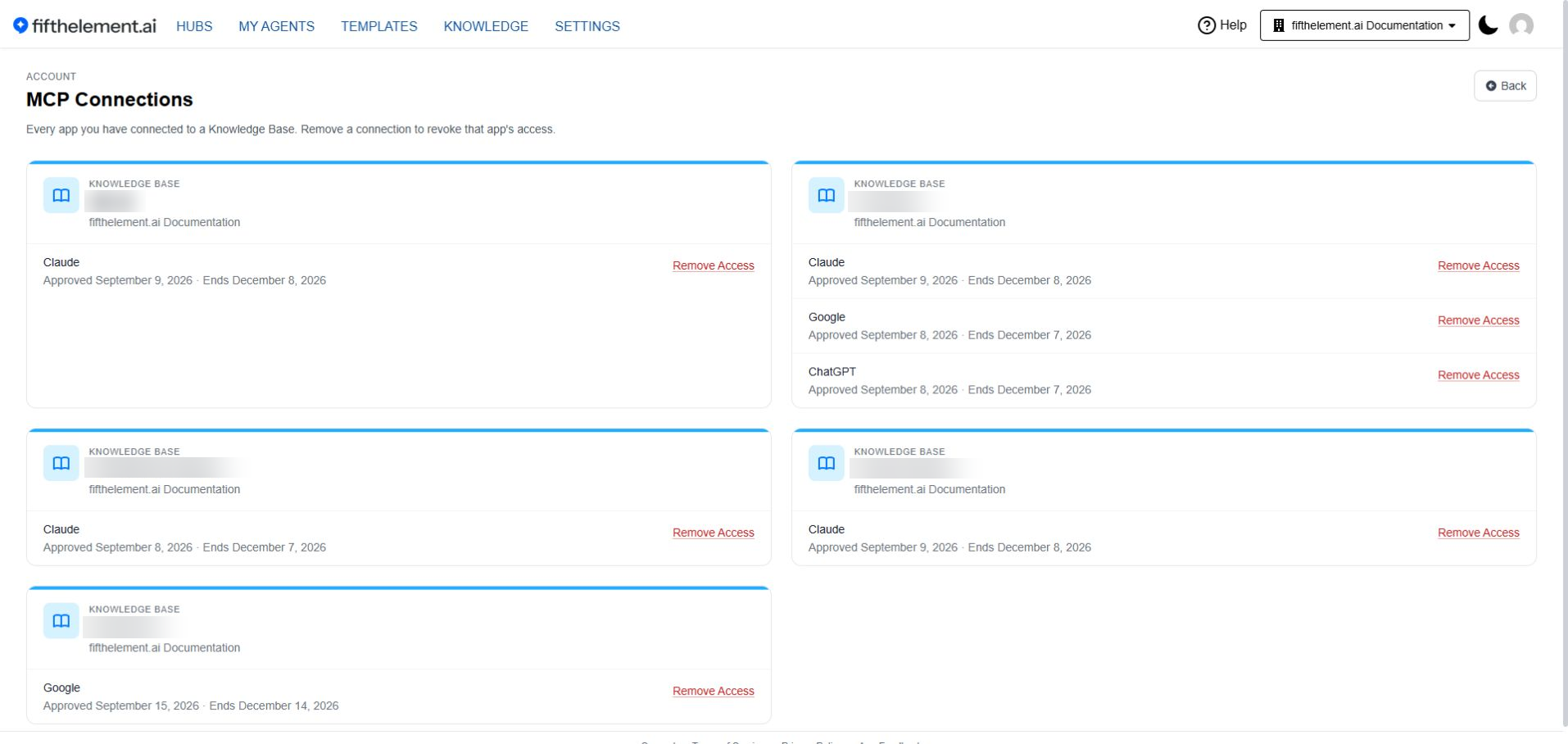
Review connected apps and their approval period before managing access.
Check the Connection and Access
Before configuring the client, confirm the selected Knowledge Base and intended user. The connector dialog lists the tools for that base; copy the displayed link and tool names rather than deriving them from another base's configuration.
After approval, review the application and approval/end dates in MCP Connections. Test retrieval using a synthetic document the intended user should be able to access, then check an appropriately restricted test document with an authorized administrator. A connected-app entry confirms an approval record, not every tool call or access rule.
Use Remove Access when intentionally revoking a connection, then verify its state in both the platform and client. Keep connector URLs, tokens and client identifiers out of shared screenshots. If a call fails, check the selected base, approval period, client configuration and member/document access before requesting broader permissions.
Related Topics
- Document Ingestion — Upload files and manage documents
- Web Crawling — Crawl websites and external platforms
- Vector Search — How vector search and retrieval works
- Vector Stores — Configure vector databases
- Embeddings — Configure embedding models
- Tools — Retrieval and Context tools
- Back to Knowledge