Document Ingestion
Upload and manage documents in your knowledge bases to power RAG-enabled AI agents.
Overview
The Knowledge Base system allows you to upload various document types that your AI agents can use to answer questions and provide information. Documents are processed, indexed, and made searchable for intelligent retrieval.
Accessing Knowledge Bases
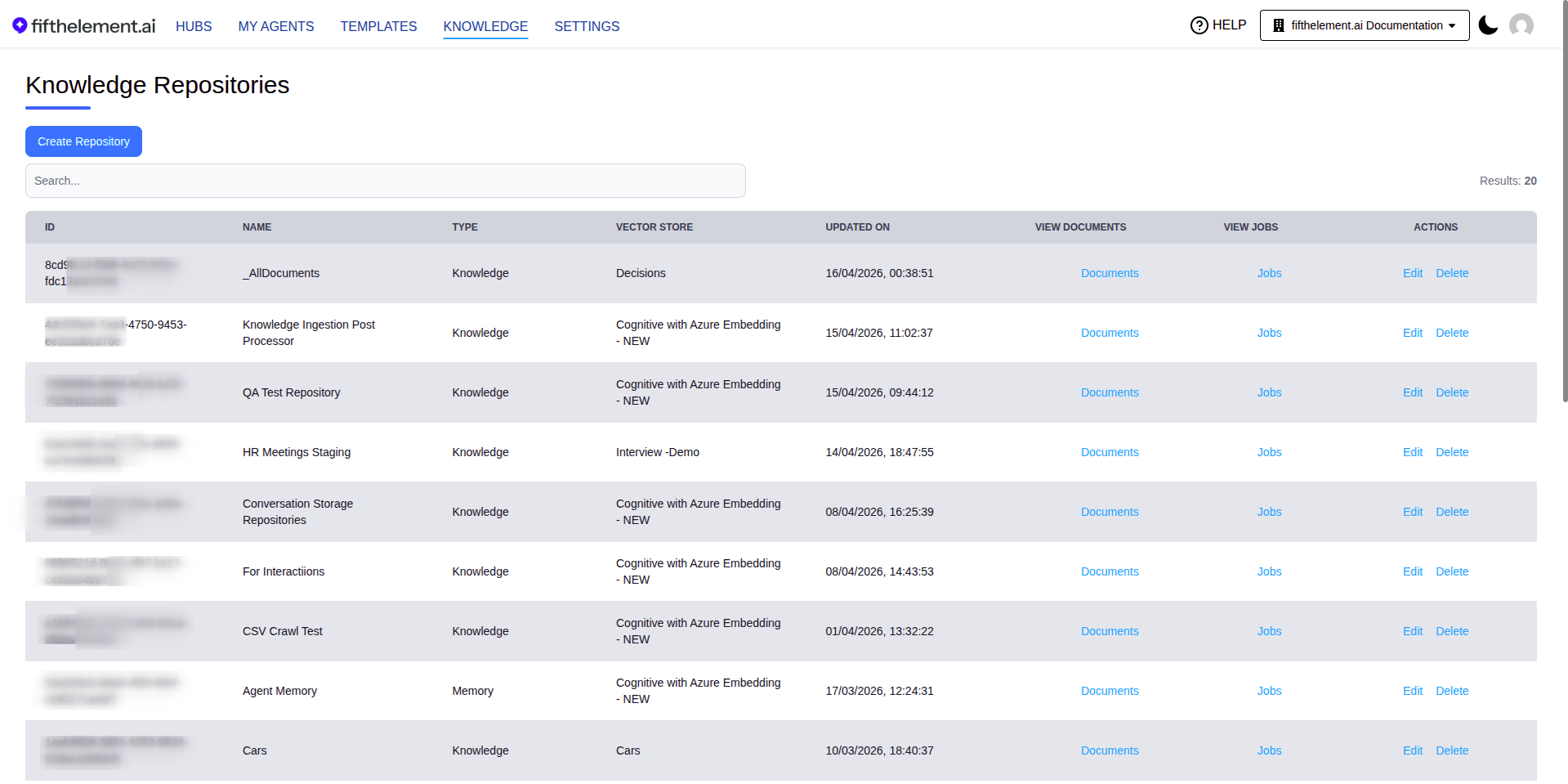
Step 1: Navigate to Knowledge
- Click on KNOWLEDGE in the top navigation menu
- You will see a list of configured knowledge bases
Viewing Knowledge Base Documents
Step 1: Access Knowledge Base
- Locate your knowledge base in the list (e.g., "Product Documentation Repository")
- Click on the Documents link to view all documents in that repository
Document List View
The documents list displays:
- Document ID: Unique identifier for the document
- Type: Document source type (for example, Plain Text)
- Name: Name of the uploaded file
- Modified On: Last modification timestamp
- Status: Processing status (Ready, Processing, Failed)
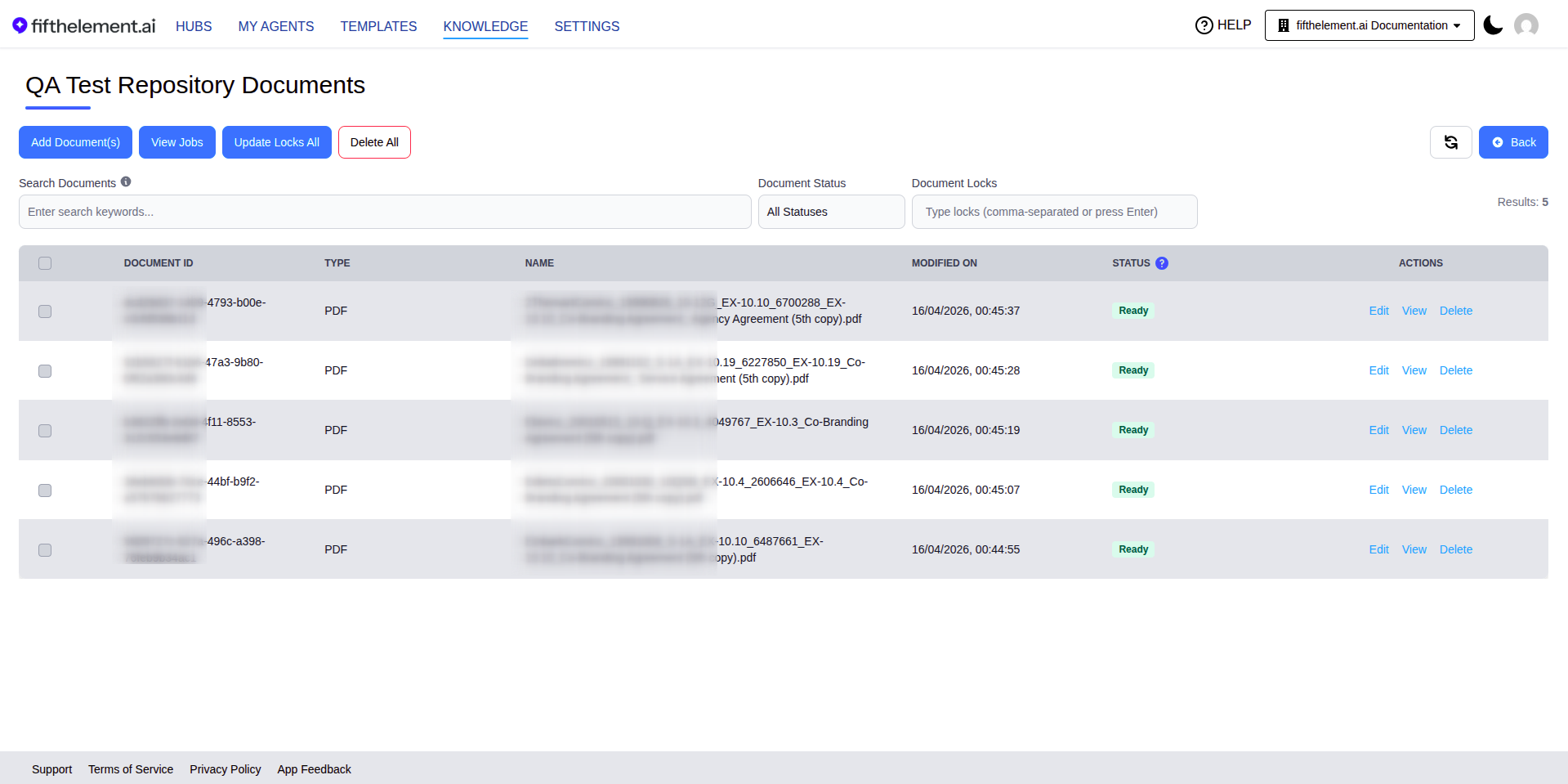
Page Actions:
| Button | Description |
|---|---|
| Add Document(s) | Upload new documents or start a crawl job |
| View Jobs | View crawl/upload job history and scheduled jobs |
| Regenerate All | Re-process all documents in the knowledge base (useful after changing embedding models or processing settings) |
| Update Locks All | Bulk update document locks across all documents |
| Delete All | Delete all documents from the knowledge base |
Filters:
| Filter | Description |
|---|---|
| Search Documents | Search by keywords across document content |
| Document Status | Filter by status (All Statuses, Ready, Processing, Failed) |
| Document Locks | Filter by lock keywords |
Adding New Documents
Step 1: Access Upload Options
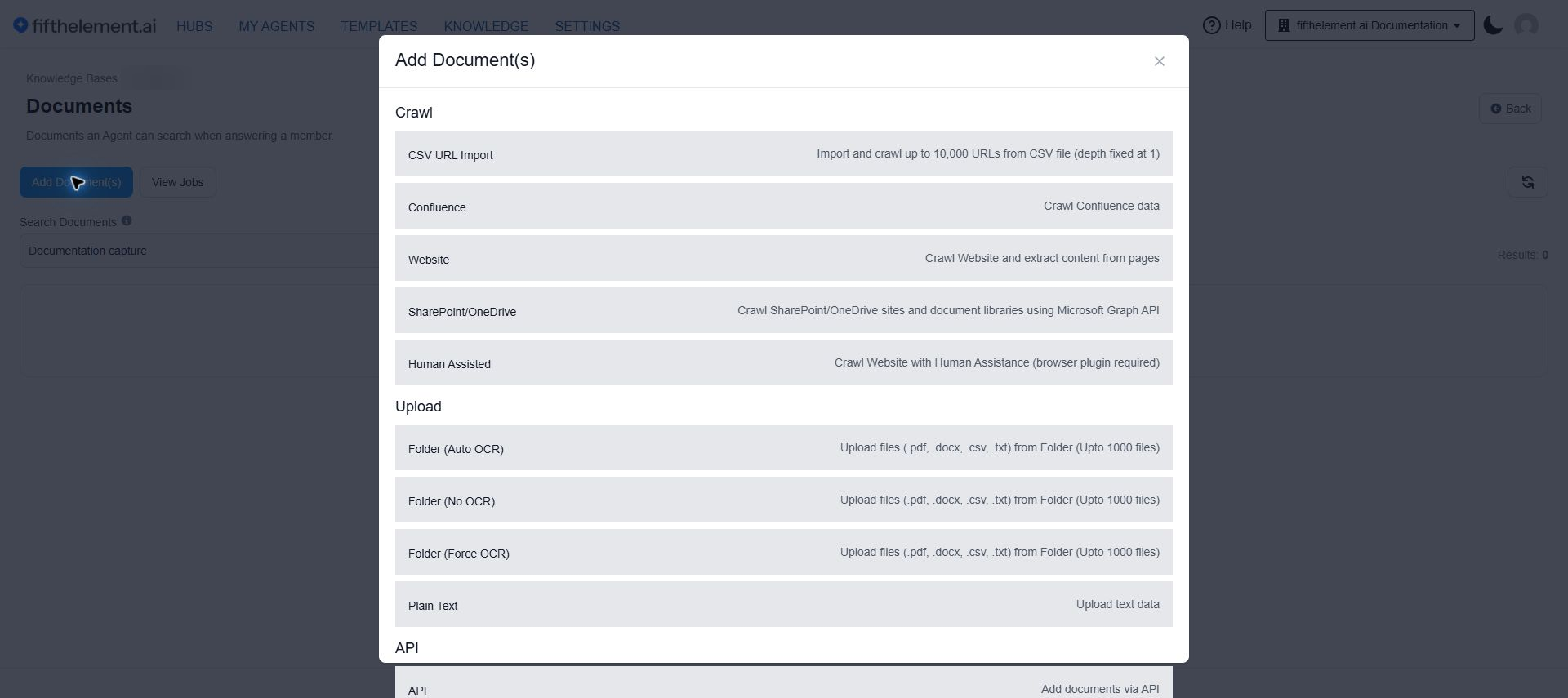
- Click the Add Document(s) button in the top-left corner of the documents page
- A modal dialog will appear with different upload options
Step 2: Select Upload Method
The platform offers several upload methods:
Crawl Options
| Method | Description |
|---|---|
| CSV URL Import | Import and crawl up to 10,000 URLs from a CSV file (depth fixed at 1) |
| Confluence | Crawl Confluence data using Atlassian API |
| Website | Crawl website and extract content from pages |
| SharePoint/OneDrive | Crawl SharePoint/OneDrive sites and document libraries using Microsoft Graph API |
| Human Assisted | Crawl website with human assistance (browser plugin required) |
For detailed crawl configuration, see Web Crawling.
Upload Options
| Method | Description |
|---|---|
| Folder (Auto OCR) | Upload files (.pdf, .docx, .csv, .txt) with automatic OCR detection (up to 1000 files) |
| Folder (No OCR) | Upload files without OCR processing (up to 1000 files) |
| Folder (Force OCR) | Upload files with forced OCR on all documents (up to 1000 files) |
| Plain Text | Upload raw text data directly |
API Option
| Method | Description |
|---|---|
| API | Add documents programmatically via API |
Recommended: Folder (Auto OCR)
Choose Folder (Auto OCR) from the Upload section. This option:
- ✅ Automatically detects the need for OCR
- ✅ Supports multiple file formats (.pdf, .docx, .csv, .txt)
- ✅ Can handle up to 1000 files per upload
- ✅ Intelligent processing based on document type
Step 3: Upload Files
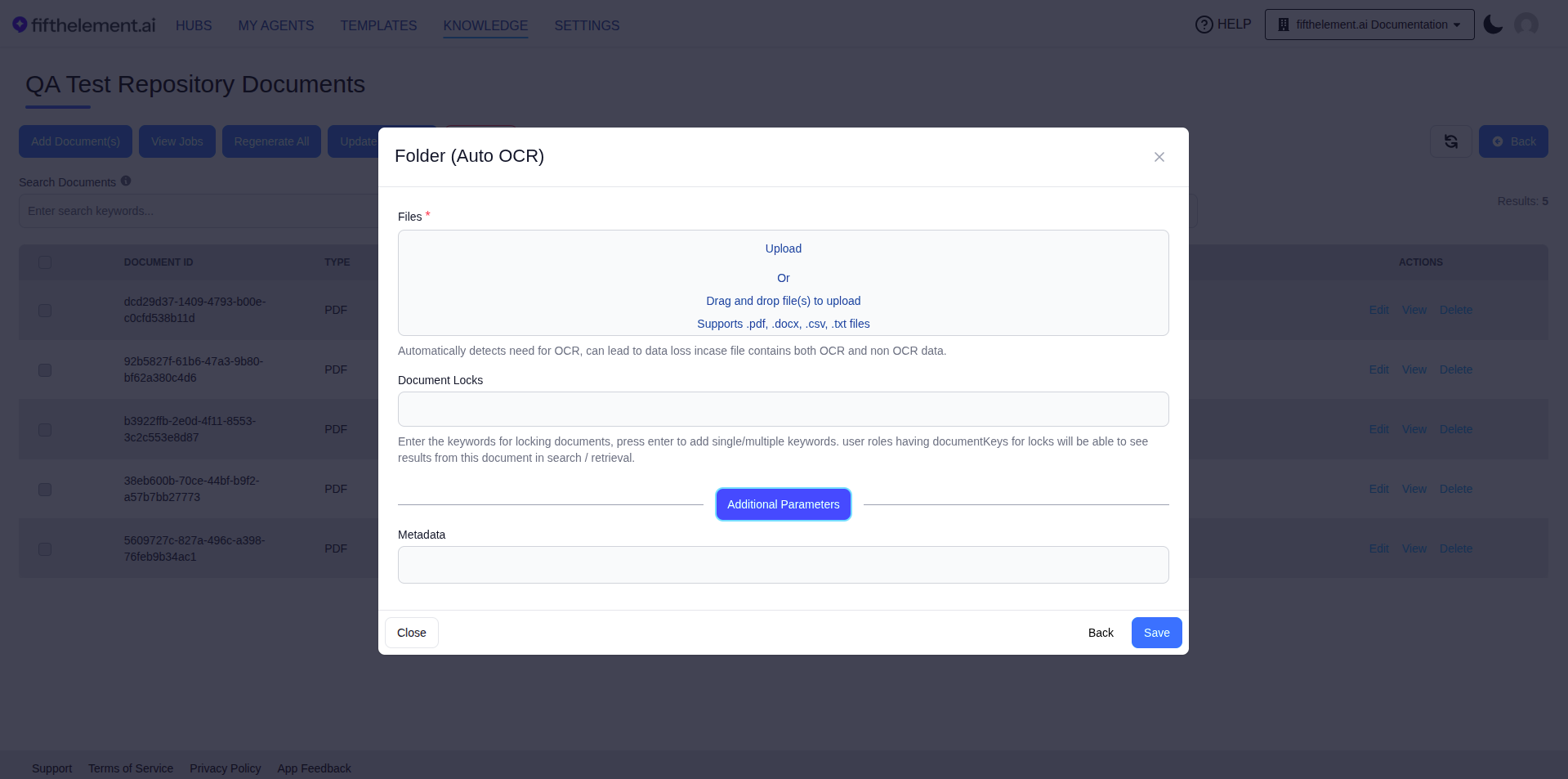
You can upload files in two ways:
Option 1: Drag and Drop
- Drag file(s) directly into the upload area
- Visual feedback when files are over the drop zone
- Supports multiple files at once
Option 2: Browse
- Click in the upload area to open a file browser
- Select one or more files
- Click "Open" to add them to the upload queue
Supported formats: - .pdf - PDF documents - .docx - Microsoft Word documents - .csv - Comma-separated values - .txt - Plain text files
Step 4: Configure Document Locks (Optional)
Document Locks are used with document keys assigned to members and roles.
How It Works
- Enter keywords in the "Document Locks" field
- Press Enter to add multiple keywords
- Review Document Keys on both the member and role, alongside resource scope. Verify access using the intended member account.
Use Cases
- Confidential Documents: Lock to "executive", "finance"
- Department-Specific: Lock to "sales", "marketing"
- Role-Based Access: Use the document keys configured on the intended roles
Step 5: Additional Parameters and Metadata (Optional)
Click "Advanced parameters" to expand advanced options:
| Field | Description |
|---|---|
| Metadata | Add custom metadata as a JSON object to be associated with the uploaded documents |
Step 6: Save Documents
- Review your file selections
- Click the Save button to complete the upload
- Documents will be processed and added to the knowledge base
- The status will show as "Ready" once processing is complete
Processing Statuses
Status Types
| Status | Description | What It Means |
|---|---|---|
| Processing | Document is being ingested | Wait for processing to complete |
| Ready | Document is indexed and searchable | Available for agent retrieval |
| Failed | Processing encountered an error | Check document format or size |
Processing Time
Processing time depends on file size, OCR requirements, processing options and queue load. Monitor document status and View Jobs for progress and errors.
Important Notes
OCR Processing
- Auto OCR automatically detects whether OCR is needed for uploaded files
- Files containing both OCR and non-OCR data may result in data loss
- Use "Force OCR" only if all documents require OCR
Upload Limits
- Maximum upload limit: 1000 files per upload
- Supported formats: .pdf, .docx, .csv, .txt files
- Check the upload form and your workspace limits before uploading large files.
Best Practices
- Organize Before Uploading: Group related documents
- Use Consistent Naming: Makes documents easier to find
- Clean Content: Remove unnecessary pages or sections
- Test with Sample: Upload a few files first to verify processing
- Monitor Status: Check processing status for errors
Crawl Options
Confluence
Integrate with Confluence to automatically sync spaces and pages.
Requirements: - Confluence URL - API token or credentials - Appropriate permissions
What Gets Crawled: - Pages and sub-pages - Attachments - Comments (optional)
Website Crawling
Crawl public websites to extract content.
Configuration: - Starting URL - Crawl depth - Include/exclude patterns
Use Cases: - Competitor documentation - Public knowledge bases - Blog content
SharePoint/OneDrive
Sync document libraries from Microsoft 365.
Requirements: - Microsoft Graph API credentials - Library/folder URLs - Proper permissions
Supported Content: - Documents - Folders - Metadata
Managing Documents
Viewing Document Details
- Click View on the document row
- View metadata, processing status, and content preview
Editing Documents
- Click the Edit icon next to a document
- Update document locks or metadata
- Save changes
Editing AI-Generated Metadata
AI-generated metadata fields on ingested documents can be edited inline by admins — no need to re-ingest the source document when an auto-extracted value needs a small correction.
AI Reprocessing Overrides Manual Edits
Any subsequent AI reprocessing of the document will override the manually edited value. If the value is critical, re-apply the correction after a reprocessing run.
Deleting Documents
- Click the Delete icon next to a document
- Confirm deletion
- Document is removed from the knowledge base and search index
Deletion is Permanent
Deleted documents cannot be recovered and will no longer be available for agent retrieval.
Troubleshooting
Document Status Stuck on "Processing"
Issue: Document remains in "Processing" status for extended time
Solution: - Wait at least 15 minutes for large files - Refresh the page to check for status update - Inspect the job error before retrying; retain the original source file - Contact support if issue persists
Upload Failed Error
Issue: File upload returns an error
Solution: - Check file size against the current upload limit - Verify file format is supported (.pdf, .docx, .csv, .txt) - Ensure file is not corrupted - Try uploading files individually instead of in bulk
Documents Not Appearing in Agent Responses
Issue: Uploaded documents are not being used by agents
Solution: - Verify document status is "Ready" - Check that agent has the knowledge base configured in Tools section - Ensure document locks don't restrict access - Test agent with specific questions related to document content
Related Topics
- RAG Overview - Understanding Retrieval-Augmented Generation
- Vector Search - How documents are searched and retrieved
- Web Crawling - Crawl websites for content
- Agent Builder - Add knowledge tools to your agents
- Document API - Programmatic document management