User Access & RBAC
Configure role-based access control for hubs and manage user permissions.
Access Control Overview
Hubs use a flexible access control system that combines role-based and user-based assignments. Users can access a hub if:
- Their workspace role is assigned to the hub, OR
- They are directly assigned to the hub as an individual user
Both conditions are evaluated independently—meeting either condition grants access.
Role-Based Access Control (RBAC)
Hub Creation Permission
Control who can create hubs within your workspace.
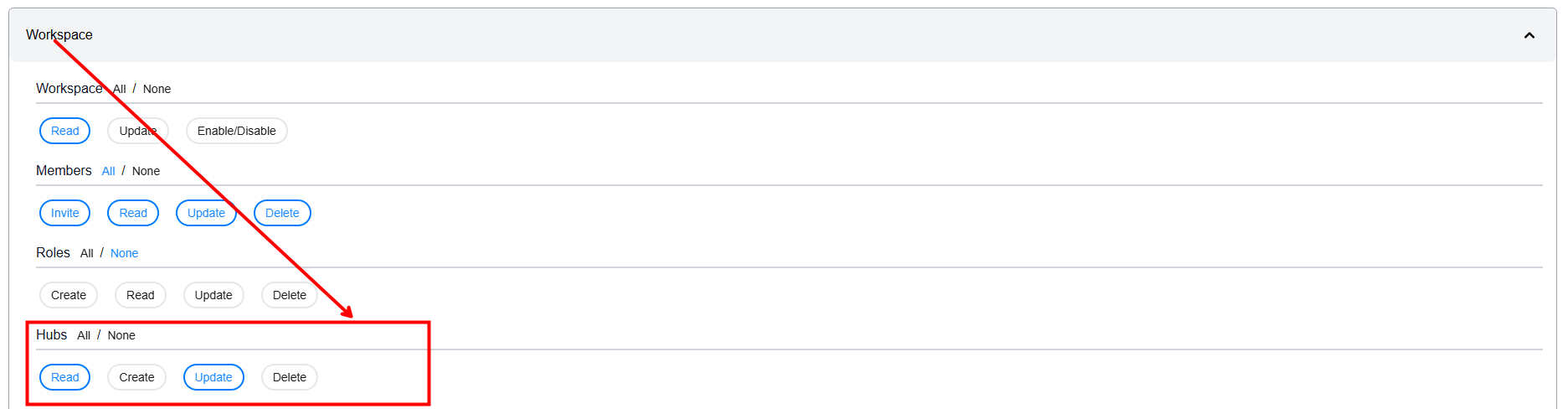 Configure "Create Hub" permission in role management
Default Permissions
- Workspace Admins: Can create hubs by default
- Other Roles: No hub creation permission by default
Granting Hub Creation Permission
- Navigate to Workspaces > Roles
- Click Manage Roles
- Select the role you want to modify or create a new role
- Enable the "Create Hub" permission checkbox
- Save the role configuration
Hub Access via Roles
When you assign a role to a hub, all users with that role automatically gain access.
Benefits of Role-Based Assignment
- Scalability: New users with the role automatically get access
- Consistency: Ensures predictable access patterns
- Easier Management: Change role assignments in one place
- Audit Trail: Clear understanding of who has access and why
Best Practices
- Assign hubs to roles whenever possible
- Use direct user assignment only for exceptions
- Document why certain roles have access to specific hubs
- Review role assignments quarterly
Assigning Hubs to Users
During User Invitation
You can assign hubs when inviting new users to your workspace.
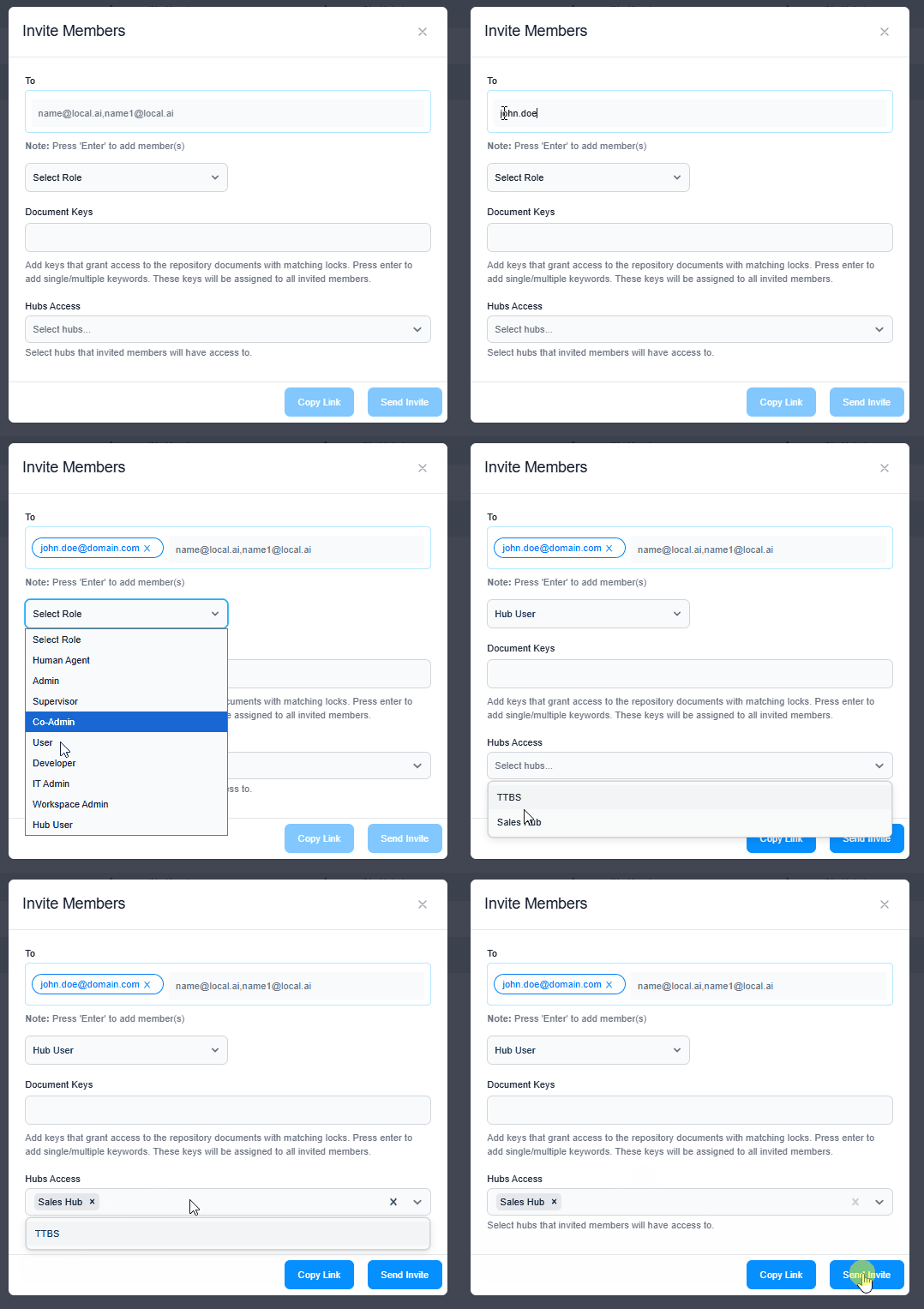 Invite member modal with Hubs assignment dropdown
Steps
- Navigate to Workspace > Members
- Click Invite Member
- Fill in user details:
- Email: User's email address
- Role: Select a workspace role
- In the Hubs dropdown, select which hubs to assign
- Click Send Invitation
What Happens
- User receives an invitation email
- Upon accepting, they gain access to:
- Hubs assigned to their role
- Hubs directly assigned during invitation
- They see all assigned hubs on their landing page
For Existing Users
You can modify hub access for users already in your workspace.
Steps
- Navigate to Workspace > Members
- Find the user in the member list
- Click the Edit icon next to their name
- Update the Hubs Access field:
- Add new hubs
- Remove existing hubs
- Click Save Changes
Immediate Effect
- Changes take effect immediately
- User sees updated hub list on next page refresh
- Removed hubs disappear from their hub list
User Experience
Landing Page
Upon login, users see the Hubs page as their default landing page.
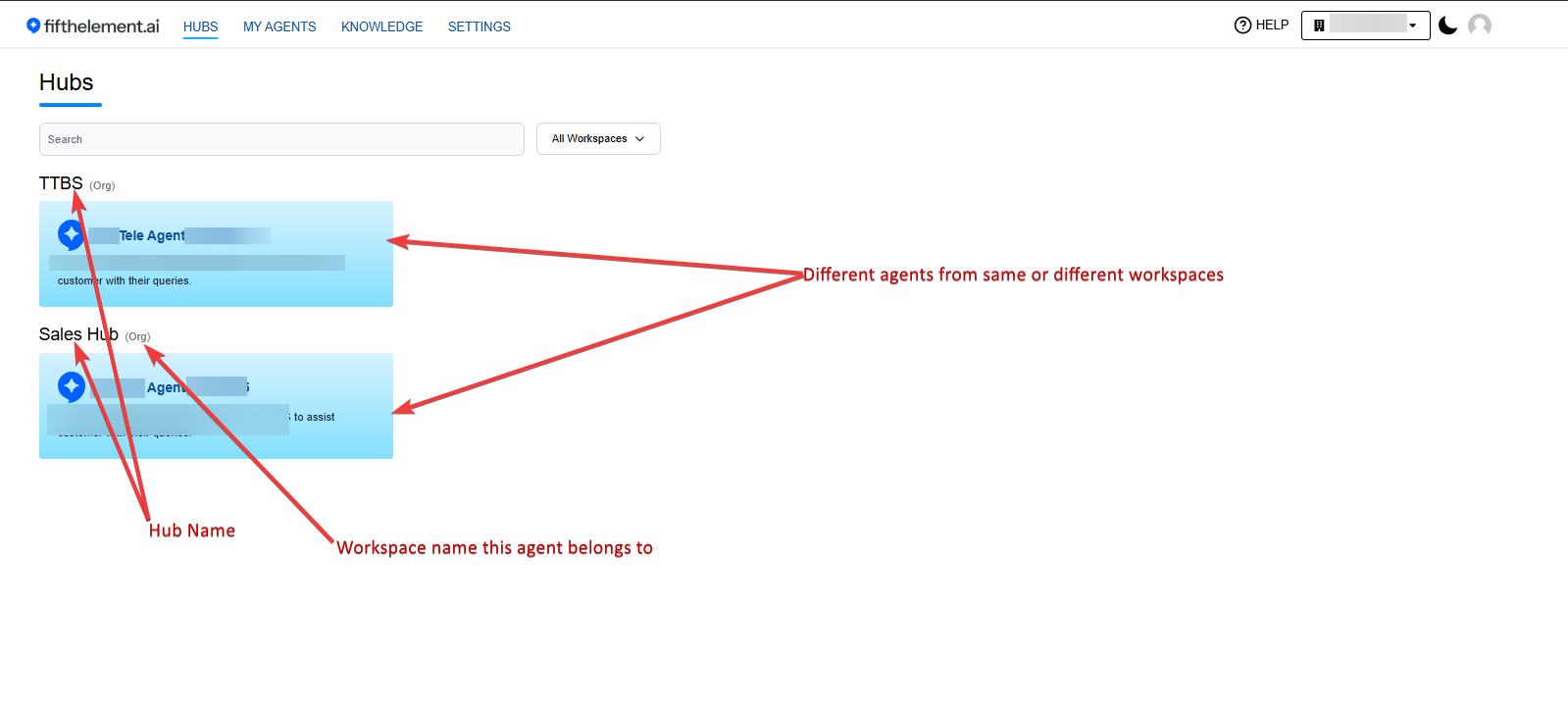 User view of Hubs landing page with agent cards
What Users See
- All Accessible Hubs: Based on role and direct assignments
- Agent Cards: Visual cards for each agent within hubs
- Quick Access: One-click access to start chatting with any agent
- Hub Names: Clear organization by hub
Accessing Agents
Agents accessed through hubs are read-only.
What Users Can Do
- View Agents: See agent details and descriptions
- Chat with Agents: Start conversations and get responses
- Switch Agents: Move between different agents within the hub
- View Chat History: See previous conversations with agents
What Users Cannot Do
- Edit Agent Configuration: Cannot modify prompts, models, or tools
- Delete Agents: Cannot remove agents from the hub
- Modify Agent Settings: Cannot change agent parameters
- Share Agents: Cannot add agents to other hubs
Access Denied Scenarios
If a user attempts to access an agent they don't have permission for:
Common Causes
- User's hub assignment was revoked
- User's role no longer has access to the hub
- Agent was removed from the hub
- Workspace permissions changed
Resolution
- Contact workspace admin to verify access
- Check if you need to be reassigned to the hub
- Verify your role has the necessary permissions
Permission Scenarios
Scenario 1: Role-Based Access Only
Setup: - Hub assigned to "Sales Team" role - User has "Sales Team" role - User is not directly assigned to the hub
Result: User can access the hub
Scenario 2: Direct User Assignment Only
Setup: - Hub assigned to "Marketing" role - User has "Support" role (not Marketing) - User is directly assigned to the hub
Result: User can access the hub
Scenario 3: Both Role and Direct Assignment
Setup: - Hub assigned to "Support" role - User has "Support" role - User is also directly assigned to the hub
Result: User can access the hub (redundant but valid)
Scenario 4: No Assignment
Setup: - Hub assigned to "Engineering" role - User has "Sales" role - User is not directly assigned to the hub
Result: User cannot access the hub
Managing Access at Scale
For Small Teams (1-20 users)
- Direct user assignment is manageable
- Can customize hub access per user
- Easier to handle exceptions
For Medium Teams (20-100 users)
- Prefer role-based assignments
- Use direct assignment for edge cases
- Create specialized roles if needed
For Large Teams (100+ users)
- Must use role-based access
- Minimize direct user assignments
- Create hierarchical role structure
- Automate user provisioning if possible
Access Audit and Compliance
Regular Access Reviews
Perform quarterly access audits:
- Review Hub Assignments
- List all hubs and their assigned roles/users
- Verify assignments are still appropriate
-
Remove outdated assignments
-
Check User Permissions
- Review users with direct hub assignments
- Confirm they still need access
-
Convert direct assignments to role-based when possible
-
Document Changes
- Keep a log of access changes
- Note reasons for modifications
- Track who approved changes
Compliance Considerations
- Least Privilege Principle: Grant minimum necessary access
- Separation of Duties: Different teams access different hubs
- Access Justification: Document why users/roles have hub access
- Regular Certification: Managers verify team access periodically
Troubleshooting Access Issues
User Cannot See Hub
Issue: User reports they cannot see a hub they should have access to
Diagnosis: 1. Verify user's role in Workspace > Members 2. Check hub's role assignments in Workspace > Hubs 3. Check if user is directly assigned to the hub 4. Confirm user is a member of the workspace
Solution: - Add user's role to the hub, OR - Directly assign the user to the hub - If role is assigned, ask user to log out and log back in
User Sees Hub But No Agents
Issue: User can see the hub but no agents appear inside
Diagnosis: 1. Check if hub has any agents assigned 2. Verify agents still exist in the workspace 3. Check if agents were removed from the hub
Solution: - Edit the hub and add agents - Verify agents are active in My Agents - Re-assign agents to the hub if necessary
Cannot Assign Hub During Invitation
Issue: Hubs dropdown is empty when inviting a user
Diagnosis: 1. Check if any hubs exist in the workspace 2. Verify you have permission to view hubs 3. Confirm you're in the correct workspace
Solution: - Create at least one hub first - Verify you have admin or hub creation permissions - Switch to the correct workspace if needed
Related Topics
- Creating Hubs - How to create new hubs
- Managing Hubs - Edit and delete hubs
- Workspaces > RBAC Settings > RBAC Roles - Configure roles and permissions
- Workspace Settings - Manage workspace configuration