Voice & Speech Workflows
Set up voice-enabled agents — from basic speech input to fully autonomous phone agents and real-time human agent assistance.
Overview
Choose the voice capability that matches your delivery channel. These are separate configuration paths, not a required sequence of upgrades.
| Capability | Purpose | Configuration |
|---|---|---|
| Push To Talk | Speech input for a chat conversation | Speech Recognition Model (Input) |
| Message playback | Listen to an agent response | Text To Speech Model (Output) and Play message |
| Realtime Voice | Realtime voice conversation | Realtime model and applicable transport settings |
| AI Listens | Transcription and assistance for human agents | Custom realtime model and telephony configuration |
Quick Start: Adding Voice to an Agent
Before editing the agent, configure the required ASR, TTS or realtime model and its provider credential. Use an approved test agent and a synthetic utterance to verify the result.
1. Enable Speech-to-Text (Push To Talk)
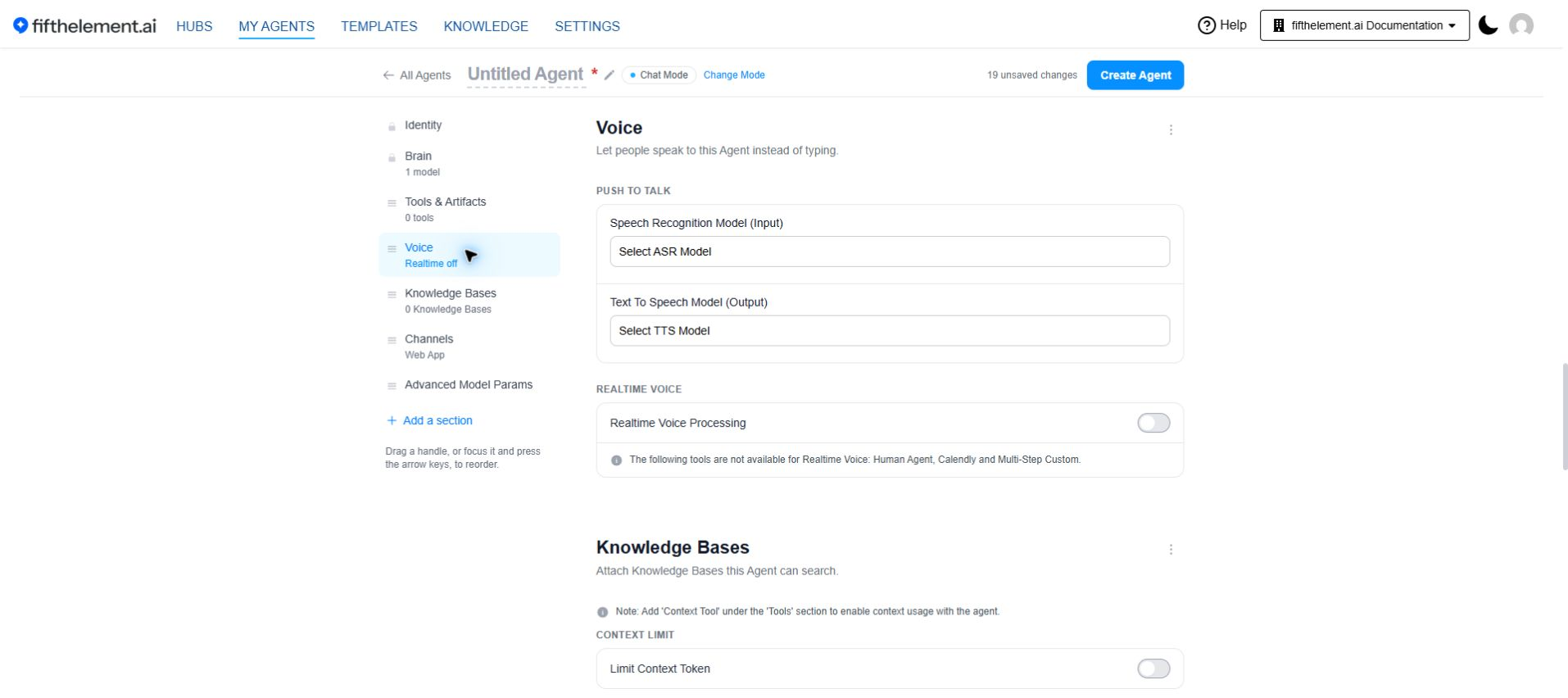
- Open the agent's Voice module.
- In Push to talk, select Speech Recognition Model (Input).
- Save the agent and open its chat view.
- Use the Press and hold to record control to provide a short test utterance. Check the transcription before judging the agent's answer.
If recording is unavailable, check browser microphone permission, the selected ASR model and its credential. Do not change model settings until the input problem is isolated.
2. Add Text-to-Speech (Voice Responses)
- In Voice > Push to talk, select Text To Speech Model (Output).
- Save the agent and open an existing synthetic response in chat.
- Use Play message beneath the response to check playback.
Message Read Aloud
The current chat action is Play message. Configure the output model in Voice; there is no separate Message Read Aloud switch in the observed configuration. If playback is unavailable, check the TTS model/credential and browser audio settings.
3. Set Up Realtime Voice (Phone/SIP)
- Open Voice and enable Realtime Voice Processing.
- Select Realtime Voice Model (Includes AI Listens).
- Configure SIP Realtime Voice Processing or Websocket Realtime Voice Processing for the intended integration.
- Follow the transport-specific fields in Realtime Voice Models. WebSocket configuration uses the connection URL and secret fields; do not substitute an agent identifier alone.
- Save, then test the chosen channel using an approved endpoint before making it available to users.
Connection URLs may contain secrets. Keep them out of screenshots, tickets and shared examples. A successful save is not proof of a working phone or WebSocket integration.
4. Enable AI Listens (Human Agent Co-Pilot)
AI Listens provides real-time transcription and AI-powered suggestions for human agents during live phone calls. It does not speak to the caller — it assists your human team.
- In the agent's Voice module, select a Custom Realtime Model
- Enable AI Listens
- Configure phone numbers (with
+country code prefix, must not overlap with SIP numbers) - Set up your telephony provider (e.g., Twilio) with the provided Webhook URL (HTTP POST)
- Choose a channel option:
inbound(caller only),outbound(agent only), orboth_tracks
Access the live dashboard via the three-dot menu on the agent card > AI Listens.
Demo Feature
AI Listens is currently available as a demo feature for feedback gathering. It provides passive monitoring only — no TTS/speaking.
Model Selection Guide
| Voice Feature | Model Type Needed | Where to Configure |
|---|---|---|
| Push To Talk (speech input) | ASR Model | Settings > AI Models > ASR Models |
| Voice responses | TTS Model | Settings > AI Models > TTS Models |
| Phone/SIP agent | Realtime Voice Model | Settings > AI Models > Realtime Voice |
| AI Listens | Custom Realtime Model | Settings > AI Models > Realtime Voice |
LiveKit Inference
If you want a simplified setup, LiveKit Inference provides a unified gateway for ASR, TTS, and LLM models using a single credential. Configure it under Settings > Credentials with a LiveKit Inference API key.
Choosing the Right Voice Architecture
Simple FAQ / Support Agent
- Enable: ASR only (Push To Talk)
- Why: Users can optionally speak queries, but the agent responds in text. Low cost, simple setup.
Accessibility-First Agent
- Enable: ASR + TTS with Play message
- Why: Full voice loop for users who prefer or need audio interaction.
Autonomous Phone Agent (IVR Replacement)
- Enable: Realtime Voice with SIP
- Why: Continuous voice conversation over phone lines. No chat interface needed.
Human Agent Support
- Enable: AI Listens
- Why: Your human agents get real-time transcription and suggested responses during live calls without the AI speaking to the customer.
Related Topics
- ASR Models — Configure speech-to-text models
- TTS Models — Configure text-to-speech models
- Realtime Voice Models — Configure phone/SIP/websocket voice and AI Listens
- Agent Builder — Advanced Configuration — the Voice module in the agent builder
- Back to Guides & Tutorials