Tool Approvals
Make an agent ask the person in the chat before it runs a tool, and let signed-in users allow a tool permanently.
Overview
Agents that take real actions, such as updating a record or calling an external service, can be made to ask first. One approval step covers every kind of tool: the agent pauses, the chat shows what it wants to run, and the person chooses Approve, Always allow or Decline.
Approval is off by default for every tool. An administrator turns it on per tool, per agent.
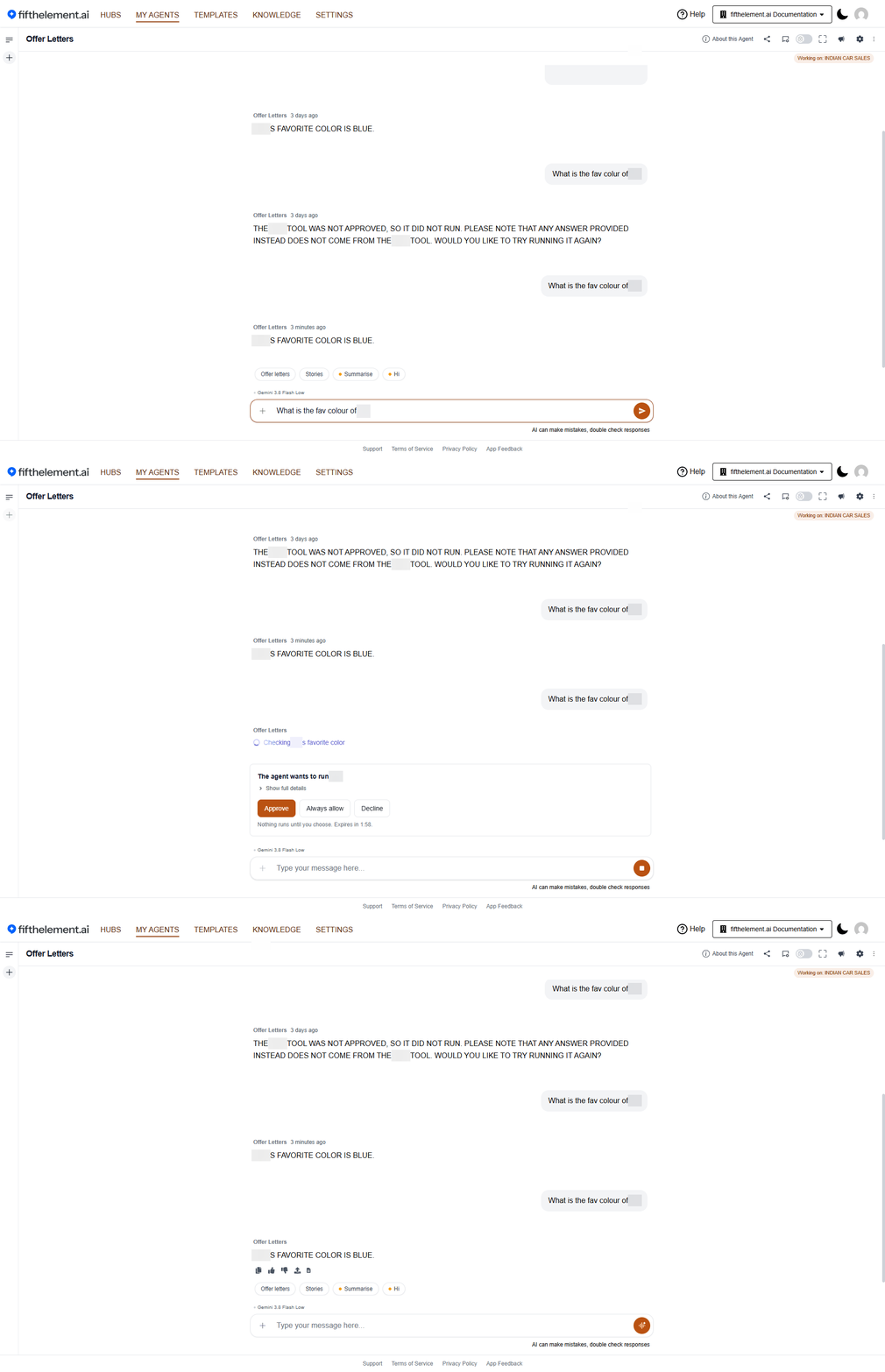
A tool with Ask before running: the question is sent, the approval card appears, and the tool runs after Approve. Tool names are blurred.
Turning Approval On
Regular tools
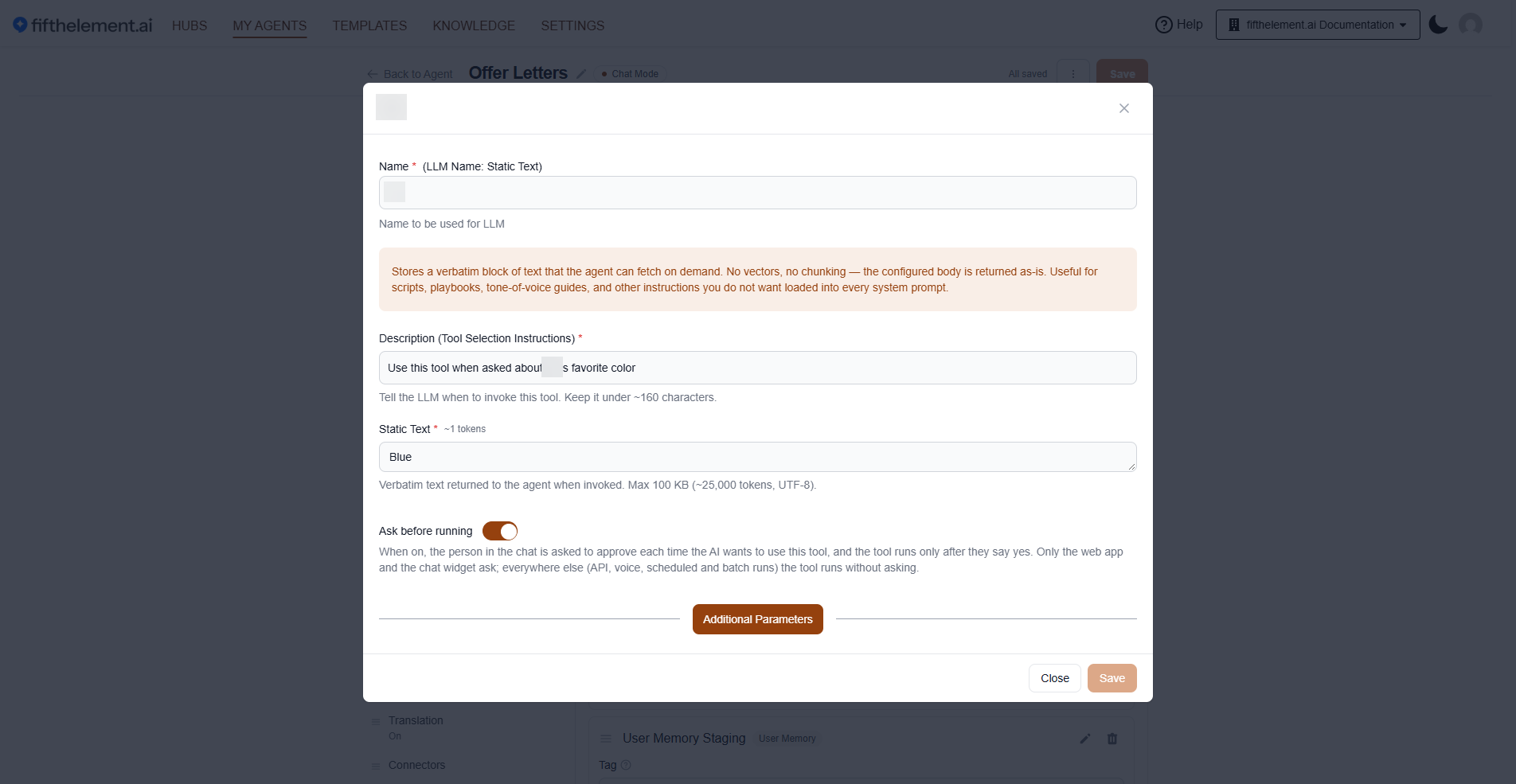
The tool's settings on the agent, with Ask before running turned on. The tool name is blurred.
- Open the agent's settings and go to Tools & Artifacts
- Click the pencil on the tool
- Turn on Ask before running
- Click Save in the dialog, then save the agent
The same switch exists on the tool under Settings > Processors > Tools, but each agent keeps its own copy of the setting. Changing it there only affects agents that add the tool afterwards.
Connector tools
For a tool from an external MCP connector, open the connector card's pencil on the agent (or Manage in Settings) and set the tool to Needs Approval.
Memory actions
For an Entity Memory tool each action is approved separately, so allowing the search action does not allow the profiles action.
What the Person Sees
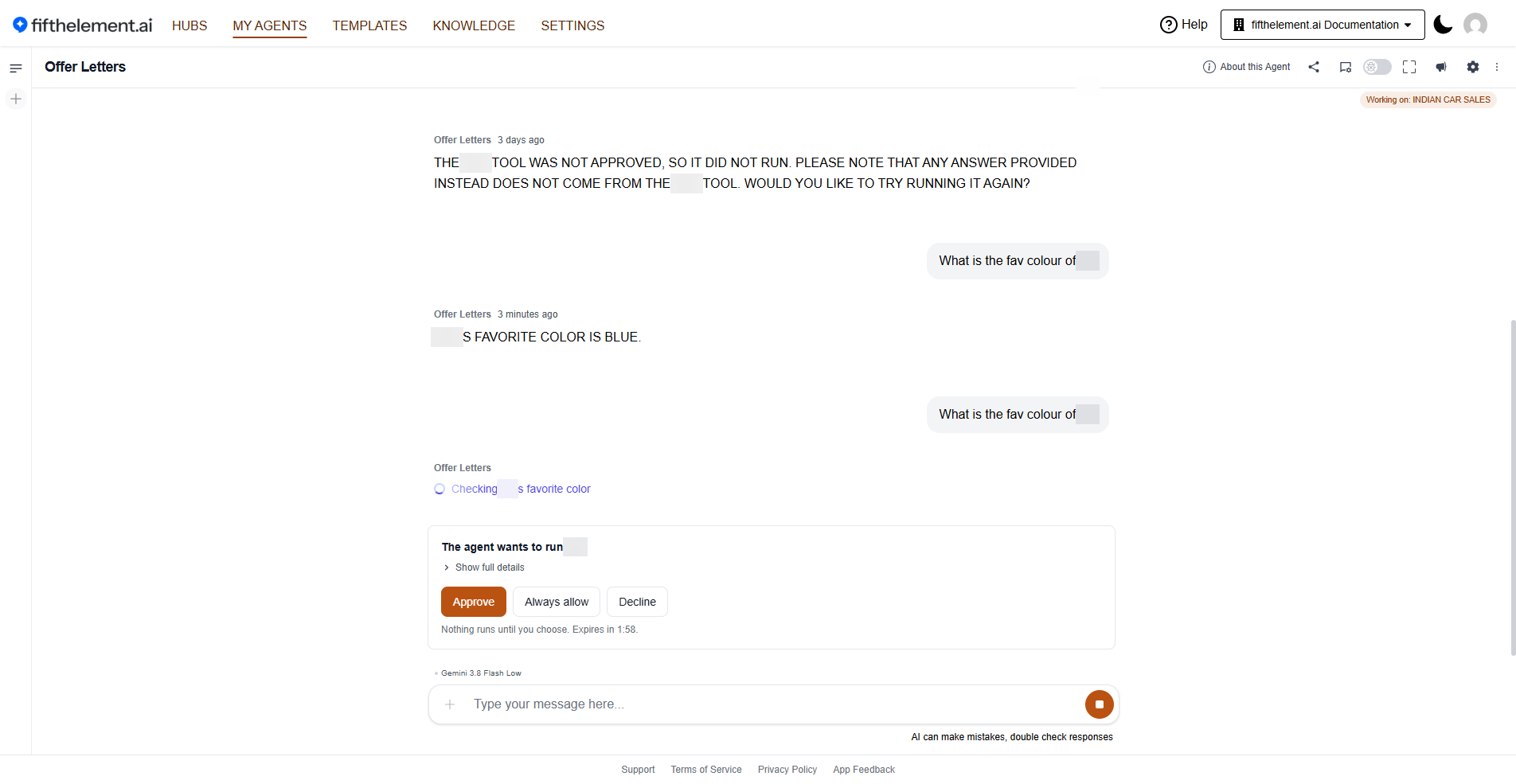
The approval card: what the agent wants to run, the inputs under Show full details, the expiry timer and the three buttons.
| Element | Behaviour |
|---|---|
| The agent wants to run ... | Names the tool. Show full details expands the tool's inputs |
| Approve | Runs the tool once |
| Always allow | Runs the tool now and stops this agent asking this person about this tool in later chats. Shown to signed-in users only |
| Decline | The tool does not run |
| Expires in 2:00 | Nothing runs until the person chooses. An expired request counts as declined |
After a Decline or an expired request the agent says in its reply that the tool did not run and that anything it answers instead does not come from the tool. Debug info marks such calls as Declined.
Always Allow
The scope of one Always allow is one person, one agent, one tool (for connectors, one tool on one connector). The same tool on another agent still asks, and another person on the same agent still asks.
Undo it as a user
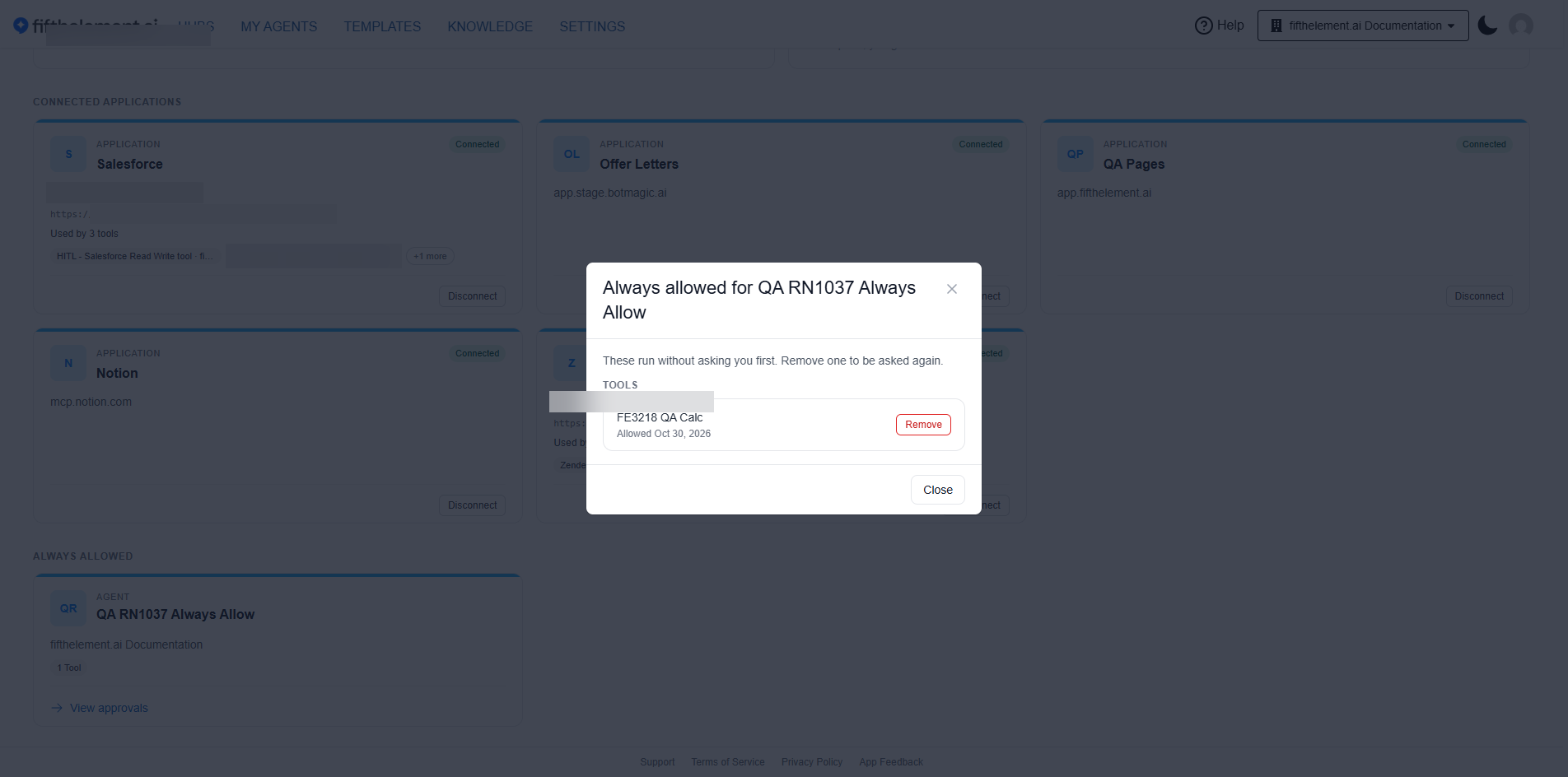
Account > Always allowed > View approvals, with a Remove action per tool. Identifying details are blurred.
- Open Account menu > Account
- Under Always allowed, find the agent's card. It shows the number of Tools and Connector Tools you have allowed
- Click View approvals. Tools are grouped into Tools and one group per connector
- Click Remove. The agent asks again the next time
A filter box appears once an agent has eight or more approvals.
Undo it as an administrator
Turning Ask before running off and on again for the tool on the agent clears everyone's saved choices for that agent and tool. For a connector tool, moving it off Needs Approval and back does the same.
Where Nobody Can Approve
| Channel | Regular tool with Ask before running | Connector tool with Needs Approval |
|---|---|---|
| Web app and chat widget | Asks | Asks |
| Anonymous widget visitors | Asks, with Approve and Decline only | Asks, with Approve and Decline only |
| Voice calls, API, scheduled and batch runs | Runs without asking | Refused; the agent is told it could not be approved there |
Always allow choices made in the web app never apply to API calls. The Salesforce Confirm Before Writes confirmation keeps its own Approve and Decline flow.
Related Topics
- Agent Builder - Advanced Configuration - Tool settings on an agent
- Settings > Tools - Create and configure tools
- Connectors - External MCP servers and Needs Approval
- Conversations - Declined calls in Debug info
- My Agents - Overview