Artifacts
Enable agents to produce downloadable document artifacts directly from chat — PDF, Spreadsheet, PowerPoint, and Word files generated mid-conversation that the user can preview and save locally.
Overview
An Artifact is a per-agent capability that lets the agent generate a finished document in response to a chat turn — for example, "Build me a Q3 sales report as a spreadsheet" or "Draft a one-page customer summary as a PDF". The artifact appears in the chat with preview + download affordances.
These document-generation capabilities are shown as Artifacts in the Agent Builder. Enable them under Tools & Artifacts > Artifacts. Older documentation and API identifiers may still use Skills.
Key Capabilities
| Capability | Detail |
|---|---|
| Supported artifact types | PDF, PowerPoint, Spreadsheet, Word Document |
| Opt-in per agent | Artifacts are off by default; each agent must explicitly enable the artifacts it needs. Click any artifact chip in Agent Settings to toggle it on or off |
| Model-agnostic | Works across Anthropic Claude, Google Gemini, and OpenAI ChatGPT model families |
| Token-budget aware | Artifact-enabled agents need a generous Max Output Tokens setting. Insufficient budget surfaces a clear error rather than a truncated artifact |
| RBAC-controlled configuration | Permission to enable Artifacts on an agent is gated by RBAC. Enabled by default for the seeded Admin role |
Configuration
Step 1: Artifacts available at the Global Level
Artifacts are added at the Global Level by the platform team. Once an Artifact is added for a workspace, it becomes available for any agent in that workspace to enable.
Step 2: Enable Artifacts on an agent
- Open the agent under My Agents > (agent) > Settings
- Select Tools & Artifacts in the left sidebar. If missing, use Add a section to add it, and configure a language model in Brain first
- Click any artifact chip — PDF, PowerPoint, Spreadsheet, Word Document — to toggle it on or off. Enabled artifacts show a ✓ marker
- Click Save
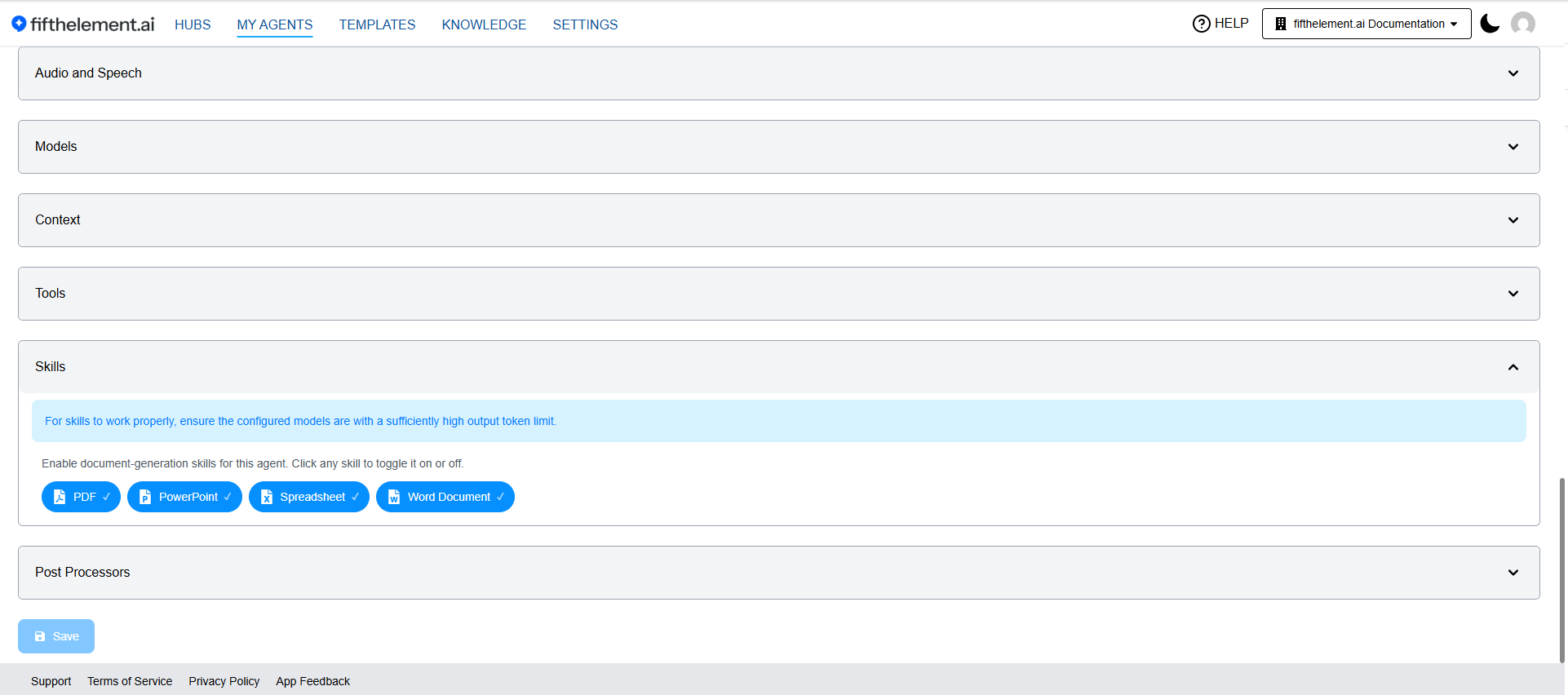
Click an artifact to enable it for the agent. The section reminds you to provide sufficient model output tokens.
Step 3: Verify Max Output Tokens
Because artifact output is a complete document, the model needs enough output budget. In Brain, edit the model and review Max Output Tokens against its displayed maximum and recommendation. A prefilled value may exceed that model's cap; adjust it before saving.
Insufficient token budget
Use a model whose supported output limit can accommodate the requested document. Increase the configured budget only within that limit, or split large documents into smaller requests.
RBAC
Open Account menu > Workspaces > Open > Roles, then view the relevant role. Search permissions for Artifacts. The matrix groups this capability under Agent > Tools & Artifacts, alongside Tools; the General row shows the agent's Create, Read, Update and Delete permissions.
The seeded Admin role grants Artifacts and agent Update. Use a custom role when different permissions are required; system roles offer Clone to edit.
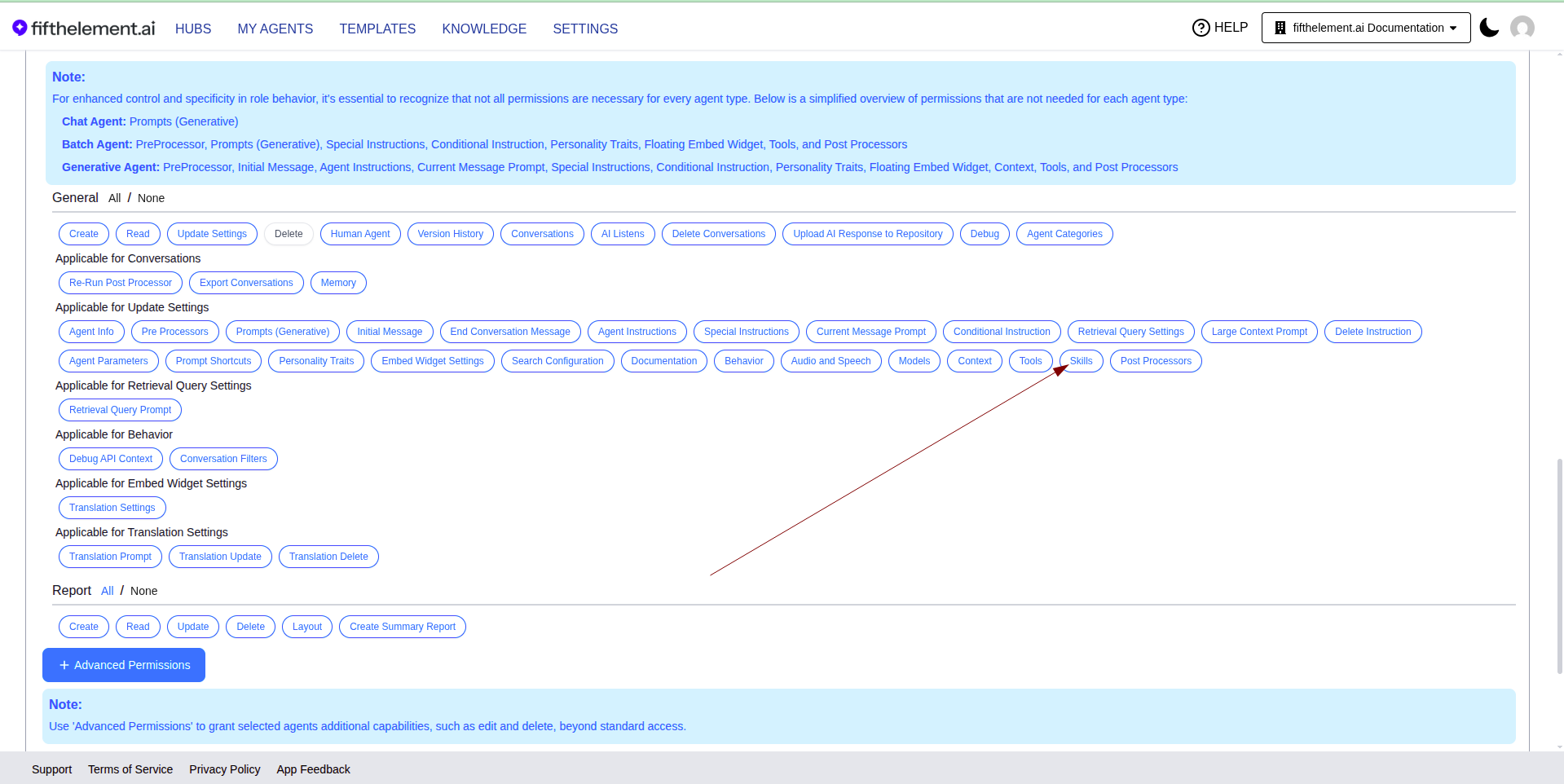
Admin role filtered to Artifacts in the current permission matrix.
See RBAC & Roles for scope, role cloning and permission controls.
End-User Experience
Enable the required artifact type on the agent, then check the output in the delivery channel your users will use.
Typical flow:
- User asks the agent to produce a document (e.g., "Can you provide me a short write-up on products and services as a pptx?")
- The agent generates the artifact, summarises the contents in chat, and renders an artifact card below the response
- The artifact card shows the file-type icon, document title, filename + size (e.g.,
fifth-element-ai-platform-overview.pptx · 110.3 KB), and a prominent Download button - The user clicks Download to save the file locally and open it in their desktop app
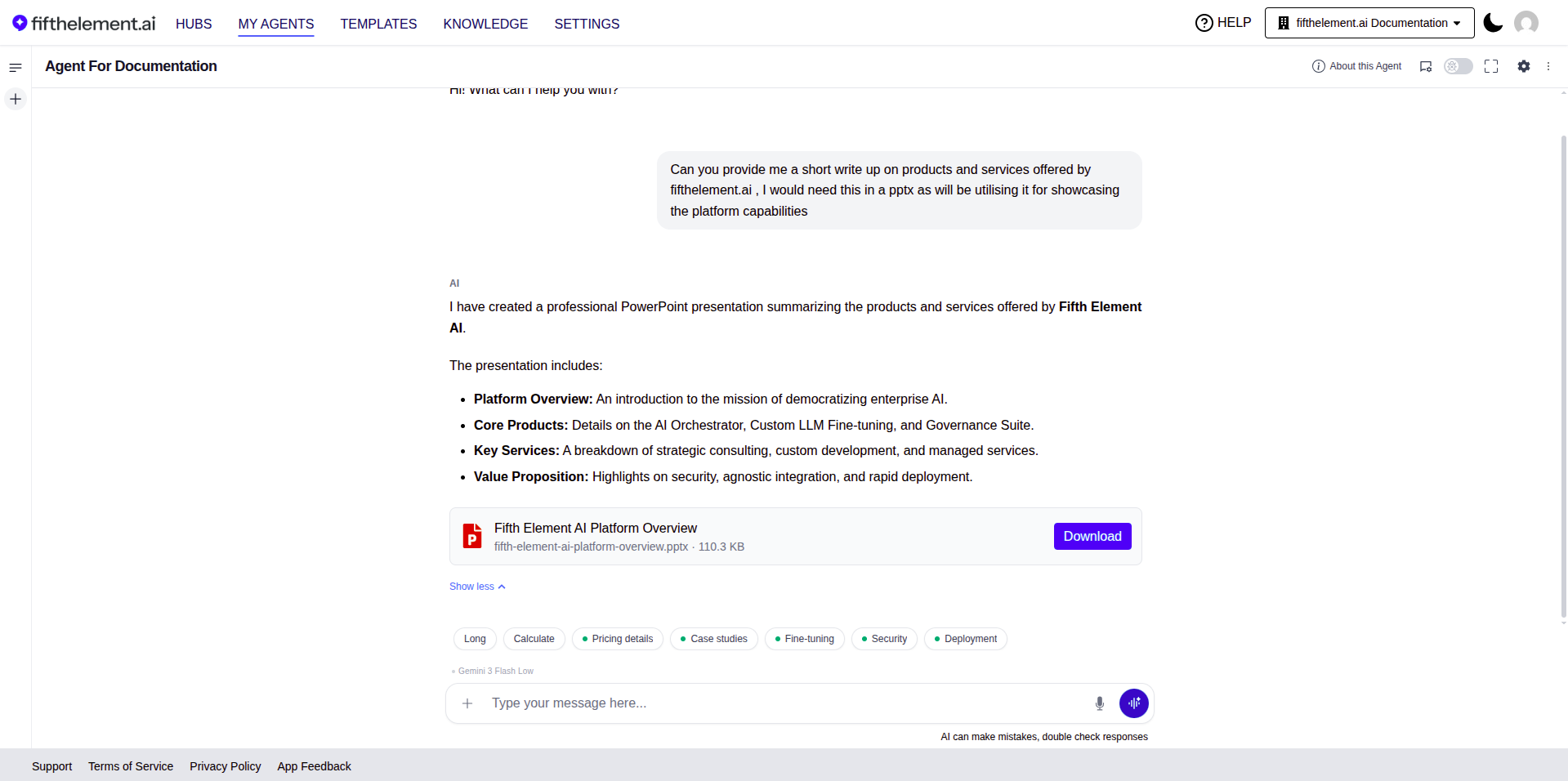
Agent chat — the agent summarises what it built, then renders the artifact card with filename, size, and a Download button. Show less collapses the response body if it's long
Review the downloaded file as well as the chat summary. Generation time and output quality depend on the configured model and requested content.
When to use Artifacts
| Use case | Recommended Artifact |
|---|---|
| Sales/customer summaries, executive briefs | |
| Sales decks, board updates, training material | PowerPoint |
| Data tables, pricing exports, multi-row reports | Spreadsheet |
| Drafts, contracts, policy documents | Word Document |
Artifacts are best suited to structured, single-document outputs — not multi-file workflows or live editing surfaces.
Limitations
- Artifacts are opt-in per agent — review the enabled types on each agent before testing.
- Artifact size is bounded by the model's Max Output Tokens — very large documents may need to be generated in sections via follow-up turns
- Start with one requested document type and inspect the result before expanding the workflow.
Related Topics
- Agent Builder — Advanced Configuration — Artifacts under Tools & Artifacts
- Settings — Language Models — Max Output Tokens and platform default (10,000)
- Workspaces — RBAC & Roles — Artifacts permission gating
- My Agents — Overview