Agent Builder - Basic Configuration
Essential configuration steps to get your AI agent up and running quickly.
Overview
This guide covers the minimum required configurations to create a functional AI agent. You can complete these steps in 10-15 minutes to have a working agent.
For advanced features like voice processing, custom tools, and personality traits, see Agent Builder - Advanced Configuration.
Prerequisites
Before you begin, ensure you have:
- Access to https://PLATFORM-URL-PLACEHOLDER platform
- Appropriate permissions to create new agents
- Basic understanding of your agent's purpose
Quick Start: 4 Essential Steps
To create a functional agent, you need to configure:
- Agent Info - Name, type, and where it will be used
- Instructions - What your agent does and how it behaves
- Models - Which AI model powers your agent
- Context Processing - How your agent handles large conversations
That's it! These four configurations are sufficient to launch a working agent.
1. Agent Info Configuration
When to use
Configure these settings when creating any new agent. This defines your agent's identity and where users can access it.
Overview
The Agent Info section defines the basic properties and deployment channels for your agent.
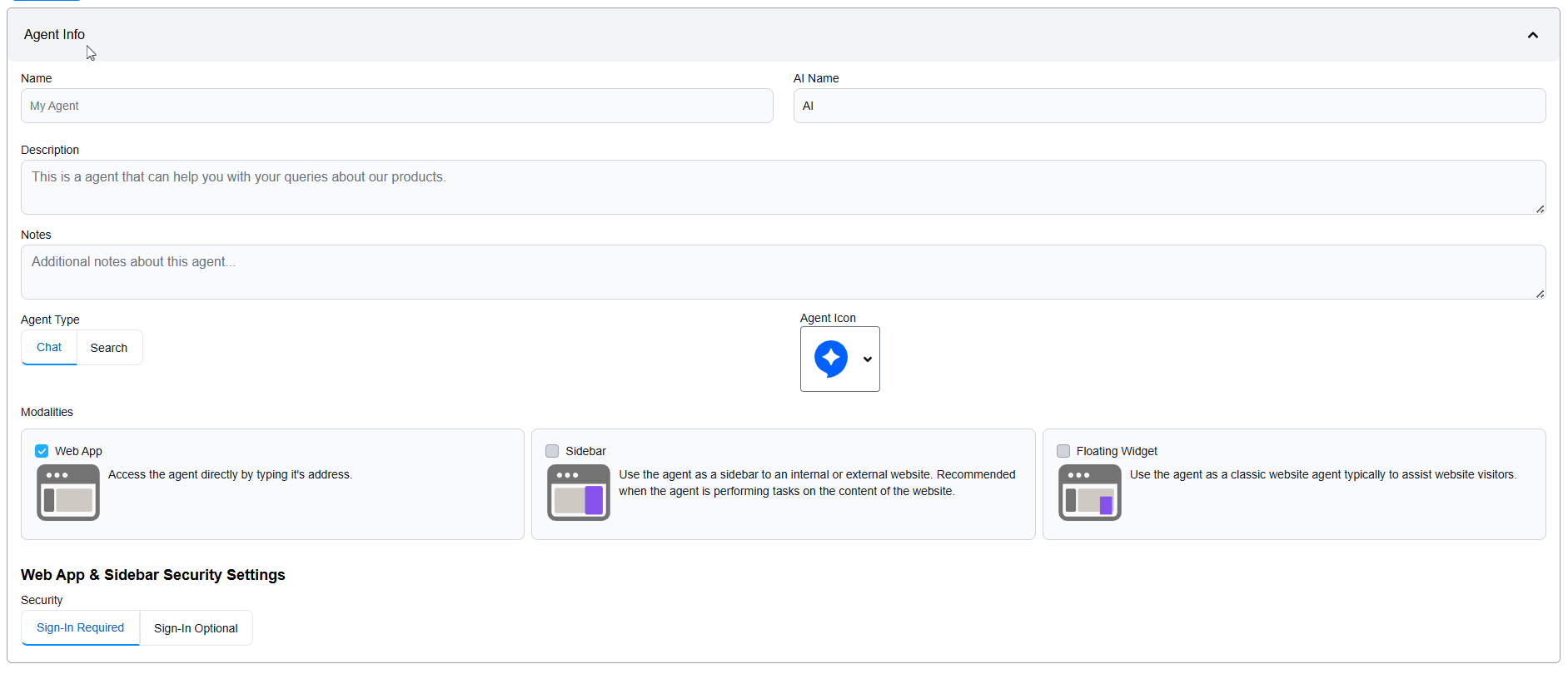 Agent Info configuration section
Required Fields
Name:
- Internal agent identifier
- Used in platform, logs, and management
- Example: "Customer Support Agent", "Product Knowledge Bot"
AI Name:
- Display name shown to end-users
- Character limit: 10 characters
- Example: "Alex", "JiaAI", "Aly"
Description:
- Agent's purpose and capabilities
- Helps team members understand the agent
- Example: "Helps customers troubleshoot common product issues"
Agent Icon:
- Visual representation of your agent
- Select from available icon options
Agent Type Selection
When to use
- Choose Chat Agent for conversational support, Q&A, and multi-turn dialogues
- Choose Search Agent for knowledge base queries and information retrieval
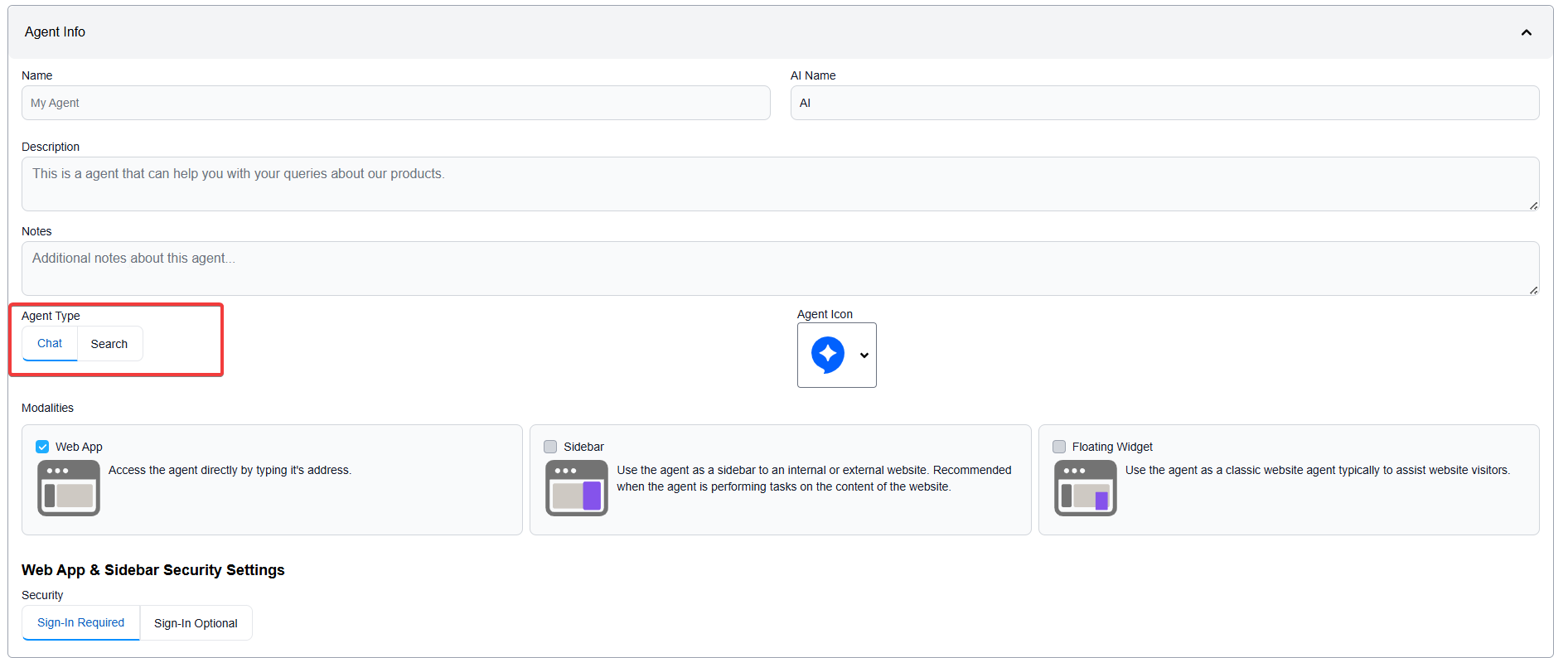 Select between Chat Agent and Search Agent
Chat Agent:
- Interactive conversational agent
- Maintains conversation history
- Best for: Customer support, assistance, Q&A
Search Agent:
- Optimized for information retrieval
- Returns search-style results
- Best for: Knowledge base queries, documentation search
Modalities
When to use
Select the channels where users will interact with your agent. You can enable multiple modalities simultaneously.
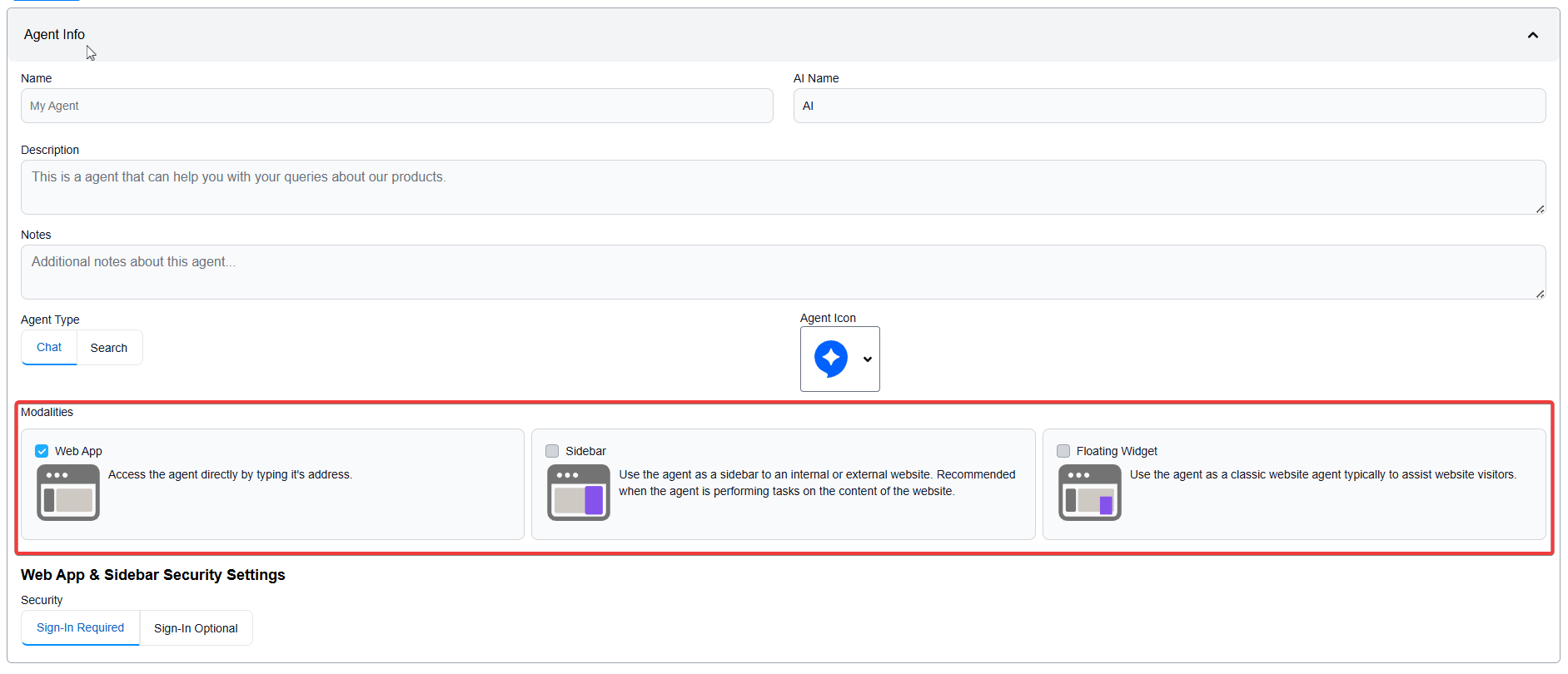 Configure agent modalities - Web App, Sidebar, Floating Widget
Available Modalities:
Web App:
- Standalone web application
- Full-featured chat interface
- Access via direct URL
Sidebar:
- Integrated sidebar for websites
- Appears on the side of web pages
- Best for: Documentation sites, internal portals
Floating Widget:
- Classic website chat widget
- Appears as floating button
- Best for: General website visitor assistance
Security Settings
When to use
- Use Sign-In Required for internal tools, customer portals, or when you need user attribution
- Use Sign-In Optional for public-facing agents where authentication is optional
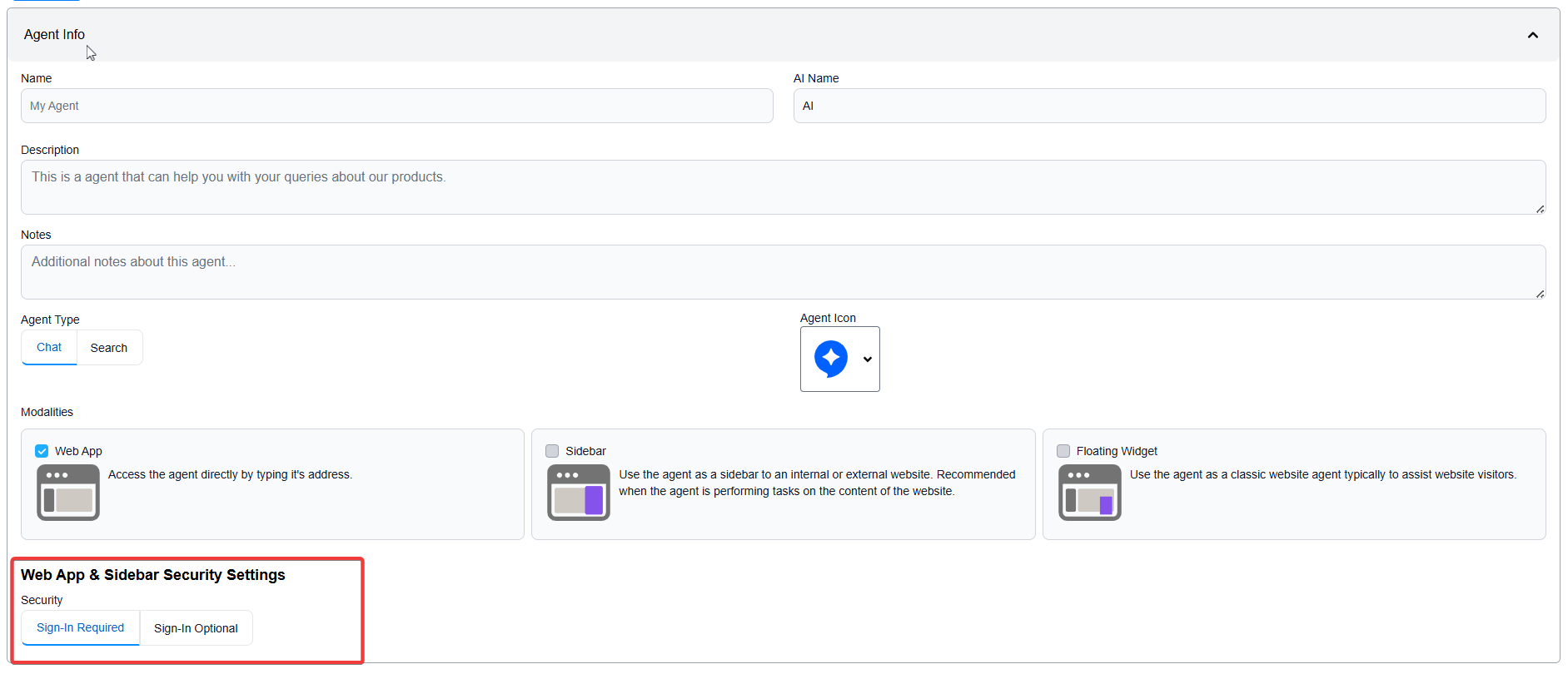 Security configuration for Web App and Sidebar modalities
Sign-In Required:
- Users must authenticate before using the agent
- Provides user attribution and conversation tracking
Sign-In Optional:
- Agent accessible without authentication
- Optional login for enhanced features
2. Instructions
When to use
Instructions are required for every agent. They define your agent's role, behavior, and response style.
Overview
Instructions define the core behavior, role, and operating principles of your AI agent. This is the most critical section that shapes how your agent responds and behaves.
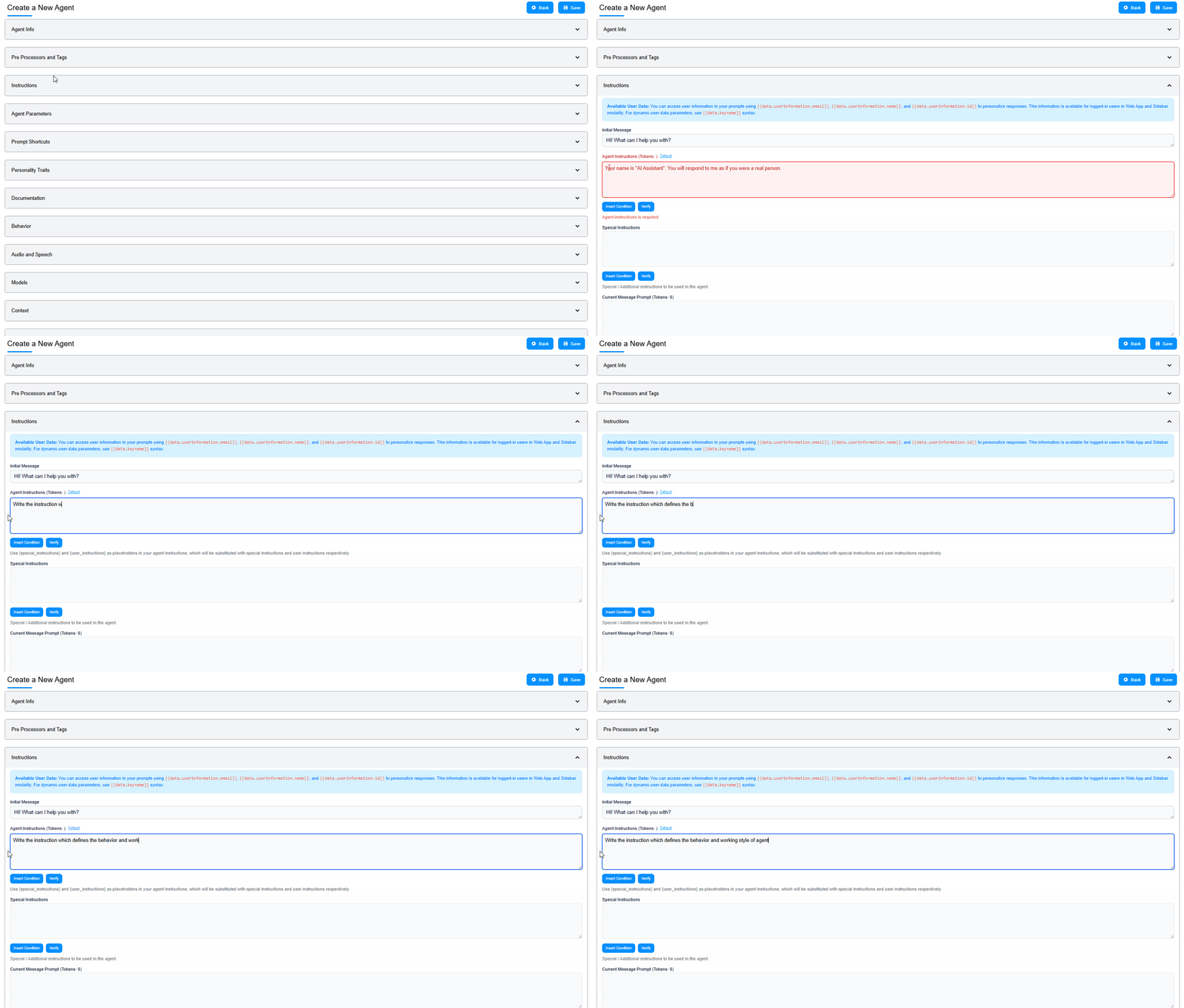 Configuring agent instructions
What to Include
Role Definition:
You are a customer support agent for fifthelement.ai, specializing in
helping users understand our AI platform features.
Responsibilities:
Your responsibilities include:
- Answering questions about platform features
- Helping users troubleshoot configuration issues
- Providing step-by-step guidance for agent setup
- Escalating complex technical issues when necessary
Behavior Guidelines:
Communication Style:
- Professional yet friendly tone
- Concise and action-oriented responses
- Use bullet points for clarity
- Provide examples when explaining concepts
Constraints:
Limitations:
- Do not provide information about pricing (direct to sales team)
- Do not make promises about future features
- Admit when you don't know something rather than guessing
Response Format:
When answering questions:
1. Provide a direct answer first
2. Add context or explanation if needed
3. Offer related resources or next steps
4. Ask if the user needs further clarification
3. Models
When to use
Every agent needs at least one language model configured. Choose based on your use case complexity and performance requirements.
Overview
Select the language models that power your agent's intelligence and reasoning capabilities.
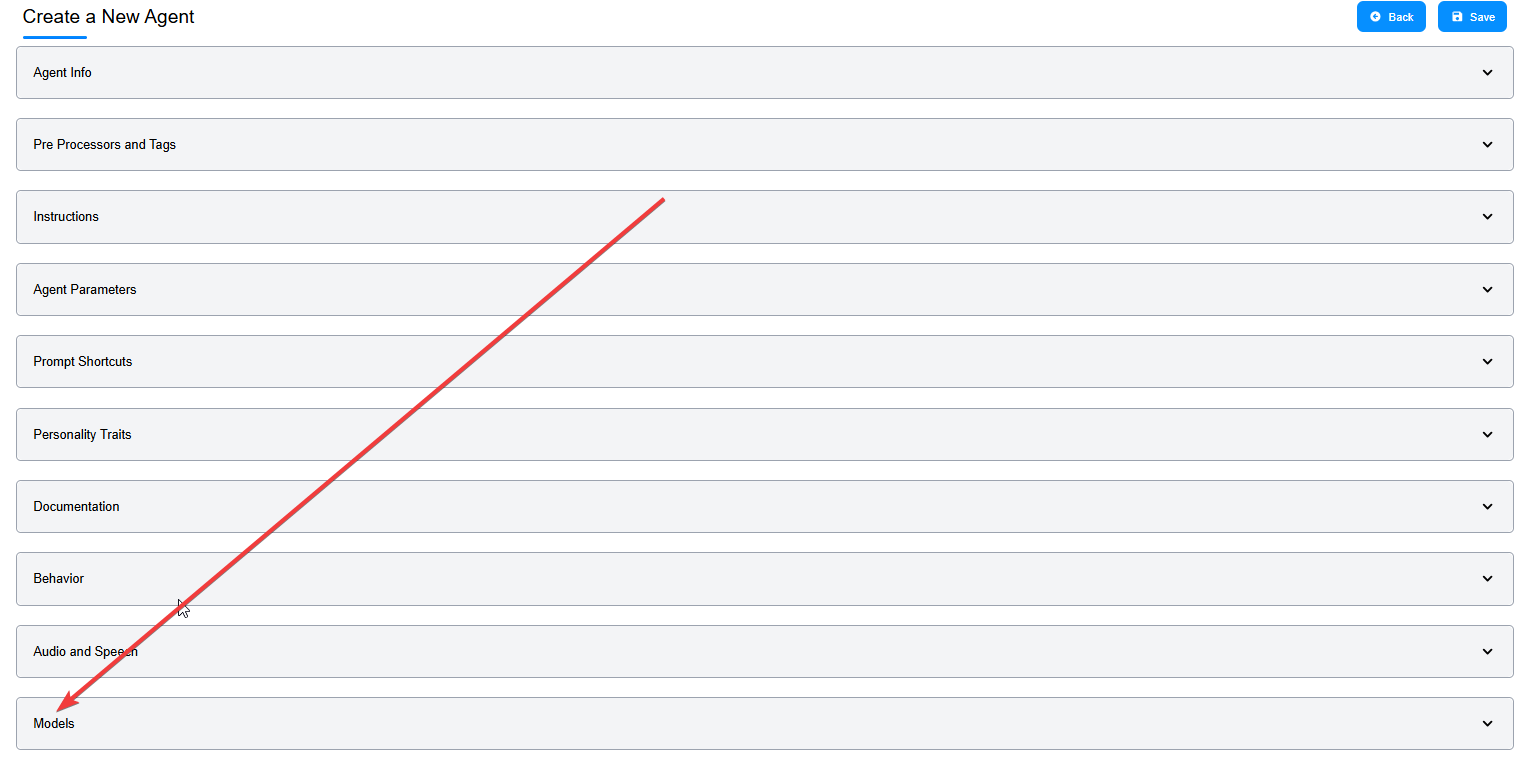 Models configuration section
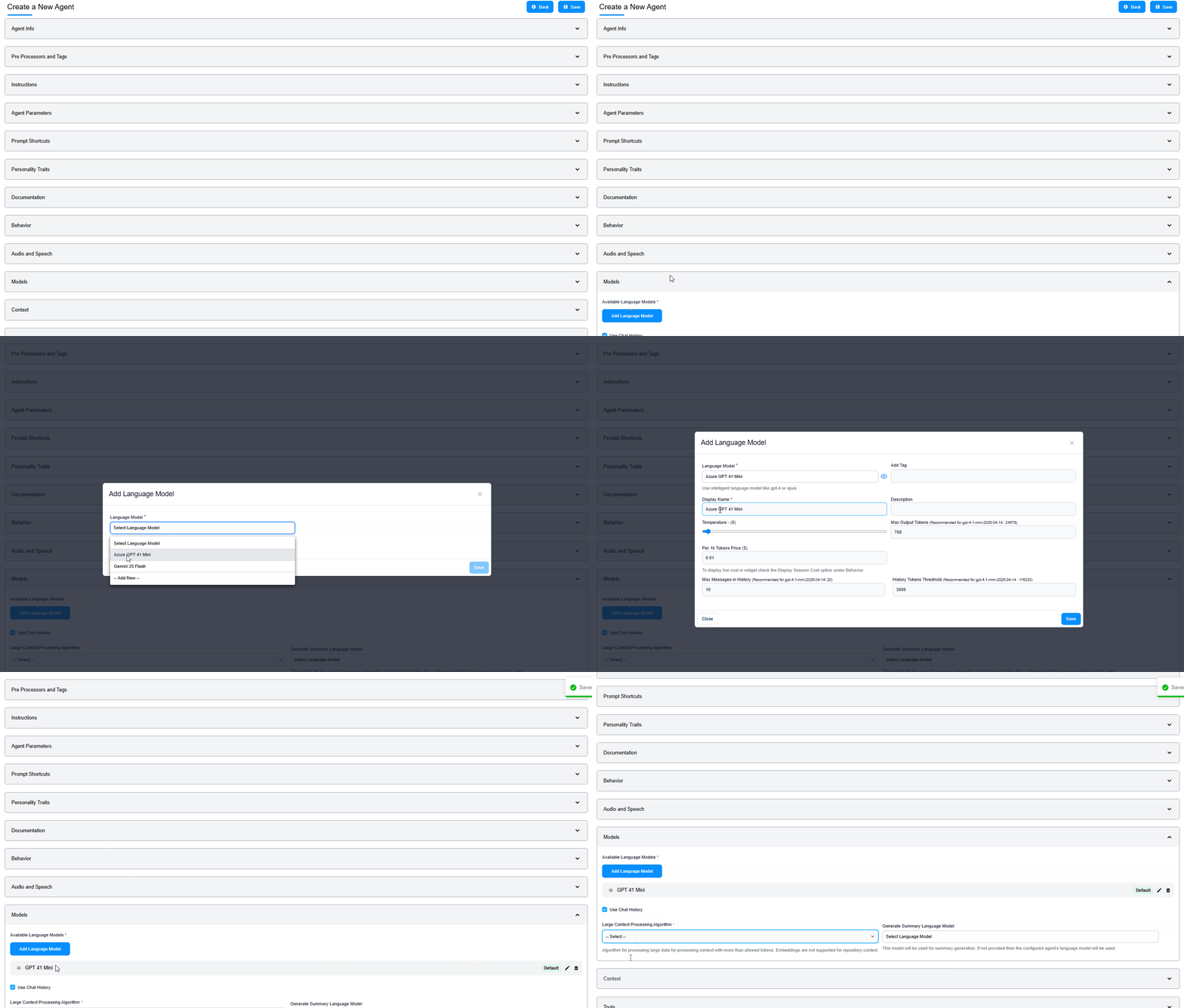 Selecting and configuring language models
Adding Language Models
Steps:
- Click "Add Language Model" button
- Click the "Select Language Model" dropdown
- Choose from available models:
- Azure GPT 4.1 Mini
- Gemini 2.5 Flash
- Claude 3.5 Sonnet
- GPT-4
- Click "Save" to apply
Model Selection Guide
When to use
- Simple FAQ Agent: Use GPT 4.1 Mini (fast, cost-effective)
- Complex Support Agent: Use Claude 3.5 Sonnet (strong reasoning)
- Technical Documentation Agent: Use GPT-4 (high accuracy)
- Conversational Agent: Use Gemini 2.5 Flash (balanced speed/quality)
| Factor | Description |
|---|---|
| Response Quality | More advanced models provide better reasoning and accuracy |
| Speed | Some models respond faster (e.g., Mini, Flash models) |
| Cost | Different models have different pricing per token |
| Use Case | Match model capabilities to your agent's complexity |
4. Context Processing Algorithm
When to use
This setting is required before saving your agent. It controls how your agent handles conversations that exceed the model's context window.
Overview
Required Setting: You must select a Large Context Processing Algorithm before saving the agent.
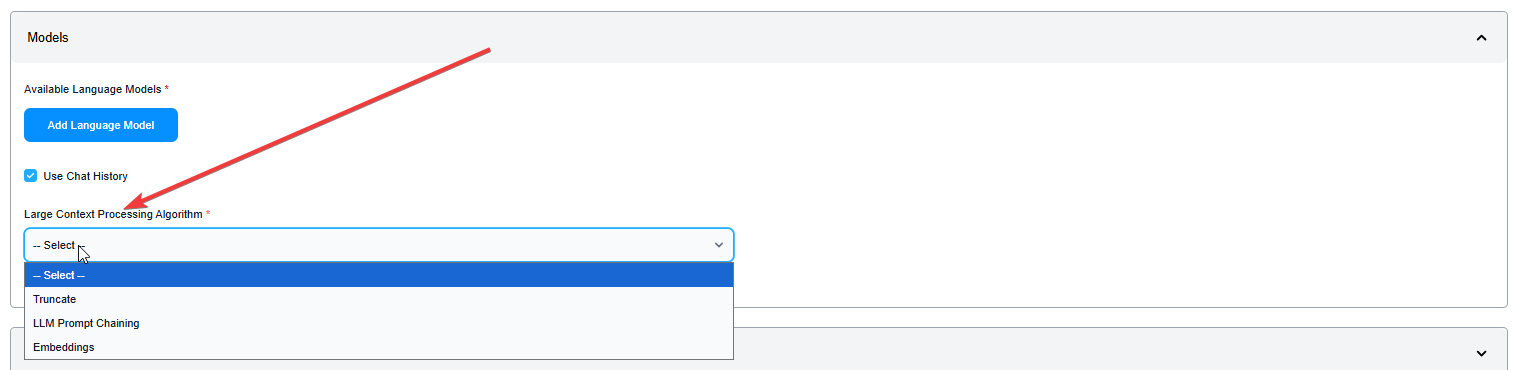 Select the Large Context Processing Algorithm
Available Algorithms
Truncate: - Cuts off context when it exceeds model limits - Fast and simple - When to use: Short conversations, simple queries, FAQ agents
Summarize: - Summarizes older context to fit within limits - Maintains conversation continuity - When to use: Long conversations with historical context, customer support
LLM Prompt Chaining: - Breaks down large contexts across multiple prompts - Handles very large contexts - When to use: Complex, multi-step tasks requiring extensive context
Embeddings: - Uses vector embeddings for context management - Efficient retrieval of relevant context - When to use: Knowledge-intensive agents with RAG capabilities
5. Save Your Agent
 Click Save to finalize your agent configuration
Action: Click "Save" button at the bottom of the page
What this does: - Saves all configurations - Makes the agent available for use - Deploys to selected modalities (Web App, Sidebar, Widget)
Testing Your Agent
After saving, test your agent:
- Navigate to the Web App URL (found in agent settings)
- Send a few test queries
- Verify responses match your instructions
- Check that the agent behaves as expected
Next Steps
Your agent is now functional! Consider these enhancements:
- Add Knowledge Base: Connect documents or knowledge repositories (Context Configuration)
- Enable Tools: Add capabilities like RAG retrieval or API integrations (Tools Configuration)
- Customize Appearance: Brand your agent's look and feel (Look & Feel)
- Add Shortcuts: Create quick actions for common tasks (Prompt Shortcuts)
- Configure Voice: Enable voice interactions (Audio and Speech)
For all advanced configurations, see Agent Builder - Advanced Configuration.
Related Topics
- Agent Builder - Advanced Configuration - Advanced features and power user settings
- Agent Reports - Monitor agent performance and analytics
- Agent's Look & Feel - Customize branding and appearance
- Cloning an Agent - Duplicate and modify existing agents
- Version Control - Manage agent versions and rollback