Agent Builder - Advanced Configuration
Advanced features and power-user settings for fine-tuning your AI agent.
Overview
This guide covers advanced configurations for power users who want to enhance their agent with:
- Dynamic behavior based on user context
- Custom personality traits
- Voice processing capabilities
- External tool integrations
- Advanced analytics and quality monitoring
For basic agent setup, see Agent Builder - Basic Configuration.
Advanced Configuration Sections
- Pre Processors and Tags - Dynamic tagging and pre-processing
- Agent Parameters - Dynamic variables for instructions
- Prompt Shortcuts - Quick actions for users
- Personality Traits - Agent personality configuration
- Documentation - User-facing agent documentation
- Behavior - Advanced behavior settings
- Audio and Speech - Voice processing configuration
- Context - Advanced context management
- Tools - External integrations and capabilities
- Post Processors - Response analysis and evaluation
1. Pre Processors and Tags
When to use
Use pre processors when you need dynamic agent behavior based on user authentication, location, subscription status, or any runtime context. Essential for personalized agent experiences.
Overview
Pre Processors execute JavaScript code before the user query is sent to the LLM. They can dynamically set tags based on user context, authentication status, session data, or any custom logic.
 Pre Processors and Tags configuration
How Pre Processors Work
Workflow: 1. User sends a message 2. Pre Processor executes (JavaScript snippet) 3. Pre Processor returns tags based on logic 4. Tags determine agent behavior, shortcuts visibility, tool availability 5. Query is sent to LLM with tag context
Adding Pre Processors
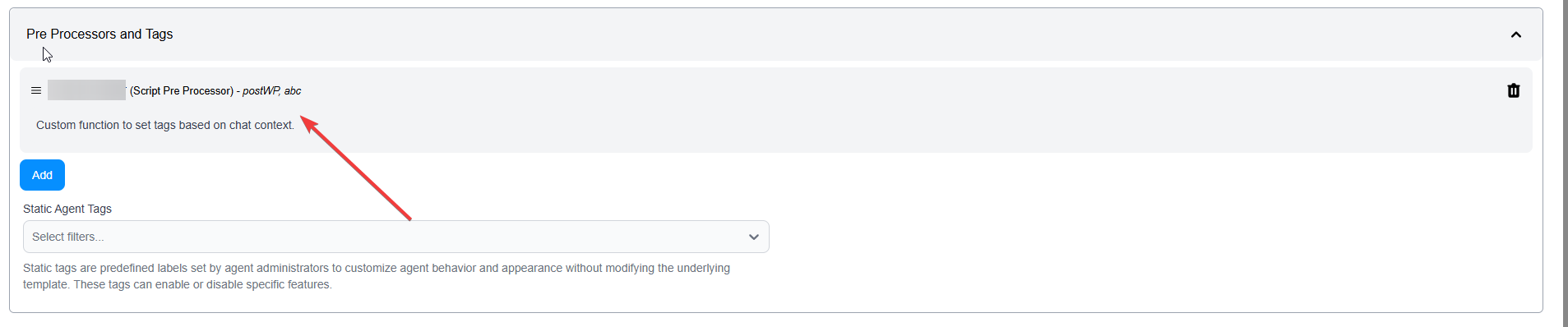 Pre Processor added to agent with tag configuration
Steps:
- Configure Pre Processor in Settings (see Settings > Processors)
- Click "Add" button in Pre Processors section
- Select configured pre processor from list
- Configure tags returned by the pre processor
Use Case Example: Authentication-Based Behavior
Use Case
Show different shortcuts and features based on whether the user is logged in or anonymous.
Pre Processor Logic:
// preprocessor example
const subscriberid = ld.get(data, 'user_data.subscriberid', null);
if (subscriberid !== "") {
  ctx.addTag('authenticated');
} else {
  ctx.addTag('unauthenticated');
}
Tag Configuration:
- Tag:
authenticated→ Shows "View My Account", "Order History" shortcuts - Tag:
unauthenticated→ Shows "Sign Up", "Learn More" shortcuts
Benefits:
- Dynamic agent behavior based on user state
- Personalized experience
- Controlled feature access
2. Agent Parameters
When to use
Use agent parameters when you need reusable templates or want to easily update values (like company name, support hours, contact info) without modifying core instructions.
Overview
Agent Parameters are dynamic variables that can be used within agent instructions using {botParams.<key>} syntax.
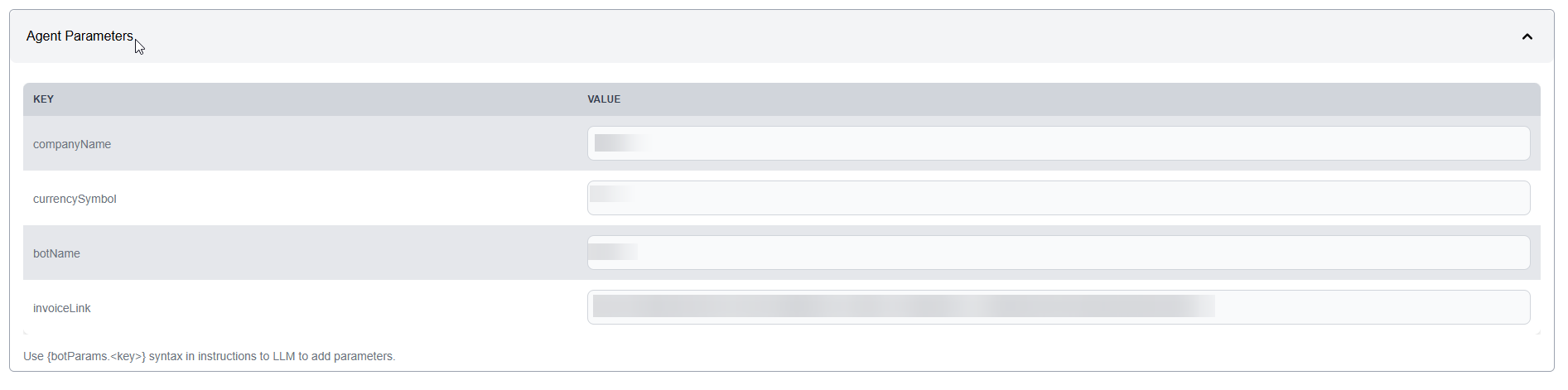 Agent Parameters configuration
How to Use
Step 1: Define Parameters
Add key-value pairs in the Agent Parameters section:
company_name: fifthelement.ai
product_name: AI Agent Platform
support_hours: 9 AM - 6 PM EST
support_email: support@fifthelement.ai
documentation_url: https://docs.fifthelement.ai
Step 2: Reference in Instructions
Use parameters in your instructions:
You are a support agent for {botParams.company_name}.
Our product, {botParams.product_name}, is an enterprise AI platform.

If users need help:
- Support hours: {botParams.support_hours}
- Email: {botParams.support_email}
- Documentation: {botParams.documentation_url}
Benefits: - Easy updates without touching instructions - Reusable agent templates - Multi-environment configuration (dev, staging, prod)
3. Prompt Shortcuts
When to use
Use shortcuts for common tasks, frequently asked questions, or guided workflows. They improve user experience by reducing typing and providing clear action paths.
Overview
Prompt Shortcuts are pre-defined quick actions that users can trigger with a single click.
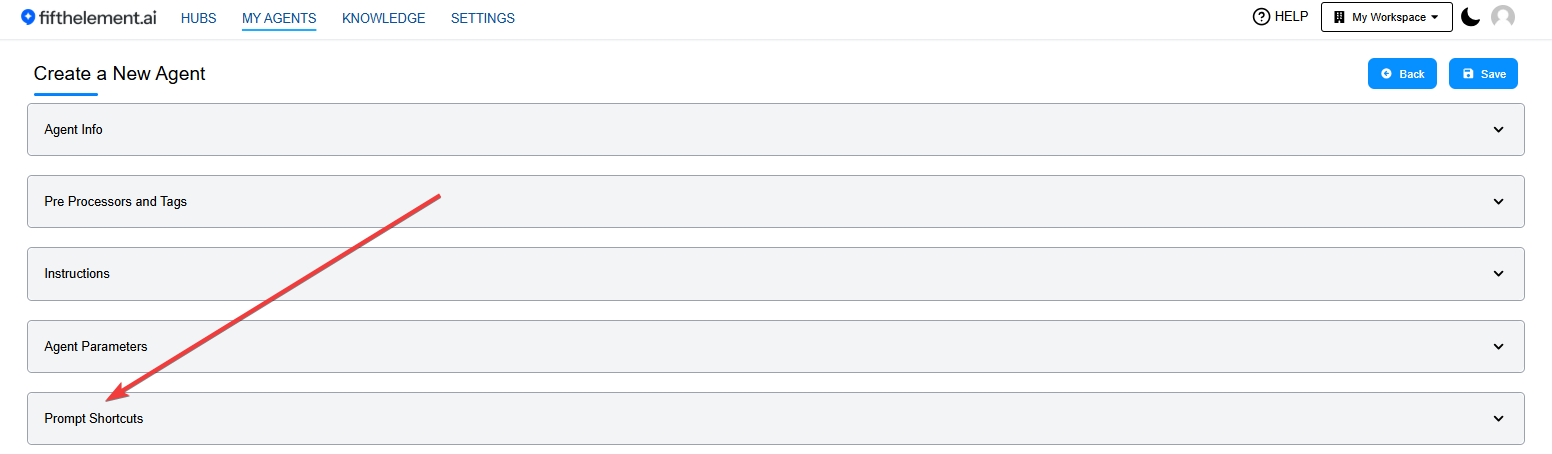 Prompt Shortcuts configuration section
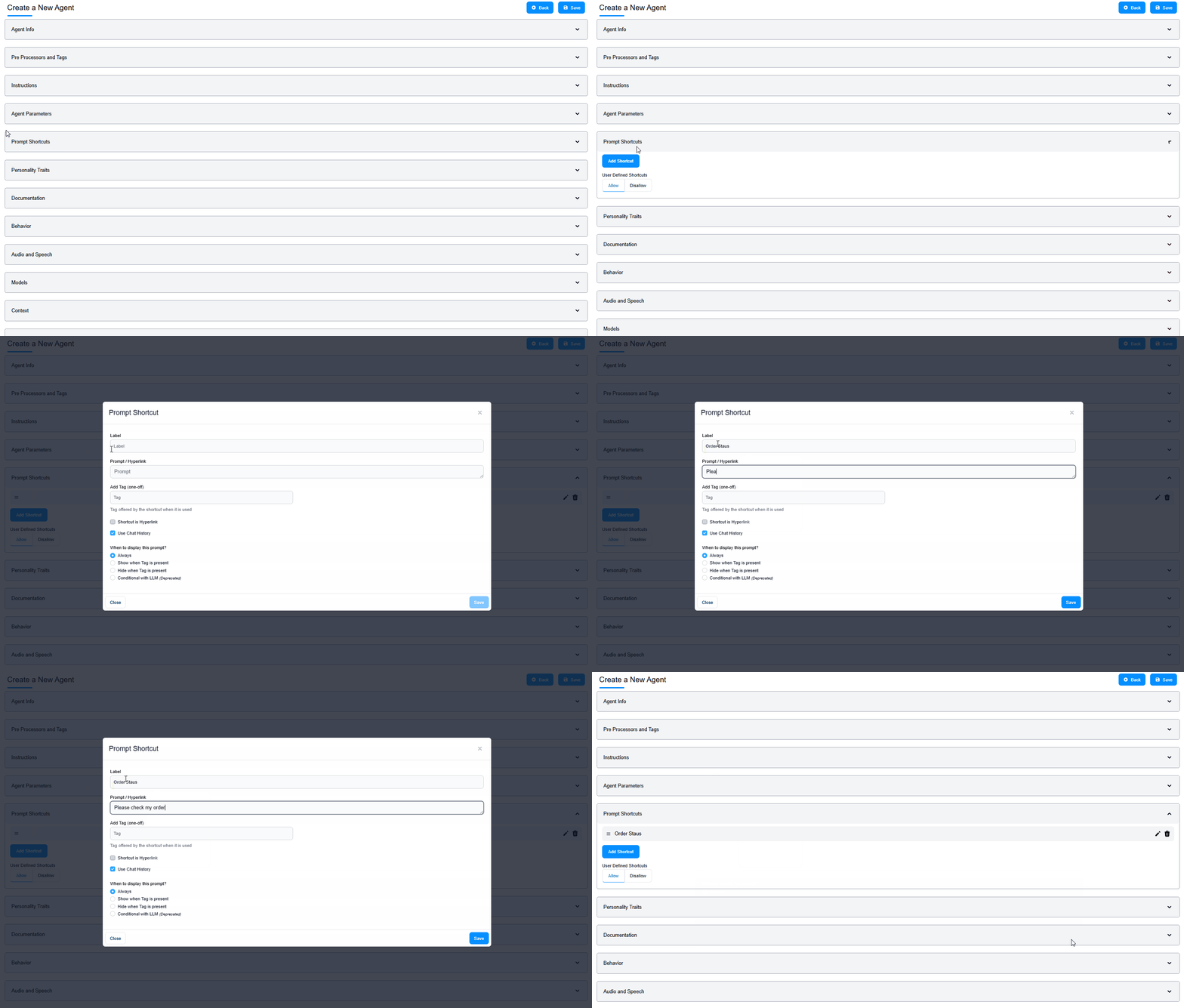 Adding a prompt shortcut
Shortcut Configuration
Fields:
Label (Required): - Text displayed to users - Action-oriented and clear - Example: "Check Order Status", "Get Product Info", "Troubleshoot Login"
Prompt (Required): - Instruction sent to agent when clicked - Can include variables: {order_number}, {user_email} - Example: "Provide the current status of order {order_number} including shipping details"
Options:
- Shortcut is Required: Make this a mandatory first interaction
- Use Chat History: Include previous conversation context
- Display Mode: Choose visibility behavior
Tag-Based Shortcut Visibility
Use Case
Show different shortcuts based on user authentication status, subscription tier, or any custom tag from pre processors.
Shortcuts can be scoped to specific tags:
Example:
Shortcut 1: "View My Account" → Tag: authenticated Shortcut 2: "Sign Up for Free" → Tag: unauthenticated
Result: - Authenticated users see "View My Account" - Unauthenticated users see "Sign Up for Free"
4. Personality Traits
When to use
Use personality traits when you want to fine-tune your agent's conversational style beyond basic instructions. Ideal for brand-aligned communication or specific audience personas.
Overview
Personality Traits allow you to fine-tune your agent's conversational style and tone. Select up to 5 traits from various personality dimensions.
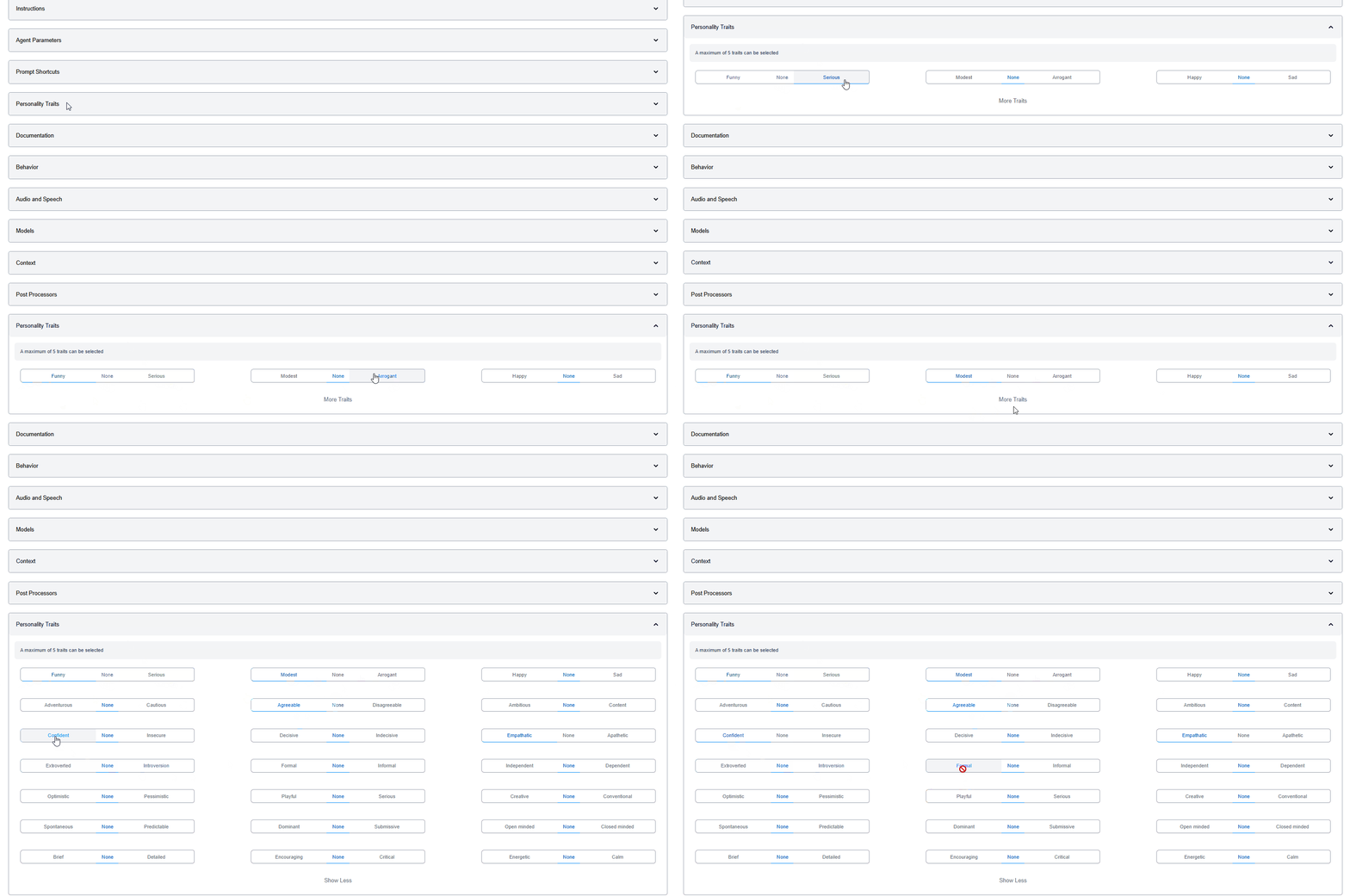 Personality Traits configuration with multiple trait dimensions
Available Traits
Each dimension has three options: Left Extreme, None (Neutral), Right Extreme
| Dimension | Left | None | Right |
|---|---|---|---|
| Humor | Funny | None | Serious |
| Confidence | Modest | None | Arrogant |
| Emotion | Happy | None | Sad |
| Risk-Taking | Adventurous | None | Cautious |
| Cooperation | Agreeable | None | Disagreeable |
| Ambition | Ambitious | None | Content |
| Assertiveness | Confident | None | Insecure |
| Certainty | Decisive | None | Indecisive |
| Empathy | Empathetic | None | Apathetic |
| Sociability | Extroverted | None | Introversion |
| Formality | Formal | None | Informal |
| Independence | Independent | None | Dependent |
| Optimism | Optimistic | None | Pessimistic |
| Playfulness | Playful | None | Serious |
| Creativity | Creative | None | Conventional |
| Spontaneity | Spontaneous | None | Predictable |
| Dominance | Dominant | None | Submissive |
| Open-Mindedness | Open minded | None | Closed minded |
| Detail Orientation | Brief | None | Detailed |
| Encouragement | Encouraging | None | Critical |
| Energy Level | Energetic | None | Calm |
Example Configurations
Use Cases
Customer Support Agent: - Empathetic, Formal, Detailed, Encouraging, Calm
Marketing Content Agent: - Creative, Energetic, Optimistic, Playful, Confident
Technical Documentation Agent: - Detailed, Formal, Decisive, Independent, Predictable
Maximum 5 traits can be selected to avoid conflicting personalities.
5. Documentation
When to use
Add user-facing documentation when deploying agents in Web App or Sidebar modalities. Helps users understand agent capabilities and how to get the best results.
Overview
The Documentation section allows you to create user-facing information about your agent. This content is displayed when users open the agent in Web App modality via the "How to use this agent - Quick Guide" button.
 Documentation configuration with rich text editor
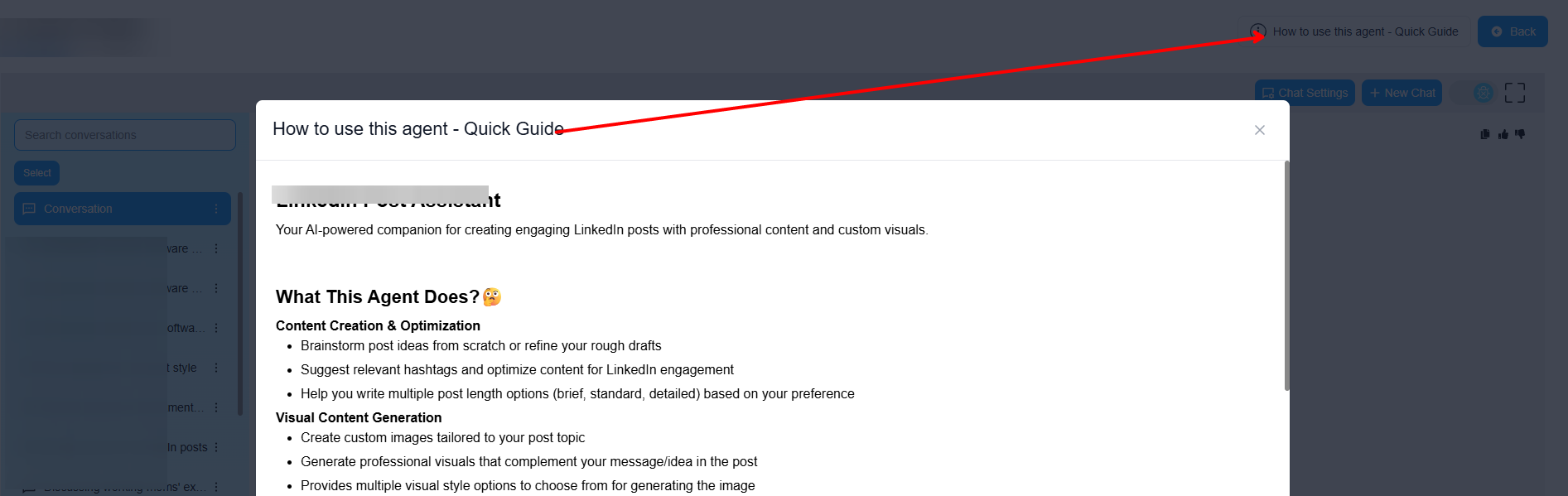 Documentation shown to users in Web App modality
What to Include
User Documentation Label: - Title displayed above the documentation - Example: "Quick Start Guide", "Agent Capabilities", "How to Use"
User Documentation (Rich Text):
Recommended Content:
1. Agent Purpose:
This agent helps you find information about our products,
troubleshoot common issues, and connect with support.
2. What It Can Do:
✓ Answer product questions
✓ Provide troubleshooting steps
✓ Search documentation
✓ Escalate to human agents
3. How It Works:
1. Ask your question in natural language
2. The agent will search our knowledge base
3. Receive instant answers with source links
4. Use shortcuts for common tasks
4. Best Practices:
• Be specific in your questions
• Use shortcuts for faster results
• Provide error messages when troubleshooting
• Rate responses to help improve the agent
5. Limitations:
This agent cannot:
- Process refunds (contact support@company.com)
- Modify account settings directly
- Provide pricing quotes (contact sales)
6. Behavior
When to use
Configure behavior settings to fine-tune user experience features like debugging, cost display, feedback collection, conversation encryption, and analytics integration.
Overview
The Behavior section contains advanced settings that control how your agent interacts with users, handles data, and integrates with external systems.
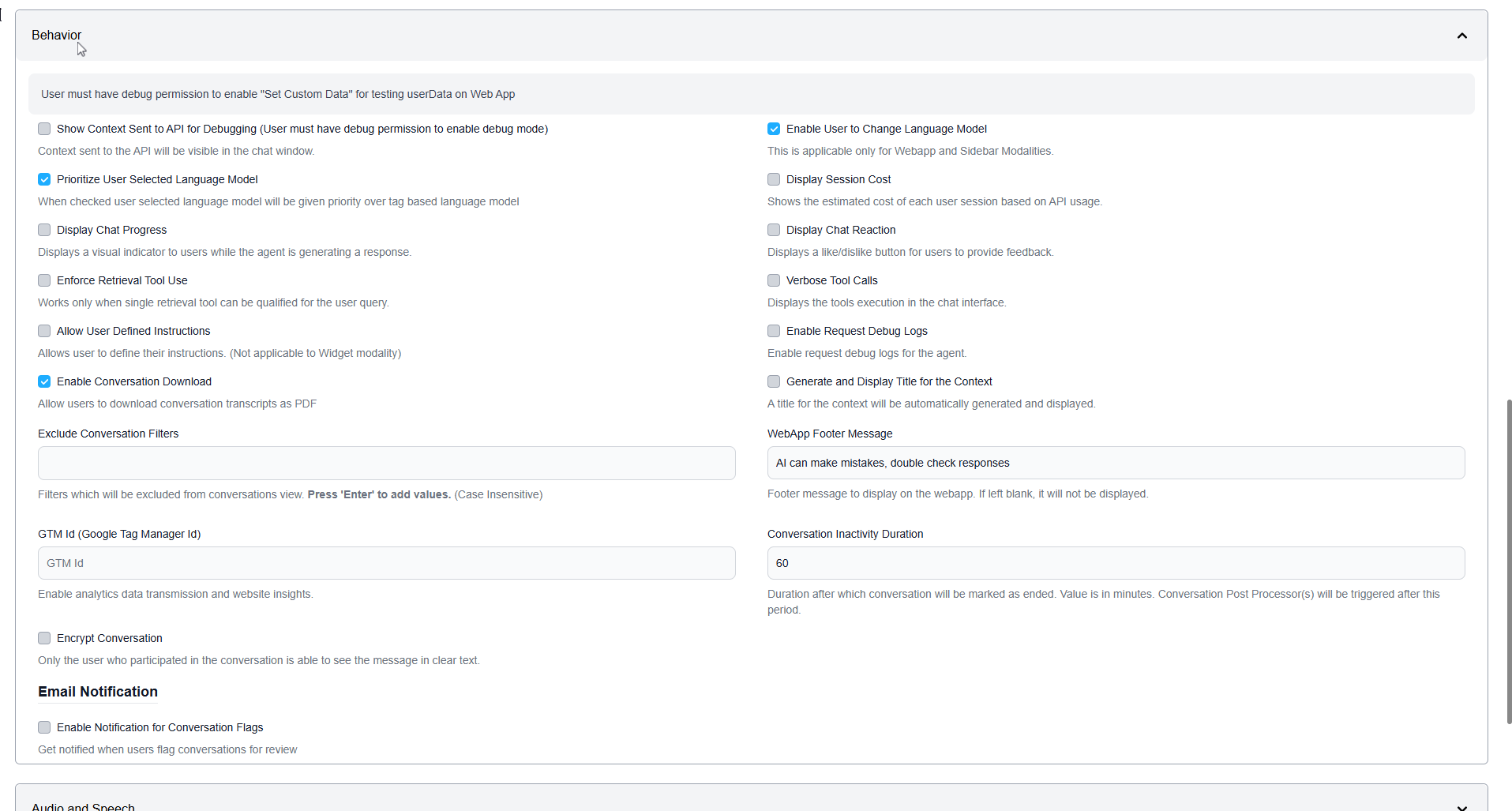 Behavior configuration with various toggles and settings
Key Behavior Settings
Debug and Testing
Show Context Sent to API for Debugging:
When to use
Enable during development to troubleshoot agent responses and verify context handling. Requires user to have debug permission.
- Displays context sent to the API in the chat window
- Use Case: Troubleshooting agent responses
Language Model Control
Prioritize User Selected Language Model:
When to use
Enable when you want to allow users to override tag-based or default model selection.
- User-selected model takes priority over tag-based selection
- Use Case: Give users control over AI model
Enable User to Change Language Model:
- Applicable only for Web App and Sidebar modalities
- Use Case: Power users who understand model trade-offs
User Experience Features
Display Chat Progress:
When to use
Always recommended for better user experience. Shows visual indicator while agent generates responses.
- Displays progress indicator during response generation
- Use Case: Improve perceived responsiveness
Display Session Cost:
- Shows estimated cost of each user session
- Use Case: Cost transparency, usage monitoring
Display Chat Reaction:
When to use
Enable for all customer-facing agents to collect feedback and improve quality over time.
- Like/dislike buttons for user feedback
- Use Case: Collect feedback, improve agent quality
Advanced Features
Enforce Retrieval Tool Use:
When to use
Enable when you want to guarantee knowledge base consultation for specific query types.
- Works when single retrieval tool can be qualified
- Use Case: Ensure knowledge base is consulted
Allow User Defined Instructions:
- Allows users to customize agent behavior per session
- Not applicable to Widget modality
- Use Case: Power users, research scenarios
Enable Conversation Download:
When to use
Enable for compliance, record-keeping, or when users need conversation transcripts.
- Users can download conversation as PDF
- Use Case: Record-keeping, compliance
Tool Configuration
Verbose Tool Calls:
- Displays tool execution in chat interface
- Use Case: Debugging, transparency
Enable Request Debug Logs:
- Enable request debug logs for the agent
- Use Case: Advanced troubleshooting
Context Display
Generate and Display Title for the Context:
When to use
Enable for better conversation organization in multi-conversation scenarios.
- Auto-generates and displays conversation titles
- Use Case: Conversation organization
Security
Encrypt Conversation:
When to use
Enable for sensitive data protection. Only conversation participants can see messages in clear text.
- End-to-end conversation encryption
- Use Case: Sensitive data protection, compliance
Analytics Integration
GTM Id (Google Tag Manager Id):
When to use
Configure when you need agent usage tracking, user behavior analytics, or website insights.
- Enable analytics data transmission
- Use Case: Track usage, behavior analytics
Conversation Management
Conversation Inactivity Duration:
- Duration (in minutes) before conversation is marked as ended
- Default: 60 minutes
- Use Case: Session management, trigger post-processors
WebApp Footer Message:
- Footer message displayed on the web app
- Example: "AI can make mistakes, double check responses"
- Use Case: Disclaimers, legal notices
7. Audio and Speech
When to use
Configure voice processing when deploying agents for telephone support (SIP) or web-based voice interactions (WebSocket). Essential for call center automation and voice-enabled customer support.
Overview
Configure real-time voice processing capabilities for your agent, enabling voice interactions via SIP (telephony) or WebSocket (web-based).
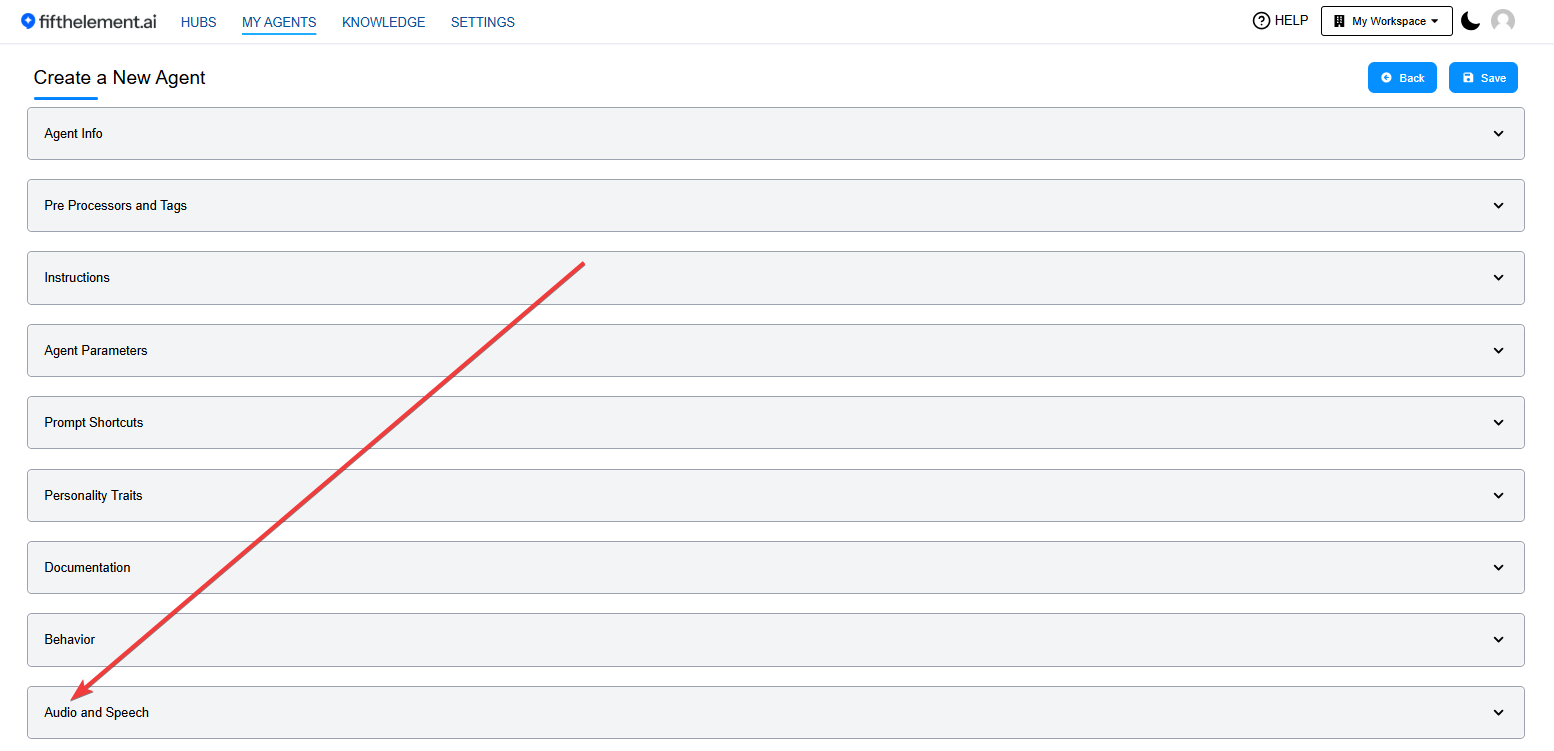 Audio and Speech configuration section
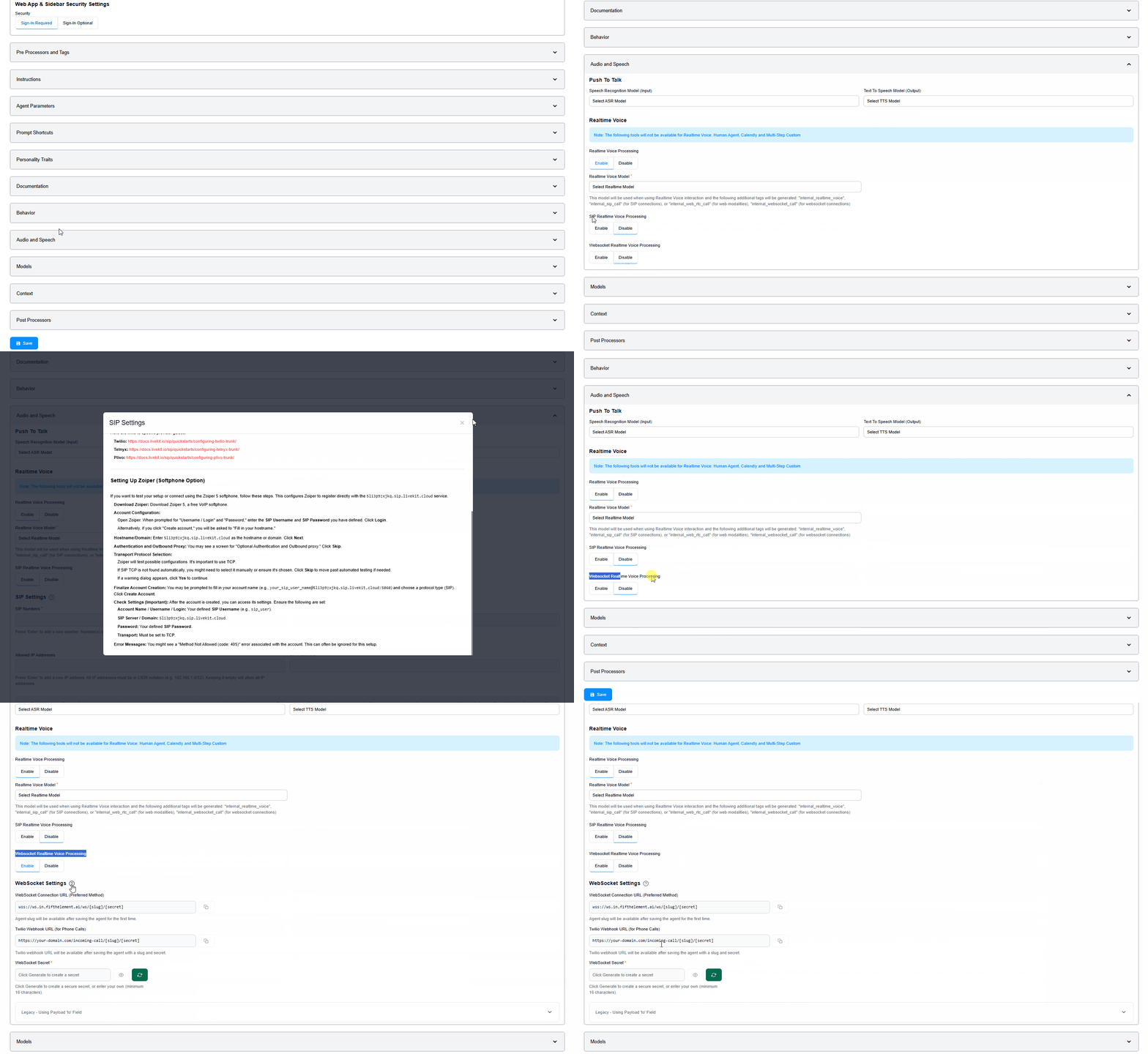 Configuring audio and speech settings
Realtime Voice Processing
Enable Realtime Voice Processing:
Once enabled, you can configure:
SIP Realtime Voice Processing:
When to use
Use for telephone/SIP integration, inbound/outbound call handling, and voice-based customer support.
- For telephone/SIP integration
- Inbound/outbound call handling
Websocket Realtime Voice Processing:
When to use
Use for browser-based voice chat, web applications requiring real-time voice responses.
- For web-based voice interactions
- Browser-based voice chat
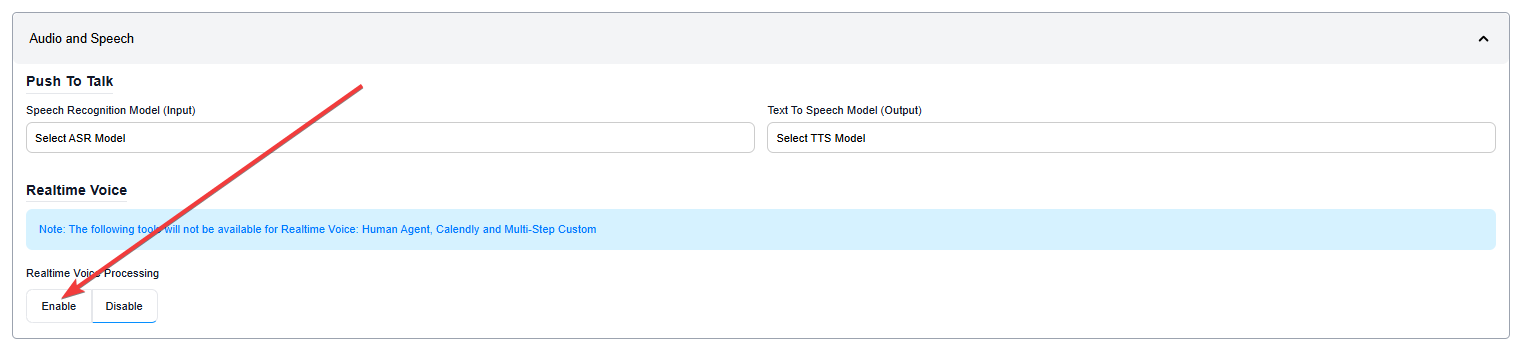 Enable SIP or Websocket realtime voice processing
Configuration Details
Refer to on-screen documentation for detailed configuration of: - Audio codecs - Voice models (ASR/TTS) - Latency settings - Call routing - Interruption handling
8. Context
When to use
Add context when your agent needs to reference specific information: documents, knowledge bases, product data, or company policies. Essential for RAG (Retrieval-Augmented Generation) use cases.
Overview
The Context section allows you to add information that your agent can reference when generating responses. Context can be provided as text, documents, or knowledge repositories.
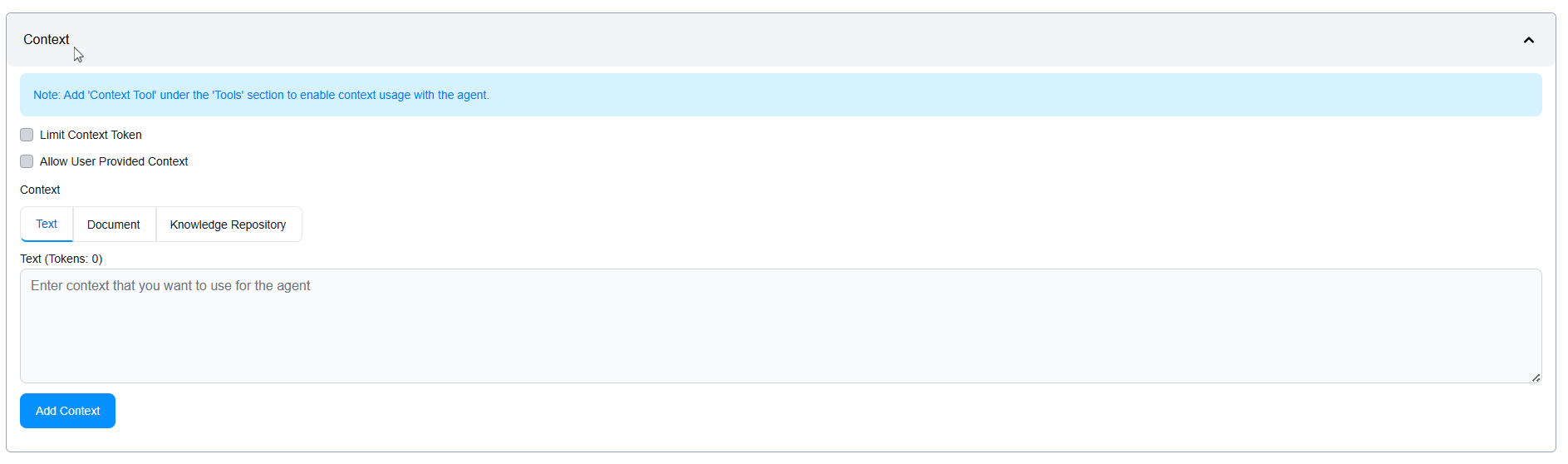 Context configuration with Text, Document, and Knowledge Repository tabs
Context Types
Text:
When to use
Use for quick facts, guidelines, policies, or small amounts of structured data that don't change frequently.
- Direct text input
- Token count displayed
- Example: Product specifications, company policies
Document:
When to use
Use for user manuals, technical documentation, or any existing documents your agent should reference.
- Upload documents (PDF, DOCX, TXT, etc.)
- Processed and embedded for retrieval
- Example: User manuals, technical documentation
Knowledge Repository:
When to use
Use for large-scale knowledge bases, full documentation sites, FAQs, or extensive support articles.
- Connect to pre-configured knowledge bases
- Vector search enabled
- Example: Full documentation sites, FAQs, support articles
Context Options
Limit Context Token:
- Restrict context size to prevent exceeding model limits
- Recommended for cost control
Allow User Provided Context:
When to use
Enable when users need to upload their own documents for analysis or personalized assistance.
- Let users upload documents per session
- Use Case: Custom document analysis
Important: Add 'Context Tool' under the 'Tools' section to enable context usage.
9. Tools
When to use
Add tools to extend your agent's capabilities beyond conversation: retrieving knowledge, calling APIs, escalating to humans, or executing custom logic.
Overview
Tools extend your agent's capabilities beyond conversation, enabling it to retrieve data, perform actions, and integrate with external systems.
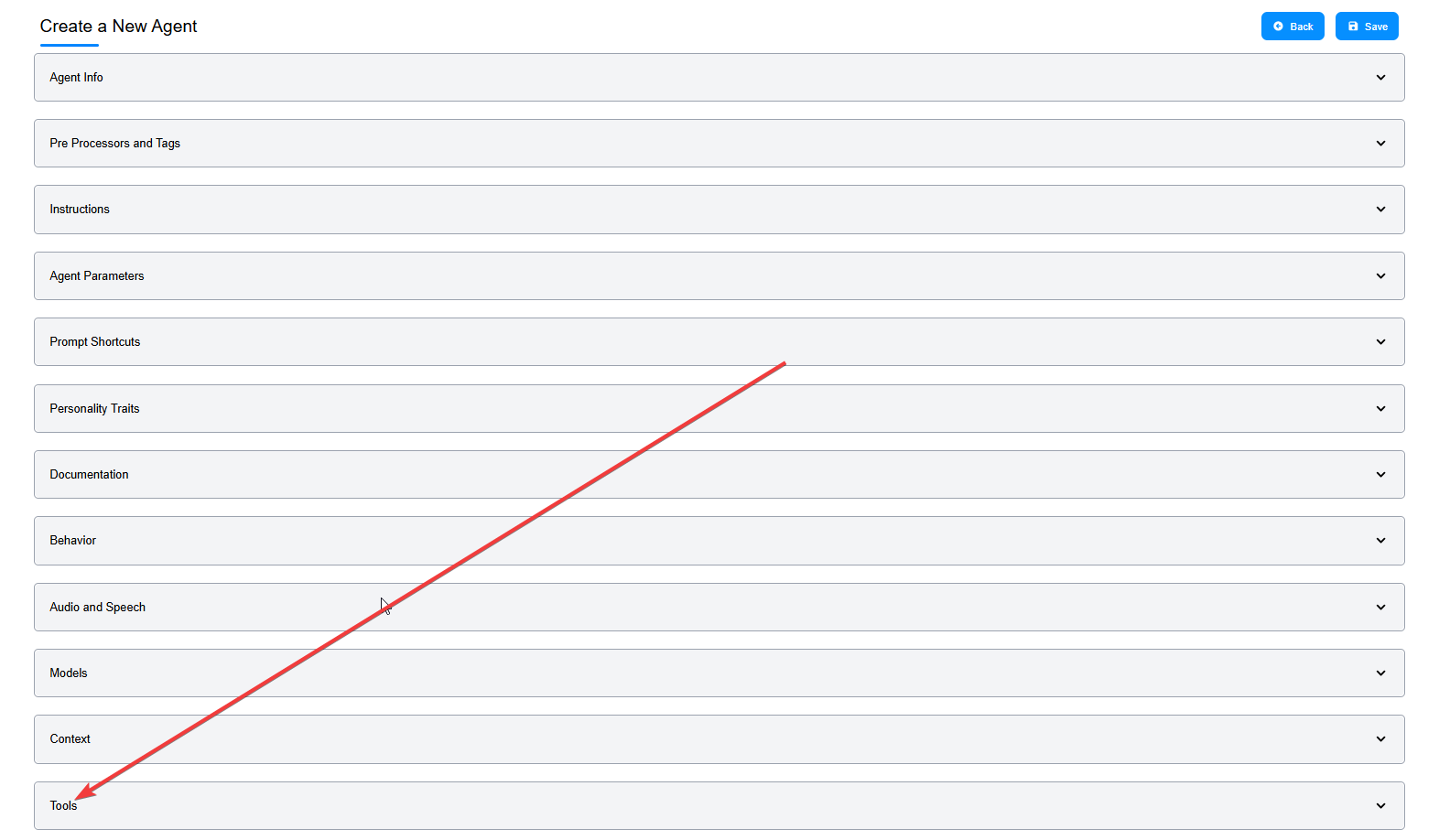 Tools configuration section
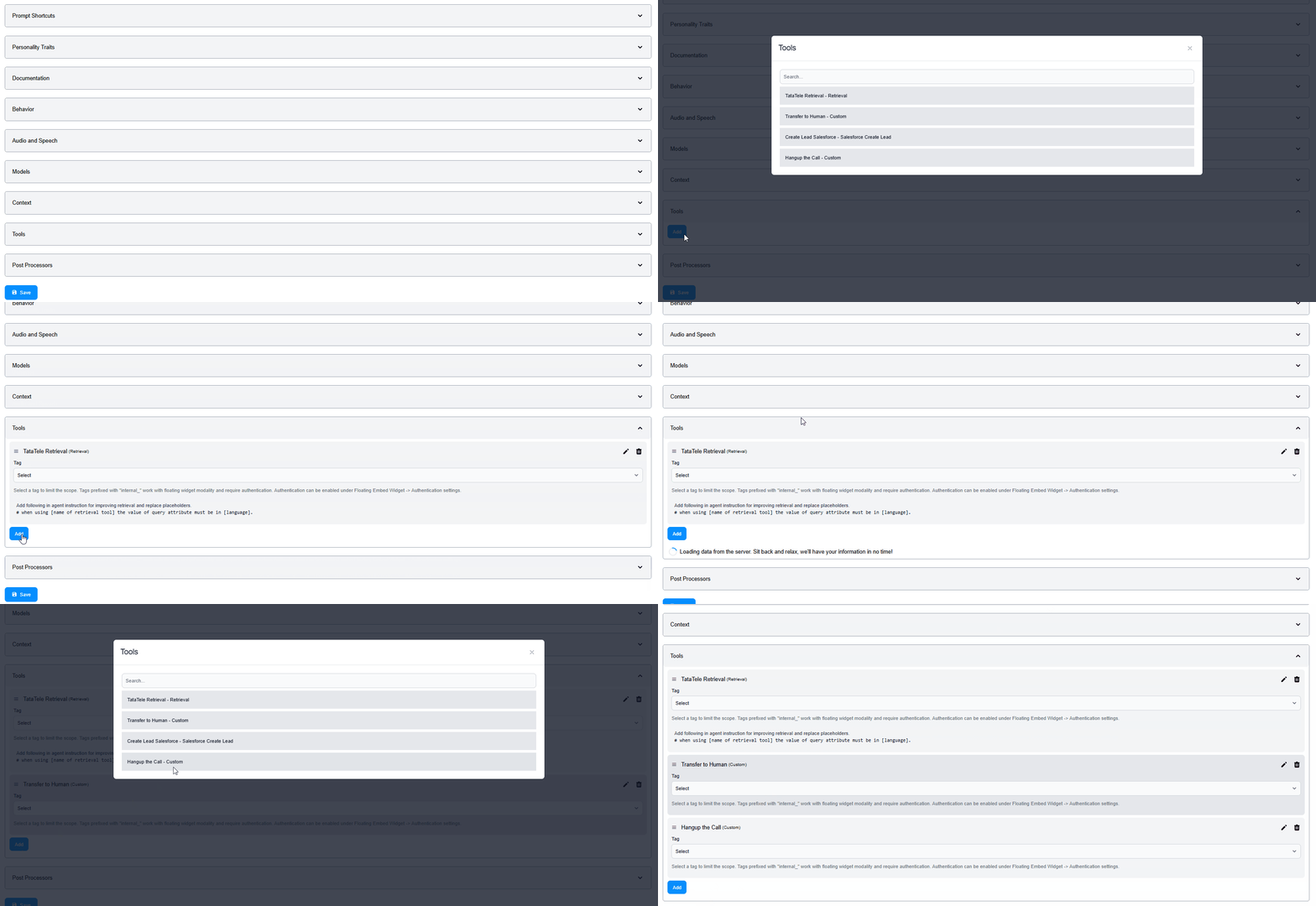 Adding tools to the agent
Adding Tools
Steps:
- Click "Add" button in Tools section
- Select a tool from available options:
- Knowledge Retrieval - RAG: Access knowledge bases
- Transfer to Human: Escalate to human agents
- API Integration: Call external APIs
- Context Tool: Use context from Context section
- Custom Tools: JavaScript-based custom tools
- Configure tool settings:
- Scope Limiting: Set tags to control when tool is used
- Instructions: Add guidance for tool usage
- Parameters: Configure tool-specific settings
Tool Configuration Options
Scope Limiting (Tag-Based):
When to use
Use tag-based scope limiting to control tool availability based on user authentication, subscription tier, or any custom condition.
- Control tool availability based on tags
- Example: "Transfer to Human" only for tag
needs_escalation
Tool Instructions:
- Provide specific guidance on how/when to use the tool
- Example: "Use this tool when user asks for order status"
10. Post Processors
When to use
Use post processors for quality assurance, compliance checking, sentiment analysis, conversation summarization, or post-conversation analytics.
Overview
Post Processors analyze agent responses by sending them to an LLM for evaluation, quality checks, or additional processing.
 Post Processors configuration
Types of Post Processors
Turn Post Processor:
When to use
Use for real-time quality monitoring, sentiment analysis per response, compliance checking, or immediate flagging of issues.
- Executes after each user-agent exchange
- Analyzes individual responses in real-time
Use Cases: - Sentiment analysis per response - Compliance checking - Quality scoring - Real-time flagging
Conversation Post Processor:
When to use
Use for overall conversation summaries, CSAT prediction, conversation categorization, or generating post-conversation follow-up tasks.
- Executes after the entire conversation ends
- Triggered when conversation expires (after Conversation Inactivity Duration)
Use Cases: - Overall conversation summary - CSAT prediction - Conversation categorization - Post-conversation analytics
Configuration
Steps:
- Configure Post Processors in Settings (see Settings > Processors)
- In Agent Builder, navigate to Post Processors section
- Click "Add" to select configured post processors
- Choose processor type:
- Turn Post Processor
- Conversation Post Processor
- Save configuration
Summary
You've now configured advanced features for your AI agent:
- ✅ Dynamic behavior with Pre Processors
- ✅ Reusable parameters
- ✅ User-friendly shortcuts
- ✅ Custom personality
- ✅ User documentation
- ✅ Advanced behavior settings
- ✅ Voice capabilities
- ✅ Knowledge context
- ✅ External tool integrations
- ✅ Quality monitoring
Don't forget to click "Save" to apply all configurations!
Related Topics
- Agent Builder - Basic Configuration - Essential setup steps
- Agent Reports - Monitor agent performance and analytics
- Agent's Look & Feel - Customize branding and appearance
- Cloning an Agent - Duplicate and modify existing agents
- Version Control - Manage agent versions and rollback
- Knowledge Overview - Configure knowledge bases for RAG
- Settings > AI Models - Manage available language models
- Settings > Processors - Configure pre/post processors